About the PMP sub-app
The Project Management Plan, or PMP, guides project execution and control. It is the compilation of the results of all the other planning processes into one complete document. The plan identifies project objectives, risks, opportunities, strategies, and the team’s ability to meet the project’s goals and objectives during the project lifecycle.
The PMP sub-app is used to gather the necessary information and create a formal PMP that can be printed as a PDF document. There are three PMP types available: PMP (detailed version), condensed, and CapPMP (modern version).
| PMP type | Applicable project types |
|---|
| PMP (full version) | Any project that is being submitted through the Capital Investment and Leasing Program (CILP) process
Construction, Alteration or RWA above $250K (SAT) |
| Condensed | Construction, Alteration or RWA projects [$0 through $250K (SAT)]
Lease Acquisition - Low Risk [Less than 10k sq. ft. or less than SLAT]
Beyond-space projects |
| CapPMP (modern version) | Shorter version of the PMP that includes a Project Duration Gantt chart. This version is not suitable for Capital Investment and Leasing Program submissions |
PMP tip
Enter data into a text field
Type large blocks of text in another program, such as MS Word, and copy & paste (Ctrl + C and then Ctrl + V) into the PMP text field.
Navigate to the charter and PMP app
- Open the project using Project Finder in the Launch Bar.
- Select Charter and PMP from the app launcher. This can also be found under the Project Identification, Initiation and Planning sub-section.
Create a CapPMP (modern version)
- Open the PMP sub-app.
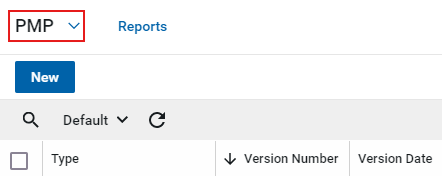
- Click NEW to open the new PMP record in Edit mode.
Details section
- Select CapPMP Modern Version in the Type drop-down list.
- The Version Date auto populates with the current date but can be edited.
- The Approved Date will automatically populate once the PMP is approved.
- Enter a Start Date.
- The Status will begin as Draft and once completed will workflow into Published, Superseded, or Cancelled.
- The Project Name, Project Number, Customer, Building, Address, Sponsor, and Project Manager will auto populate from the Project details.
- Select the Region.
- Enter the Managing Organization.
Note: The Project Name, Project Number, Customer, Building, Address, Sponsor, and Project Manager are not editable from the PMP app. Changes must be made in the Projects app. Refer to the Editing a Project in the Projects App QRG [PDF - 382 KB] for details.
Criteria for success
- Enter the project’s Criteria for Success, which provides an overall description of the project with key project drivers and objectives.
Funding assumptions
- Enter a Funding Overview of all planned funding sources and amounts.
- Click Insert to enter an estimate/funding history and all appropriate key costs.
- On each line, enter a Description and Line Amount.
Schedule criteria
- Enter a Schedule Overview of the project and identify key schedule milestones and schedule related assumptions.
- Click Add Milestones to begin adding major milestones.
- Check the box on the left side of each milestone from the Milestones app, to be included in the PMP.
- Click Select from the bottom of the window.
Services to buy
- Enter Services To Buy which provides an overview of all contracts/ services the will be procured in support of the project.
Key risk categories
- Identify any risks into the Key Risk Category that could potentially affect the working relationships.
- Click Add Risks.
- Check the box on the left side of each Risk item, from the Risk Register app, to be included in the PMP.
- Click Select from the bottom of the window.
Linked documents
- Click the title of related project documents under Linked Documents to add to the PMP. A new window displaying File Manager will appear.
Note: Reference the File Manager QRG [PDF - 354 KB] for guidance.
Project contacts
Project Contacts must be updated in the contact team function section of the Project Directory before they are available for selection in the PMP. Refer to the Project Directory QRG [PDF - 140 KB] for instructions on adding people to the Project Directory.
- Use the drop-down list to select a COR.
- Use the drop-down list to select a CO.
- Use the drop-down list to select an Asset Manager.
Signatory approvals
- Add the list of Sponsors to approve the PMP in sequential order. The PMP will be routed for approval through Kahua tasks.
- Click Insert to add 1 or more items.
- Select a Contact and an Approval Due Date for each item.
- Leave the other fields blank. They will auto populate as the PMP moves through the approval process.
References
- In the References section, upload any applicable documents to be stored in the PMP record to open a window to select a file.
- Click Upload.
- In the window, click a file to upload it from your local computer and click the Submit button.
- In the Add References to File Manager window, if desired, select a location in File Manager to save the file and click OK Manager. Otherwise, click Skip.
Save the PMP
- Click the Save/Close button in the bottom action bar.
Approval process
Submit for sponsor approval(s)
This action is typically completed by the following roles: GSA-PM/COR or Regional Manager.
- Click the Submit button at the top of the record.
- The PMP will route sequentially through the individuals listed in the Signatory Approvals section.
Approve the PMP
This action is typically completed by the following roles: Regional Manager or Sponsor.
- Open the Tasks app and click the PMP task.
- Click Approved at the top of the task.
- The next person in the Signatory Approvals list will receive a Task, and they will complete steps 3 and 4. This will continue until all Sponsors have approved the PMP.
- The PMP will have an Approved Status and can no longer be edited by anyone.
Revise and resubmit
This action is typically completed by the following roles: Regional Manager or Sponsor.
- If any of the Signatory Approvers select Revise and Resubmit, they will be required to enter a comment with a Reason and click the Continue button.
- The PMP creator will receive an email notification that the PMP has not been approved.
- Open the PMP.
- Click the New Version button to copy the information from the previous version into a new version.

Download the PMP document
- Open the PMP record.
- Click the View button.

- Click the Open PDF icon to open a PDF version of the PMP in your browser.

- Click the Download icon in your browser window.
- Browse to the desired location and click the Save button.
Send the PMP document
- Open the PMP record.
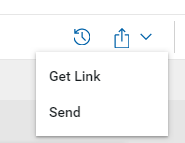
- Click the caret to the right of the Share button and choose Send to open the New Message window.
- In the To field, begin typing the name or email address of your desired recipient(s). Repeat for the Cc and Bcc fields.
- Add a Subject, if needed.
- Enter your desired text in the body of the message.
- Click Upload to add more attachments as needed.
- Click the Send button at the bottom of the window.
Create a new version of the PMP
To make changes to a published PMP, you must create a new version.
- Open the PMP record.
- Click New Version at the top of the details pane.
- The information from the previous version will be included in the new version.
- The Status of the previous version will change to Superseded.
Cancel a PMP
- Open the PMP record.
- Click Cancel at the bottom of the details pane.
- The Status will change to Cancelled.
- Click Reopen at the bottom of the cancelled PMP if you need to reopen it.


 U.S. General Services Administration