An official website of the United States government

Here’s how you know

Official websites use .gov
A .gov website belongs to an official government organization in the United States.

Secure .gov websites use HTTPS
A lock ( ) or https:// means you’ve safely connected to the .gov website. Share sensitive information only on official, secure websites.

GSA Logo U.S. General Services Administration
    • Explore buy through us
    • Category management
    • Government property for sale or lease
      Toggle submenu
      • Personal property (tangible goods)
      • Real property (real estate and buildings) for public use
      • Real property sales
      • Vehicle sales
    • Products and services
      Toggle submenu
      • Human capital
      • Industrial products and services
      • Office management
      • Professional services
      • Security and protection
      • Transportation and logistics services
    • Purchasing programs
      Toggle submenu
      • Assisted acquisition
      • Commercial platforms
      • Federal strategic sourcing initiative
      • Fleet management
      • HCaTS and HCaTS SB
      • OASIS and OASIS SB
      • Requisition programs
      • State and local programs
      • Emergency acquisition basic ordering agreements
    • Shared services
      Toggle submenu
      • Payroll services
      • Support services for CABs

    Featured Topics

    • Multiple Award Schedule Governmentwide contracts for products and services at volume discount pricing.
    • Auctions Federal assets available via auction to the general public.
    • Explore sell to government
    • Step 1: Learn about government contracting
      Toggle submenu
      • Ways you can sell to government
      • How to access contract opportunities
      • Conduct market research
    • Step 2: Compete for a contract
      Toggle submenu
      • Register your business
      • Certify as a small business
      • Become a schedule holder
      • Market your business
      • Research active solicitations
      • Respond to a solicitation
      • What to expect during the award process
    • Step 3: Manage your contract
      Toggle submenu
      • Comply with contractual requirements
      • Handle contract modifications
      • Monitor past performance evaluations

    Featured Topics

    • Contract opportunities on SAM.gov Search current federal contract opportunities and procurement notices.
    • Forecast of contracting opportunities Anticipated contracts offered by GSA.
    • Vendor support center Research the federal market, report sales, and upload contract information.
    • Explore real estate
    • Design and construction
      Toggle submenu
      • 3D-4D building information modeling
      • Computer-aided design standards
      • Engineering
      • Project management information system
      • Prospectus thresholds
    • Facilities management
      Toggle submenu
      • Security
      • Tenant services
      • Water quality management
    • Our properties
      Toggle submenu
      • Owned and leased properties
      • Renting property
    • Real estate services
      Toggle submenu
      • Leasing resources
      • Real property disposal
      • Reimbursable services (RWA)
      • For businesses seeking opportunities
      • For workers in federal buildings
      • Voice of the customer
    • Workplace optimization
      Toggle submenu
      • Commercial coworking
      • Space Match
    • Explore historic buildings

    Featured Topics - Real Estate

    • Historic preservation tools and resources Procedures for maintaining and repairing historic buildings.
    • Real property disposal Dispose or acquire excess federal real property including buildings or land.
    • Explore policy and regulations
    • Acquisition policy
    • Aviation management policy
    • Federal Advisory Committee Act management
    • Information technology policy
    • Real property management policy
    • Travel management policy
    • Regulations
      Toggle submenu
      • Federal acquisition regulations
      • Federal management regulations
      • Federal travel regulations

    Featured Topics

    • Forms Search for a government form.
    • Per diem FAQs Frequently asked questions about per diem rates and related topics.
    • Explore small business
    • Small business goals
    • Register your business
      Toggle submenu
      • Explore business models
      • Research the federal market
      • Subcontracting and other partnerships
    • Forecast of contracting opportunities
    • Small business resources
      Toggle submenu
      • Small business contacts
      • Videos

    Featured Topics

    • Forecast tool Information on planned federal contracting opportunities.
    • Socio economic categories Check your eligibility for small-business set-asides.
    • Training resources Suggested training for doing business with us.
    • Explore travel
    • Plan a trip
      Toggle submenu
      • Per diem rates
      • Transportation (airfare rates, POV rates, etc.)
      • Lodging
      • Travel charge card
    • Travel and lodging services
      Toggle submenu
      • E-gov travel service (ETS)
      • Rideshare
      • Travel category schedule
    • Federal travel regulation

    Featured Topics

    • Per diem rates look-up Allowances for lodging, meal and incidental costs while on official government travel.
    • Mileage reimbursement rates Reimbursement rates for the use of your own vehicle while on official government travel.
    • Explore technology
    • Purchasing programs
      Toggle submenu
      • Cloud computing services
      • Cybersecurity products and services
      • Governmentwide acquisition contracts
      • MAS information technology
      • USAccess
    • Government initiatives
      Toggle submenu
      • Artificial Intelligence
      • Cybersecurity
      • Emerging citizen technology
      • FedRAMP
      • Federal identity, credentials, and access management
      • Robotic process automation community
      • Technology modernization fund
    • Training

    Featured Topics

    • Challenge.gov Government sponsored challenges and prize competitions.
    • Data.gov Access U.S. government data.
    • Multiple award schedule IT category Information technology products, services and solutions.
    • Explore about us
    • Background and history
      Toggle submenu
      • Overview
      • Mission and strategic goals
      • Role in presidential transitions
    • Careers
      Toggle submenu
      • Get an internship
      • Launch your career
      • Elevate your professional career
      • Discover special hiring paths
      • Resources and related links
    • Events and training
      Toggle submenu
      • Events, training, and request a speaker
      • Our training programs
    • Newsroom
      Toggle submenu
      • Agency blog
      • Congressional testimony
      • GSA does that podcast
      • News releases
      • Speeches
      • Videos
    • Organization
      Toggle submenu
      • Leadership directory
      • Federal Acquisition Service
      • Public Buildings Service
      • Staff offices
    • Contact us

    Featured Topics

    • Blog Read the latest GSA news, updates and analysis.
    • Careers Learn what we have to offer.
  • Per diem lookup
Buy through us
Explore buy through us
Category management
Government property for sale or lease
Personal property (tangible goods)
Real property (real estate and buildings) for public use
Real property sales
Vehicle sales
Products and services
Human capital
Industrial products and services
Office management
Professional services
Security and protection
Transportation and logistics services
Purchasing programs
Assisted acquisition
Commercial platforms
Federal strategic sourcing initiative
Fleet management
HCaTS and HCaTS SB
OASIS and OASIS SB
Requisition programs
State and local programs
Emergency acquisition basic ordering agreements
Shared services
Payroll services
Support services for CABs
Sell to government
Explore sell to government
Step 1: Learn about government contracting
Ways you can sell to government
How to access contract opportunities
Conduct market research
Step 2: Compete for a contract
Register your business
Certify as a small business
Become a schedule holder
Market your business
Research active solicitations
Respond to a solicitation
What to expect during the award process
Step 3: Manage your contract
Comply with contractual requirements
Handle contract modifications
Monitor past performance evaluations
Real estate
Explore real estate
Design and construction
3D-4D building information modeling
Computer-aided design standards
Engineering
Project management information system
Prospectus thresholds
Facilities management
Security
Tenant services
Water quality management
Our properties
Owned and leased properties
Renting property
Real estate services
Leasing resources
Real property disposal
Reimbursable services (RWA)
For businesses seeking opportunities
For workers in federal buildings
Voice of the customer
Workplace optimization
Commercial coworking
Space Match
Explore historic buildings
Policy and regulations
Explore policy and regulations
Acquisition policy
Aviation management policy
Federal Advisory Committee Act management
Information technology policy
Real property management policy
Travel management policy
Regulations
Federal acquisition regulations
Federal management regulations
Federal travel regulations
Small business
Explore small business
Small business goals
Register your business
Explore business models
Research the federal market
Subcontracting and other partnerships
Forecast of contracting opportunities
Small business resources
Small business contacts
Videos
Travel
Explore travel
Plan a trip
Per diem rates
Transportation (airfare rates, POV rates, etc.)
Lodging
Travel charge card
Travel and lodging services
E-gov travel service (ETS)
Rideshare
Travel category schedule
Federal travel regulation
Technology
Explore technology
Purchasing programs
Cloud computing services
Cybersecurity products and services
Governmentwide acquisition contracts
MAS information technology
USAccess
Government initiatives
Artificial Intelligence
Cybersecurity
Emerging citizen technology
FedRAMP
Federal identity, credentials, and access management
Robotic process automation community
Technology modernization fund
Training
About us
Explore about us
Background and history
Overview
Mission and strategic goals
Role in presidential transitions
Careers
Get an internship
Launch your career
Elevate your professional career
Discover special hiring paths
Resources and related links
Events and training
Events, training, and request a speaker
Our training programs
Newsroom
Agency blog
Congressional testimony
GSA does that podcast
News releases
Speeches
Videos
Organization
Leadership directory
Federal Acquisition Service
Public Buildings Service
Staff offices
Contact us
  1. Home
  2. Buy through us
  3. Shared Services
  4. Support Services for Commissions and Boards
  5. HR Links user guides
  6. Time and leave
  7. Create base schedules as timekeeper

Create base schedules as timekeeper

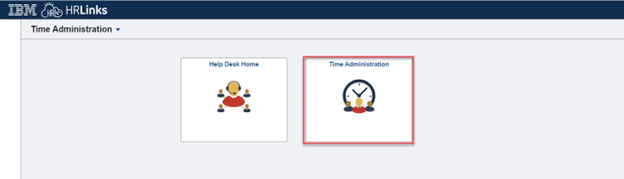
  1. From the Employee Self Service home page, select the drop-down at the top of the screen, and choose Time Administration.

    Timesheet entry with time administration tile highlighted
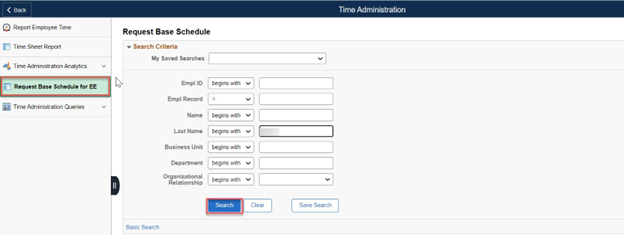
  2. Choose the Request Base Schedule for EE tab from the left menu.
     
    1. Enter Search Criteria for the employee whose base schedule you are creating. (If you do not enter search criteria and simply click Search, all of your employees will appear in the Search Results section.)
    2. Select Search.

      Timesheet entry with request base schedule tab and search button highlighted
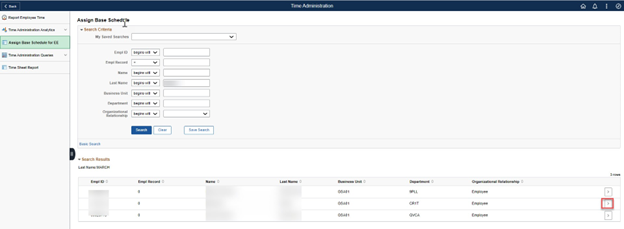
  3. If more than one employee populates in results, select the > icon on the far right of the employee list to open the base schedule. (If only one employee populates the results, their base schedule will automatically open.

    Timesheet entry with icon highlighted to open individual base schedule if more than one employee
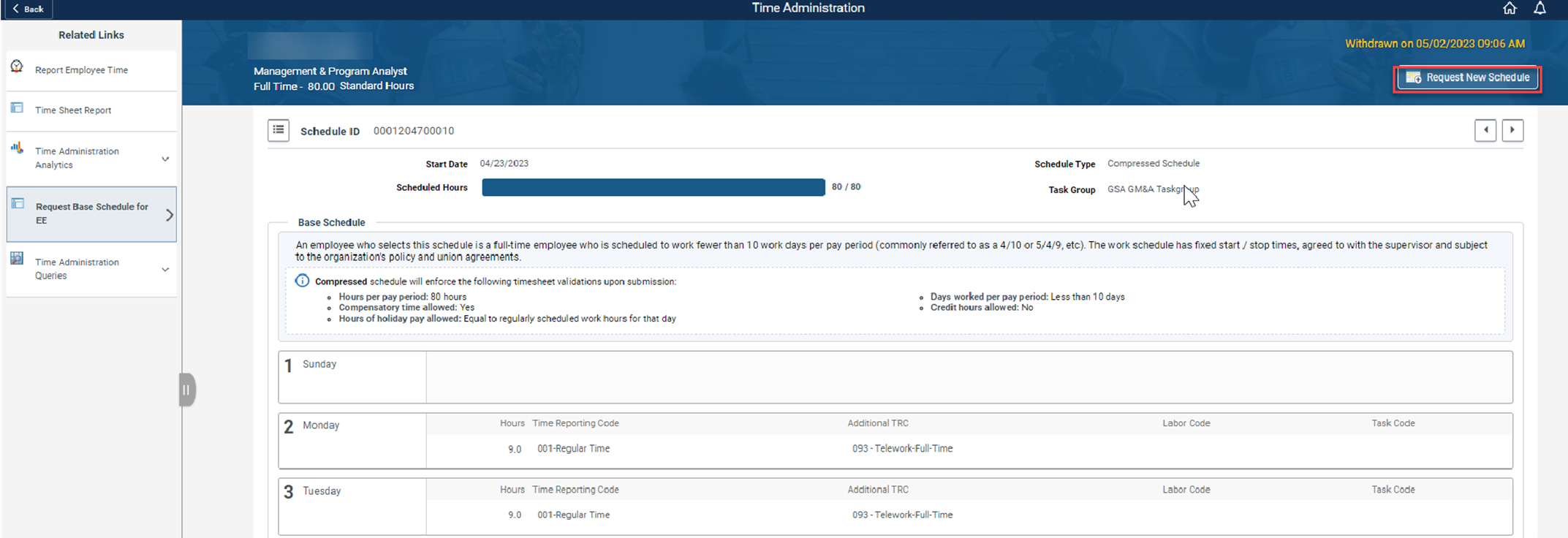
  4. The employee’s current base schedule will open up. Select Request Base Schedule. Note: To view a history of the employee’s base schedules click the menu icon.

    Timesheet entry with request new schedule highlighted
  5. On the Request New Schedule pop up window, enter the:
    1. Start Date (Select the date you’d like to start the new schedule. Contact your Time Administrator if you need to create a new base schedule with a start date in a prior pay period.)
    2. Schedule Reason (Reason you are making a base schedule change.)
    3. Schedule Type (Choose a work schedule type for this base schedule.)
    4. Copy Prior Schedule (Select ‘Yes’ If you want to create the new schedule by copying over the hours, time reporting codes, and labor hours from the previous work schedule.)
  6. Select OK.

    Time entry request new schedule dialog box with start date, schedule reason, schedule type, and OK button highlighted
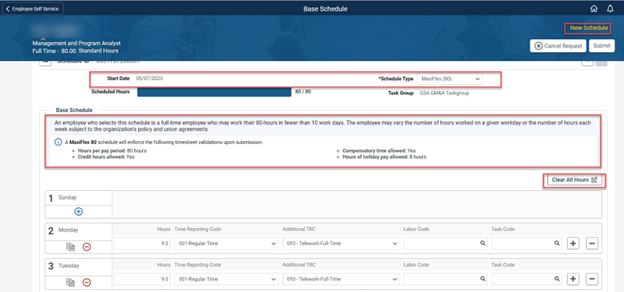
  7. The new, ‘requested’ base schedule will now display on the Base Schedule homepage. You can confirm the Start Date and Schedule Type on the page. The ‘rules’ of the requested base schedule are displayed. If you copied the previous schedule to the new one, you can Clear All Hours to input new Hours into the schedule.

    Time entry with base schedule, schedule type, clear all hours, and new schedule highlighted
  8. On the Base Schedule page, you can change the schedule by directly using:
     

    Timesheet item or iconPurpose
    Switch to day off
    Switch to work day
    Copy the schedule day to other day(s) in the pay period
    Add or delete a row on the schedule
    HoursEnter the number of hours you are scheduled on that day
    Time reporting codesEnter TRC (typically 001 – Regular Time)
    Additional TRCEnter additional TRC (for example, a telework code)
    Labor codeEnter labor code (if applicable)
    Task codeEnter task code (if applicable)
    Timesheet entry of base schedule with icons highlighted
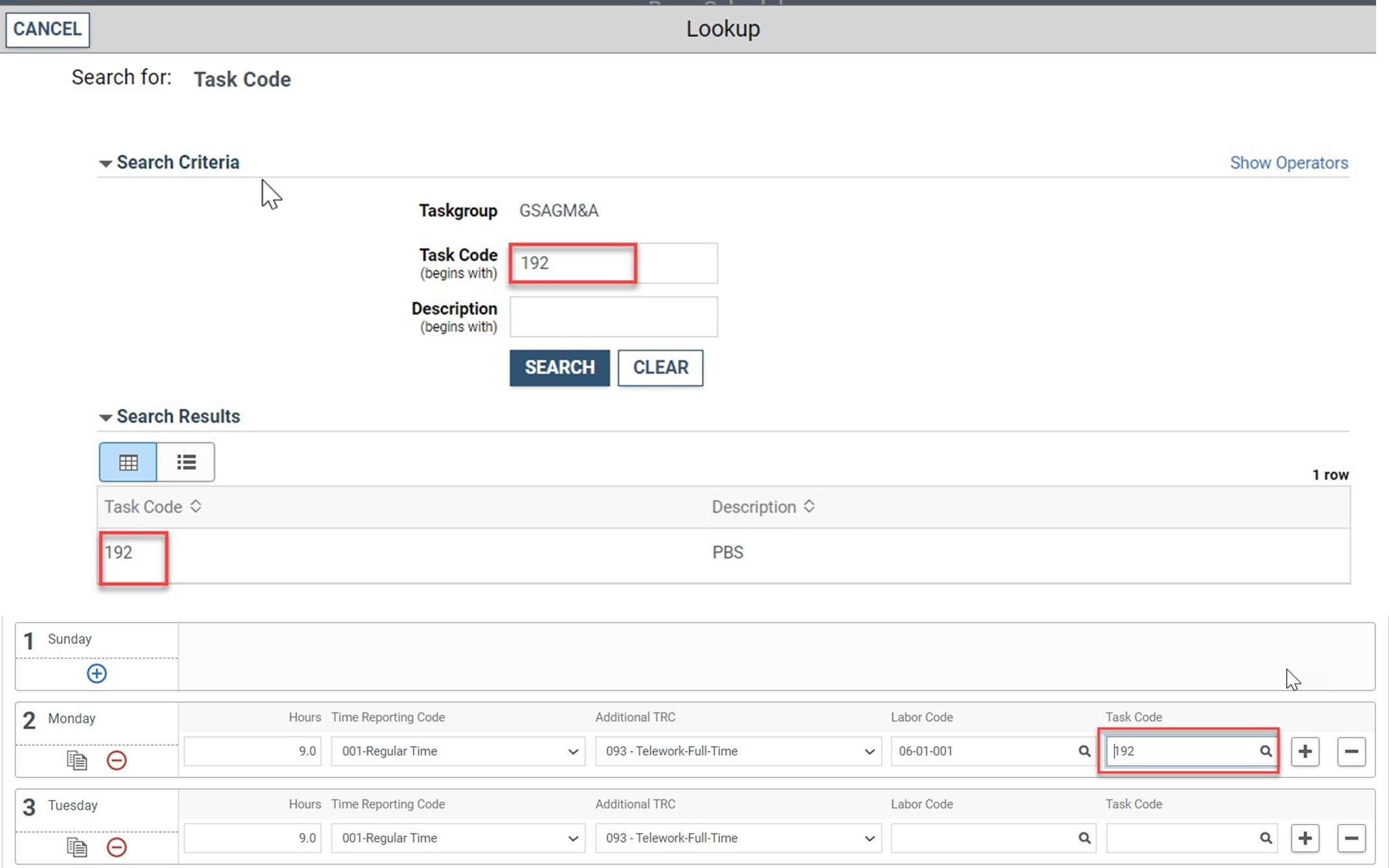
  9. Not all organizations are required to include labor and task codes in their schedules. However, if the employee is a Public Building Services (PBS) employee, you are required to include labor and task codes in their base schedule and can change existing codes or add new ones by entering the numeric portion of the code into designated fields on the schedule. If you do not have the numeric codes you need, you can select the magnifying glass icon next to each field to searchfor them.

    Timesheet entry of base schedule with magnifying glass icons highlighted
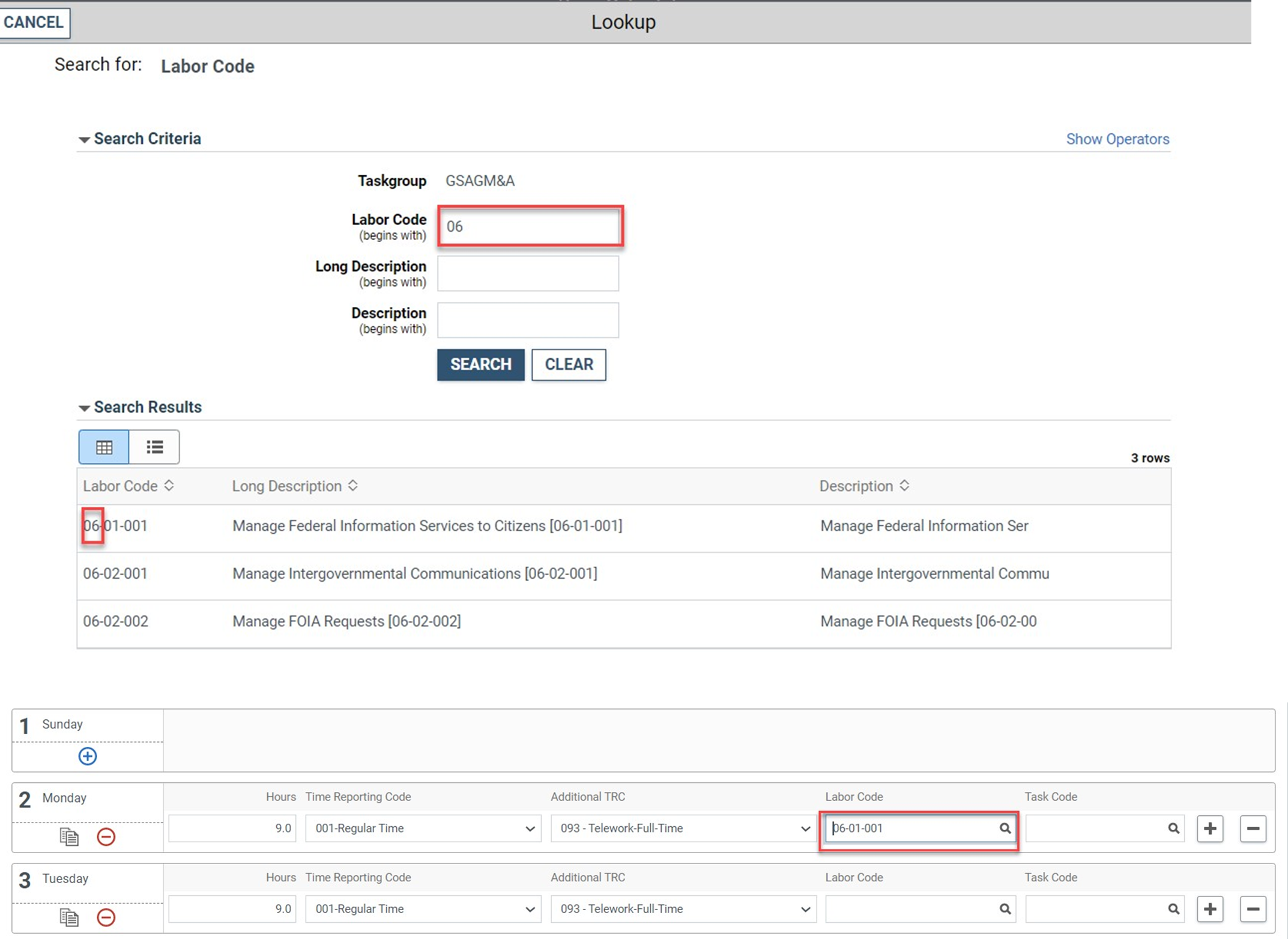
  10. The Look Up Labor Code screen will appear with a list of codes to choose from, and you can narrow your search by entering criteria such as the first few digits or letters of the code or description. Your Labor Administrator can assist you with any questions you have regarding labor codes.

    Timesheet entry with labor code lookup field highlighted
  11. Once a Labor Code is selected, you can enter or search for a Task Code using the method described above.

    Timesheet entry with task code search field highlighted
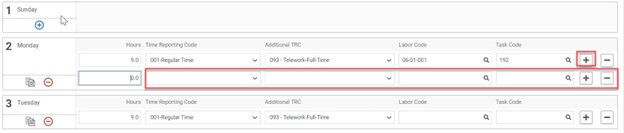
  12. Additional rows can be added to capture multiple Labor and Task Codes for a single day by clicking the plus sign (+) on the far right-hand side of any row (day) in question. To remove an added row, simply select the minus (-) sign.

    Timesheet entry with plus sign highlighted to show how to add a new task or labor code
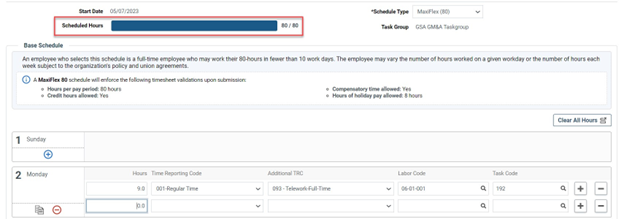
  13. Once you have made all desired changes to the base schedule, check to make sure Total Hours equal the total hours allowable for the base schedule.

    Timesheet entry of base schedule with scheduled hours highlighted
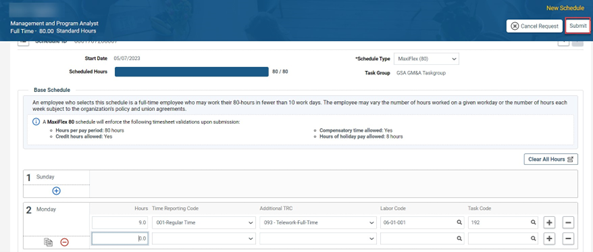
  14. Next, select the Submit button at the top right of the base schedule page to save your changes, then select OK to submit the request. (Note: You can also select Cancel Request if you would like to cancel this schedule request.)

    Timesheet entry with base schedule scheduled hours with submit button highlighted
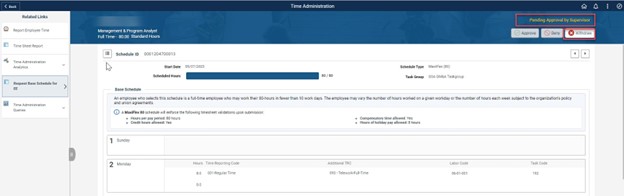
  15. The schedule you requested now appears on the Base Schedule page with a Pending Approval by Supervisor. You have successfully submitted a base schedule for approval.

    Timesheet entry with pending approval of supervisor highlighted
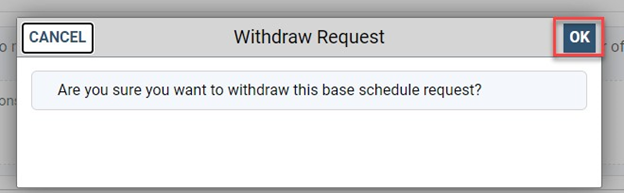
  16. If you need to withdraw a base schedule that is pending approval, select the Withdraw button on the top right of the page. This will cause a pop up window to appear to confirm your withdrawal request. If you would like to withdraw your request select OK. The base schedule homepage will revert back to the employee’s last approved schedule.

    Timesheet entry with withdraw base schedule request dialog box and OK button highlighted
Print Page Email Page
Last updated: Nov 4, 2025
Top

Home

  • Resources for …
    • Americans with Disabilities
    • Citizens and Consumers
    • Federal Employees
    • GSA Employees
    • Native American affairs
    • Presidential & Congressional Commissions, Boards or Small Agencies
    • Small Business
  • Governmentwide Initiatives
    • Centers of Excellence
    • Digital experience
    • Emergency response
    • Federal Cybersecurity
    • ID, Credentials, and Access Management
    • Information Quality
    • Open Data
    • Technology Modernization Fund
  • Contact Us
  • Organization
    • Leadership Directory
    • Staff Directory
  • References
    • Annual reports
    • Plain Language
    • Budget and Performance
    • Catalogs
    • Orders & Directives
    • Forms
  • Website Information
    • A-Z Index
    • Report a website issue
    • Sitemap
  • Also of Interest
    • Data.gov
    • Whitehouse.gov
  • Tools
    • eBuy
    • eLibrary
    • Contracting forecast tool
    • GSA Advantage
    • GSA Auctions
GSA logo
  • Facebook
  • X
  • LinkedIn
  • YouTube
  • instagram
  • Blog
  • email

JOIN THE CONVERSATION

GSA.gov

An official website of the U.S. General Services Administration
  • Accessibility statement
  • Website Policies
  • Reports
  • Office of the Inspector General
  • No FEAR Act
  • FOIA Requests
  • Board of Contract Appeals
Looking for U.S. government information and services?
Visit USA.gov

PER DIEM LOOK-UP

1 Choose a location

Error, The Per Diem API is not responding. Please try again later.

No results could be found for the location you've entered.

Get my location

OR

OR

Rates for Alaska, Hawaii, and U.S. territories and possessions are set by the Department of Defense.

Rates for foreign countries are set by the Department of State.

2 Choose a date


OR

Rates are available between 10/1/2023 and 09/30/2026.

The End Date of your trip can not occur before the Start Date.


Additional terms and conditions

Traveler reimbursement is based on the location of the work activities and not the accommodations, unless lodging is not available at the work activity, then the agency may authorize the rate where lodging is obtained.

Unless otherwise specified, the per diem locality is defined as "all locations within, or entirely surrounded by, the corporate limits of the key city, including independent entities located within those boundaries."

Per diem localities with county definitions shall include"all locations within, or entirely surrounded by, the corporate limits of the key city as well as the boundaries of the listed counties, including independent entities located within the boundaries of the key city and the listed counties (unless otherwise listed separately)."

When a military installation or Government - related facility(whether or not specifically named) is located partially within more than one city or county boundary, the applicable per diem rate for the entire installation or facility is the higher of the rates which apply to the cities and / or counties, even though part(s) of such activities may be located outside the defined per diem locality.