After requesting overtime, comp time, or credit hours and after your supervisor has approved your request, follow this job aid to add it to your timesheet.
Add overtime hours to timesheet
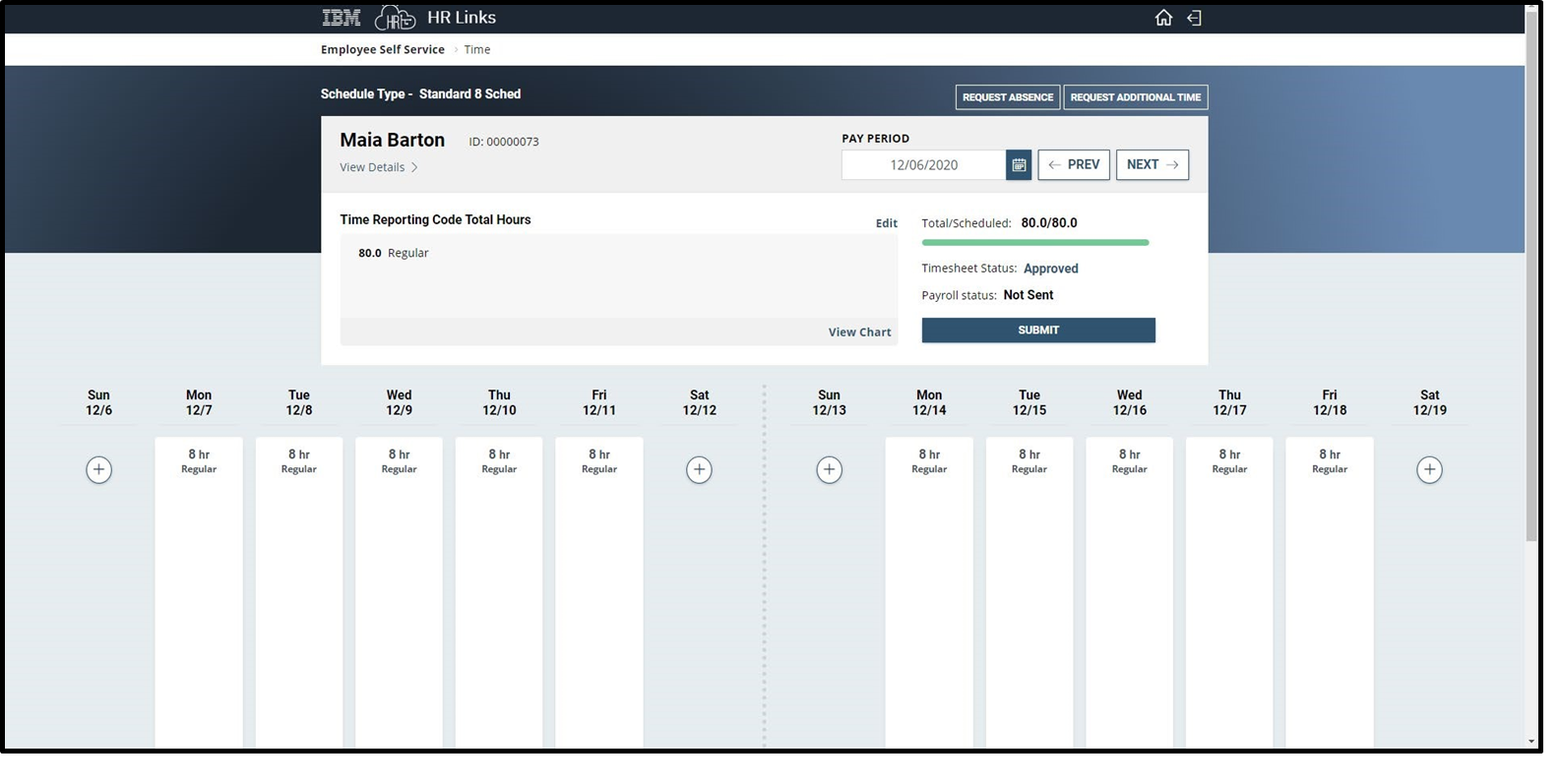
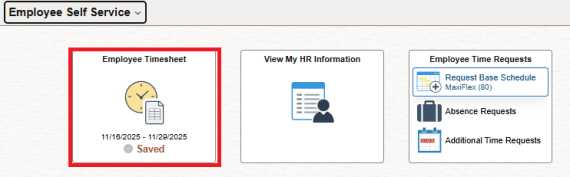
Select Employee Timesheet tile from the Employee Self Service homepage.
The approved overtime doesn’t automatically add to the timesheet.
Select the plus (+) symbol on the date that you want to add your approved overtime.
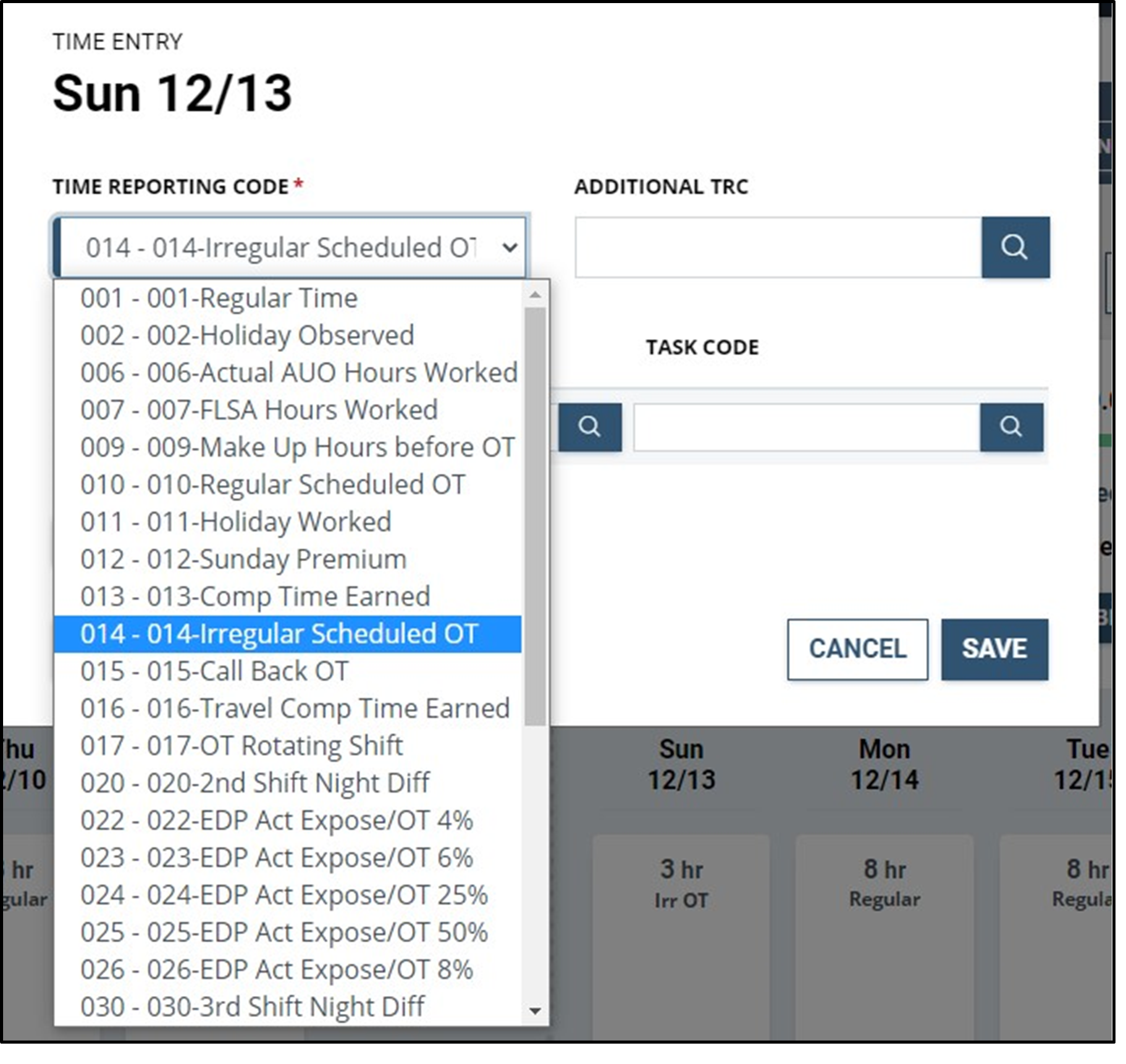
From the dropdown menu, select 014 - 014-Irregular Scheduled OT.
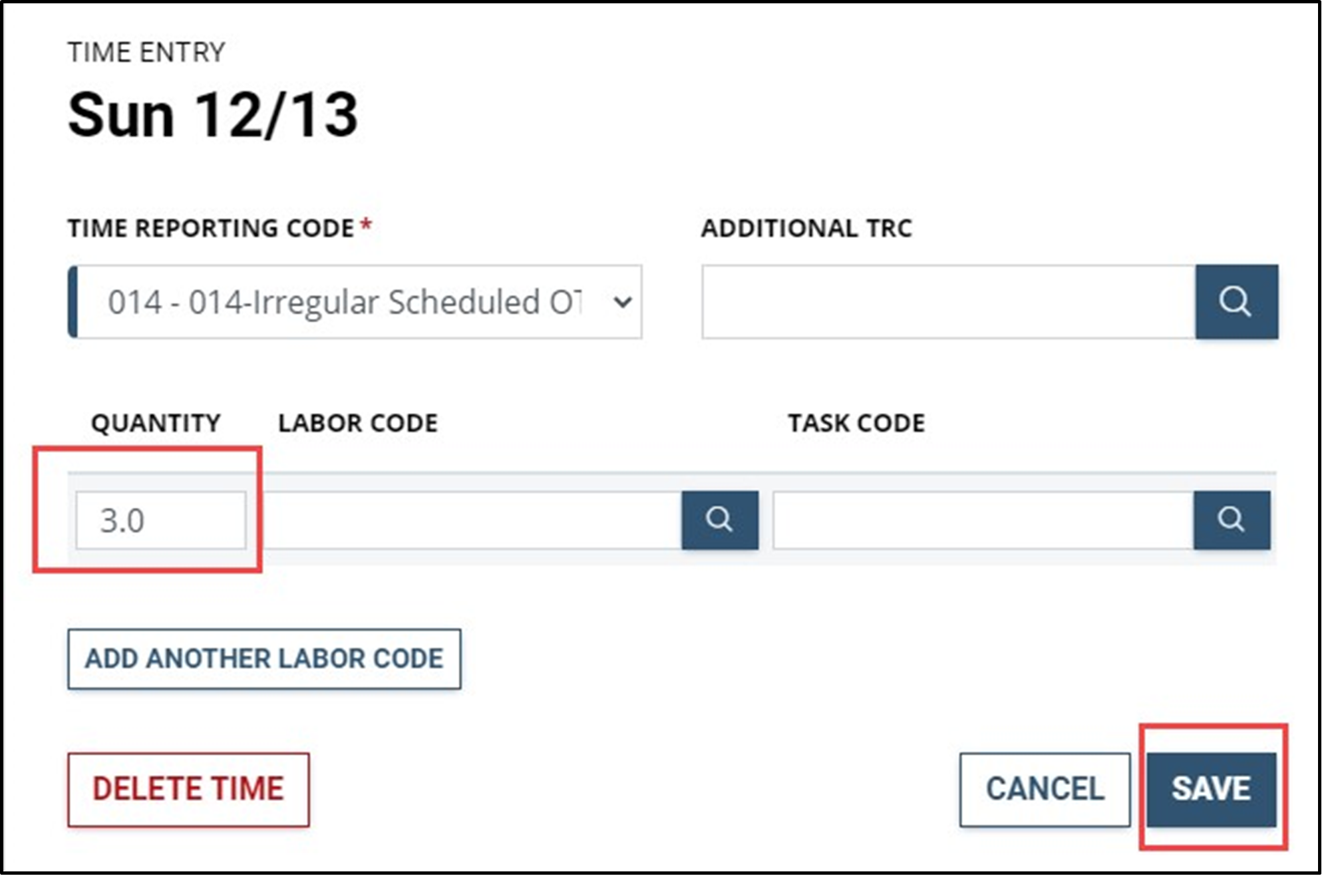
Enter in the quantity for the amount of hours that were earned. Select Save.
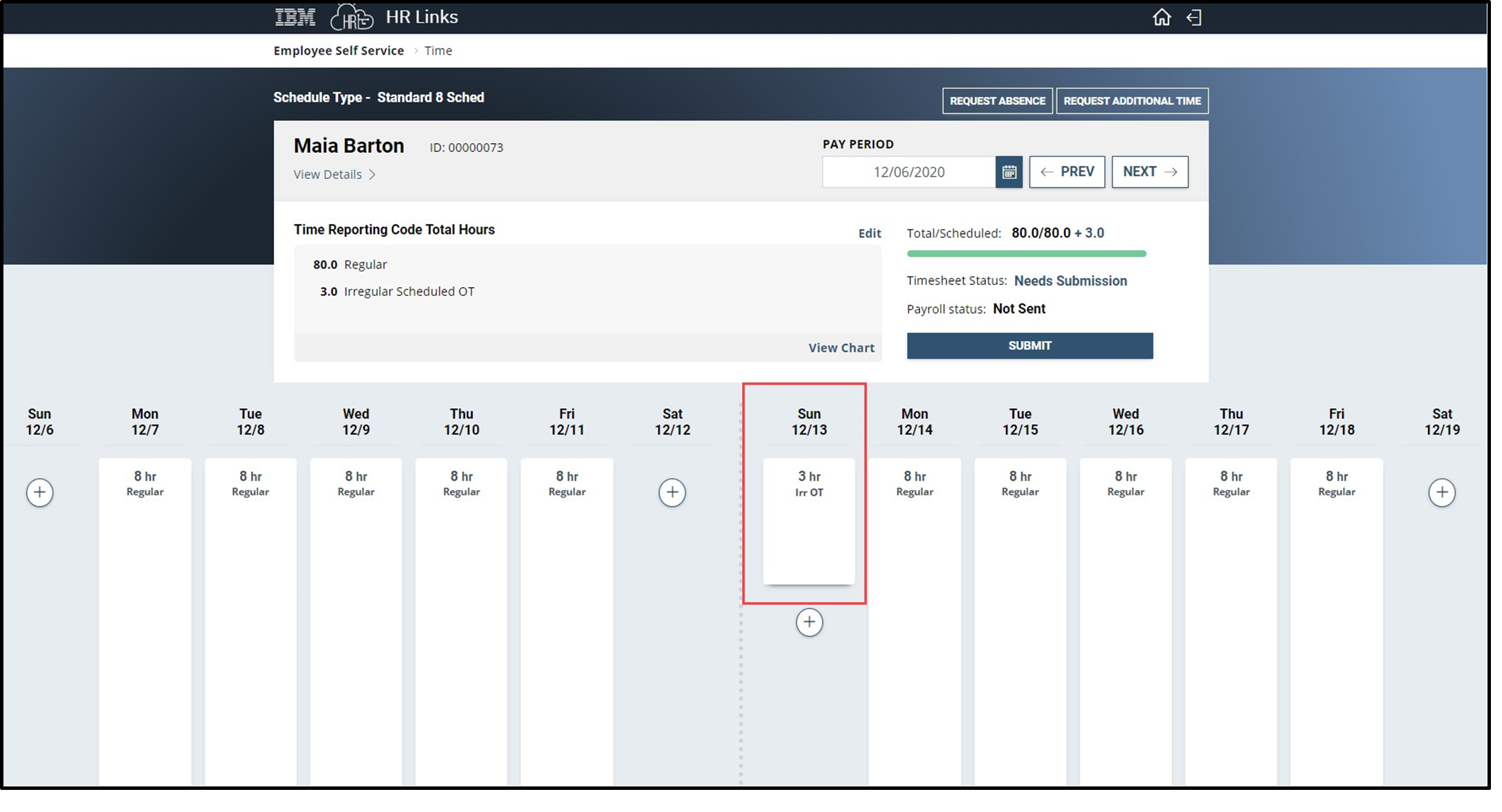
Overtime earned now shows up on your timesheet. Make any other changes to your timesheet and submit.
Congratulations! You have now successfully added your overtime earned to your timesheet.
Add comp time hours to timesheet
Select Employee Timesheet tile from the Employee Self Service homepage.
The approved comp time doesn’t automatically add to the timesheet.
Select the plus (+) symbol on the date that you want to add your approved comp time.
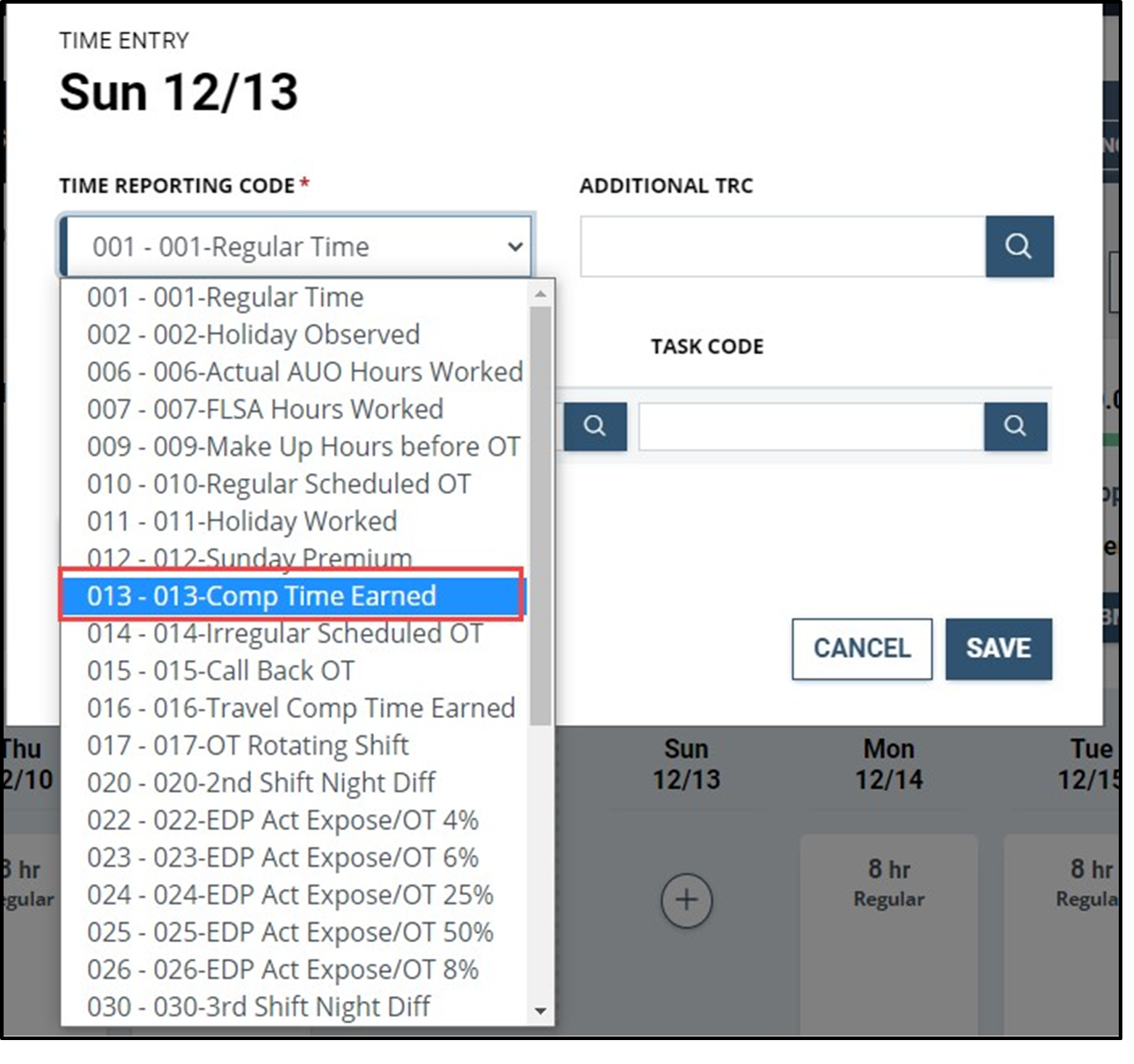
From the dropdown menu, select 013 - 013-Comp Time Earned.
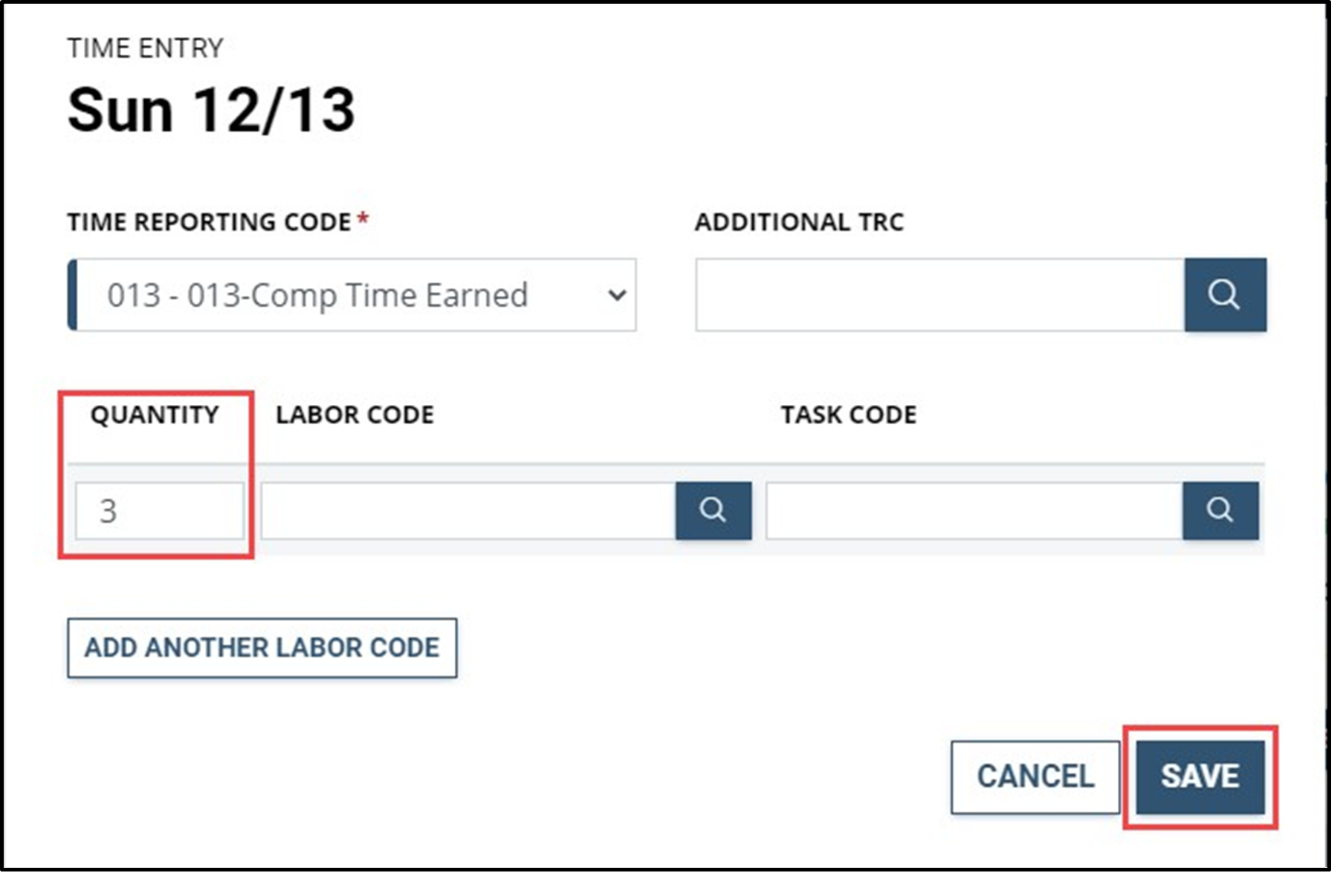
Enter in the quantity for the amount of hours that were earned. Select Save.
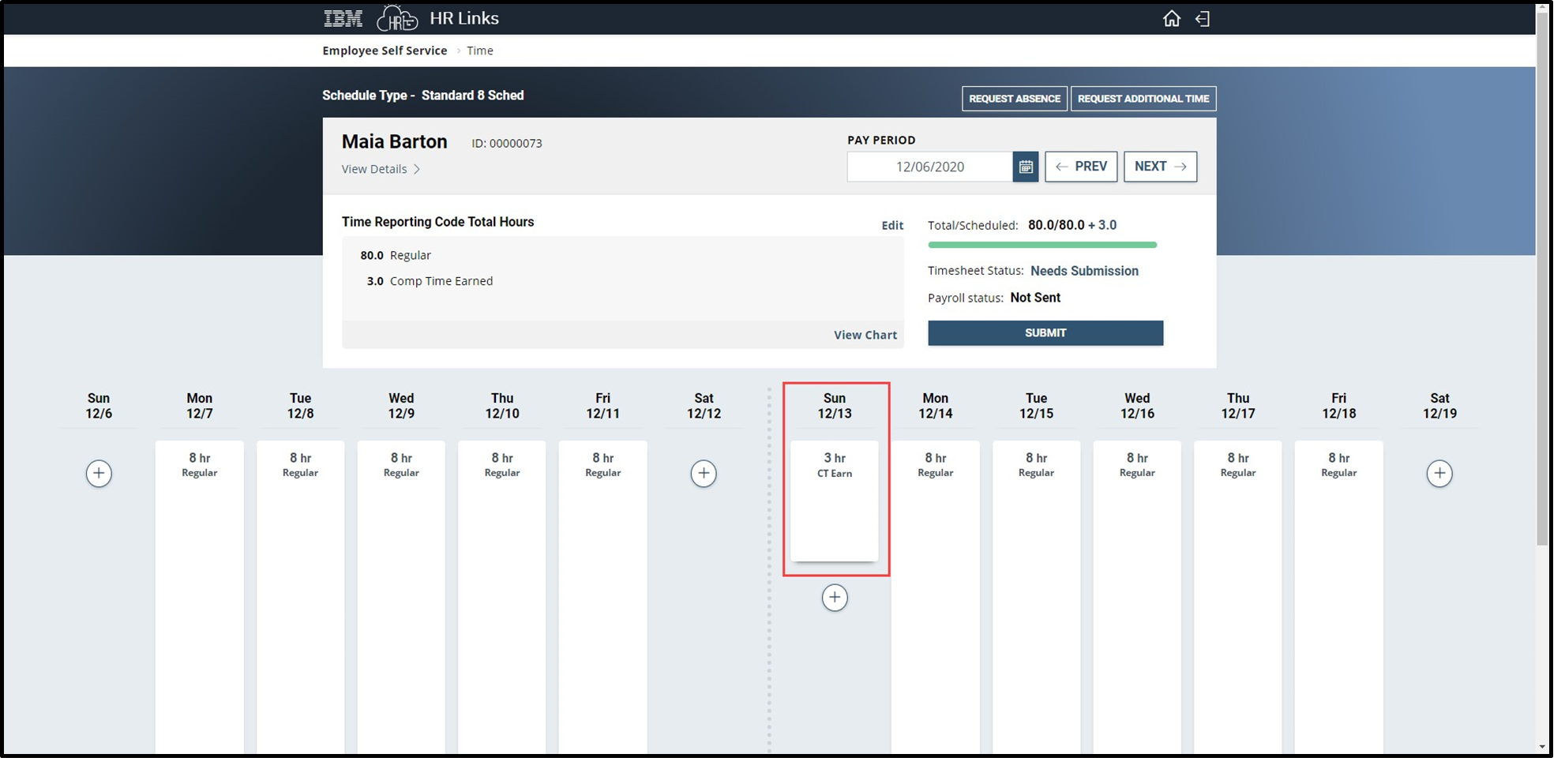
Comp Time Earned now shows up on your timesheet. Make any other changes to your timesheet and submit.
Congratulations! You have now successfully added your overtime earned to your timesheet.
Add credit time hours to timesheet
Select Employee Timesheet tile from the Employee Self Service homepage.
- The approved credit time doesn’t automatically add to the timesheet.
Select the plus (+) symbol on the date that you want to add your approved credit time.
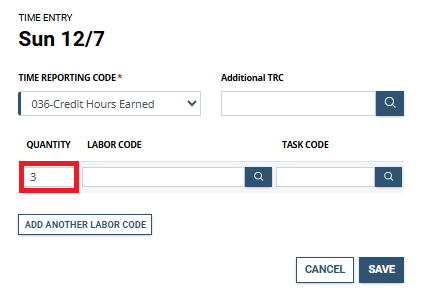
From the dropdown menu, select 036- Credit Hours Earned.
Enter in the quantity for the amount of hours that were earned. Select Save.
Credit Hours Earned now shows up on your timesheet. Make any other changes to your timesheet and submit.
Congratulations! You have now successfully added your credit time earned to your timesheet.


 U.S. General Services Administration