After a project has been created, changes can be made to any of the existing data, and fields that were initially left blank can be completed in the Project Details window.
Edit a project in the Projects app
Update the roster: Project manager
To change the project manager, reach out to kahuasupport@gsa.gov. The support team will ensure that the correct permissions are assigned to the new project manager.
Update the description
- Open the project using Project Finder in the left launch bar.
- Click the info (i) icon next to the project name to open the project for edits.

- Click the Edit button on the top toolbar of the Project Details.
- Scroll to the Description field and make edits as needed.
- Click the Save/Close button.
Update the internal status
- Open the project using Project Finder in the launch bar on the left hand side.
- Click the info (i) icon next to the project name to open the project for edits.
- Click the Edit button on the top toolbar of the Project Details. Scroll to the Internal Status section.
- Enter text in the New Internal Status Comment field.
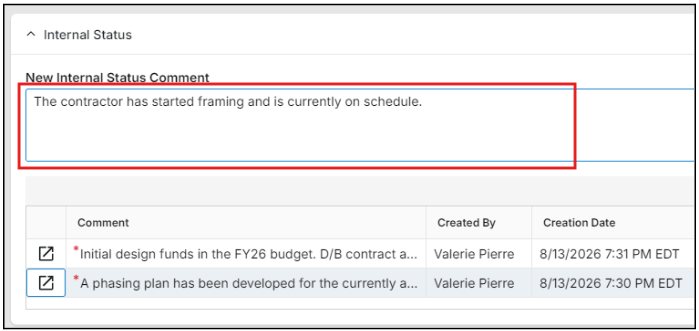
- Click the Save/Close button. Each Internal Status entry creates a new row in the section and includes the Comment, Created By, and Creation Date (and time).


 U.S. General Services Administration