Once an agency PM is ready to complete a Kahua project, two actions must be performed:
- Upload documents such as as-builts and invoices in Kahua’s File Manager app
- Enter the actual substantial completion date in the Milestones app
After these steps are performed, the project workflow is marked as complete in the Projects app.
Agency PM: Upload documents in File Manager
- Open the project using Project Finder in the left navigation pane.
- Select File Manager from the Other column in the apps launcher.
- Drill down to the lower-level folders by clicking on the arrows on the left side of the folder list.
- Click the desired folder, and the contents of the selected folder will appear on the middle pane.
Select the folder, and click the Add Files button in the top ribbon. Files should be uploaded into the folders listed below:
| File types | File manager folder |
|---|
| Approvals, SOWs, IGE, Request letter | 1.0 Identification and Pre-Project Planning |
| Contract Award, Liability Documents, Insurance, Security | 2.0 Initiation and Planning |
| Drawings | 3.0 Execution — Design (shared) |
| CAD Drawings | 4.5.1 Native Drawings |
| Final Invoices, Evidence of Rent Credits | 5.1 General Vendor Collaboration |
- Follow the prompts to upload the file.
- If necessary, add any Comments.
- Click OK.
Agency PM: Enter the actual substantial completion date in the Milestones app
- After logging in to Kahua, navigate to the appropriate project.
- Access the Milestones app from the apps launcher in the Schedule Management section.
- Once you open the app, it will appear in the left navigation pane, and the Milestones log will open in the main screen.
- Click on the Substantial Completion milestone to show milestone details in the right pane.
- Click the Edit button at the top of the document.
- Enter the completion date in the Actual Completion Date field.
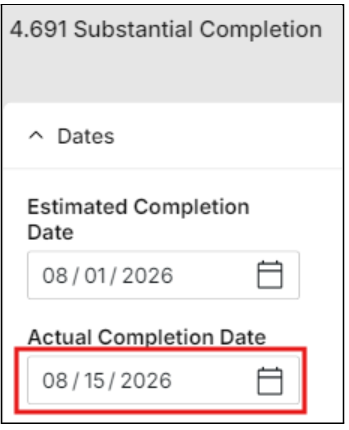
- Click the Save/Close button. This saves the Milestone date and closes the edit window.
Agency PM or delegations project manager: Mark the project complete in the Projects app
- Click the info (i) icon in the top blue navigation bar of the Kahua screen, which opens the Projects app.

- Complete the project:
- For Cyclical Delegation Projects, the agency PM will simply click the Complete Project button at the top of the window. They will be prompted to enter a Reason for Marking the Project Complete.
- For R&A Delegation Projects, the agency PM will notify the delegations project manager that the project is complete, and the delegations PM will mark the project complete after reviewing the final documents.
- Click the caret in the toolbar, and choose Send to open the New Message window.
- In the To field, begin typing the name of the delegations PM.
- Put a checkmark in the Copy to Communications box.
- In the Subject line, type “Project Number” and enter the project number. Then write “Delegated Project Complete.”
- In the body of the message, notify the delegations PM that the project has been completed and files have been uploaded to File Manager for final review.
- Then, click the Send button.
- The delegations PM will review the final documents and notify the agency PM if additional documents are needed.
- If no additional documents are needed, the delegations PM will workflow the project to Complete.


 U.S. General Services Administration