About log views
Each Kahua app has a log view that lists the records in the app. There is a default view, and in some apps, users can choose additional standard views. Additionally, users can create their own custom views for individual use.
Log view reports use the columns and order shown in the open log view so that customized views can be used to create customized reports.
Dashboard widgets use log views. To show filtered information and/or additional columns, a log view is added in the app and then selected in the view field in the dashboard set up. See the Dashboards QRG [PDF - 355 KB] for help with creating a new dashboard.
Create a new log view
- In an application, click the name of the current Log View.
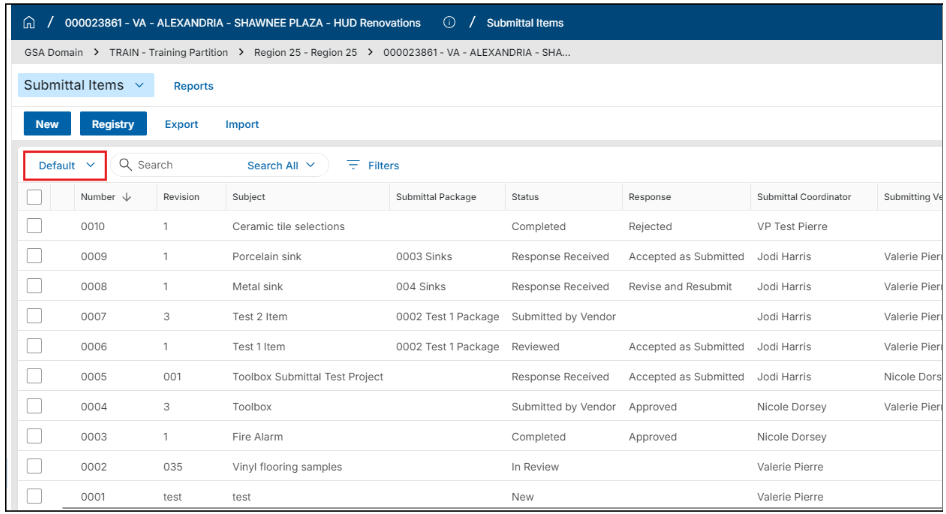
- Click Manage Views to open the dialog box where you will configure the new view.
- Select the current view from the left-hand side as a starting point for the new view.
- Use the tabs across the top to configure the view.

- Column – Check or uncheck boxes to display or suppress a column. Drag and drop or use the Up and Down arrows to reorder the columns.
- Sort – Customize the sort order of Log items. Multiple sort keys can be specified in a user defined order.
- Scope – All users should choose Just Me under the Visibility dropdown. This field cannot be modified later so you must determine the correct option prior to saving. Note: Only admins and Kahua program managers should set up Log Views with the visibility set to Everyone.
- Indicators – Highlight overdue records or indicate different statuses in the log.
- Click Add New Indicator.
- Select the Color for the Indicator.
- Name the Indicator. This will appear when you hover over the Indicator.
- Click the + Add button to choose the fields to Filter by and set parameters.
- Add additional Filters, if needed.
- Click the Done button.
Notes:- In each Indicator row, you can Enable/Disable each Indicator.
- The pencil icon in the row allows you to open it back up for Edits.
- Click the trash can icon to Delete the row.
- Filter – Apply view filter(s) based on a specific column and selected values in that column.
- Grouping – Group records based on a specific attribute(s).
- Mobile View – Customize how fields appear in the Kahua mobile app.
- Click on Save As from the bottom action bar.
- You will be prompted to give your new view a Name.
- View name will appear in the Log View drop-down list.
- View name will appear in the View list when customizing a widget in the Dashboards app.
- Click the Save button and close the Manage Views window using the Done in the top right-hand corner.
Edit a log view
- Click on the current View and select Manage Views from the list.
- Select the View to Edit from the list on the left side of the Manage Views window.
- Make edits to Columns, Sorts, Indicators, Filters, and/or Groups.
- Click Save from the bottom action bar.
Run a log report
After creating your custom view, you can then print the log to PDF. Being able to create a custom report that can be printed at any time can be a very powerful tool.
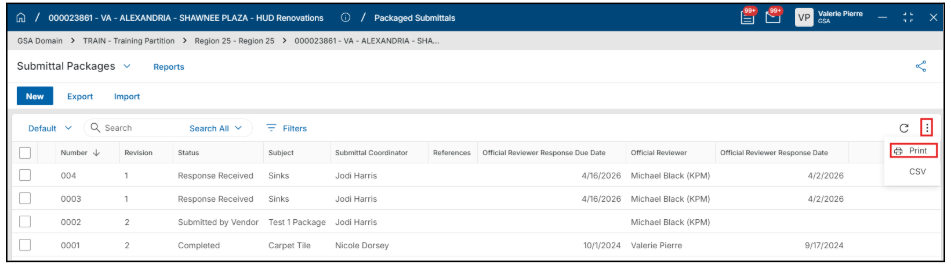
- Open the Log View you want to use for your report.
- Click the three vertical dots in the top right corner of the view, and click the Print option.
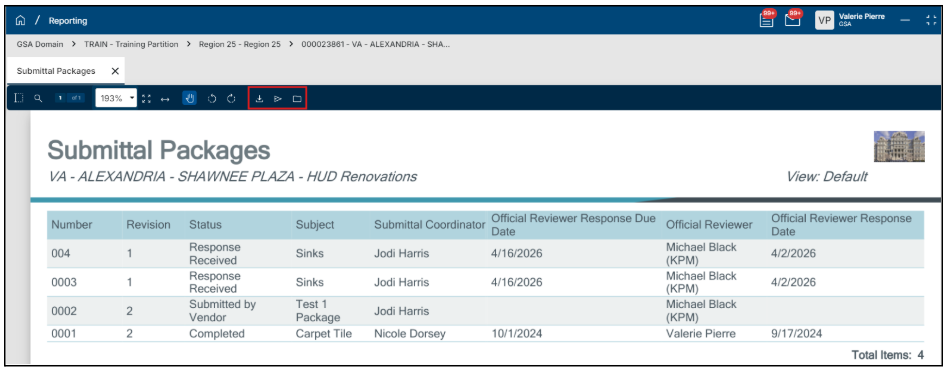
- Once the report preview opens, you can Download it, Send it or Save to Kahua using the icons across the top.


 U.S. General Services Administration