You can send messages to other Kahua users within the system. All messages, both sent and received, are available in the Messages app. Messages are specific to your account and include all messages across projects and partitions. You can copy messages to the Communications app of a specific project to capture any official project communications.
You can also send emails from your email account (such as Gmail or Outlook) to inbox@kahuafn.com to populate that message in the Messages app. Additionally, you can Reply All to a message, and it will be received in your Messages inbox. The message can also be copied into the Communications app of a project.
All sent messages will come from the inbox@kahuafn.com email address.
Access the Messages app
- To access your messages, click the Messages icon in the top navigation bar.
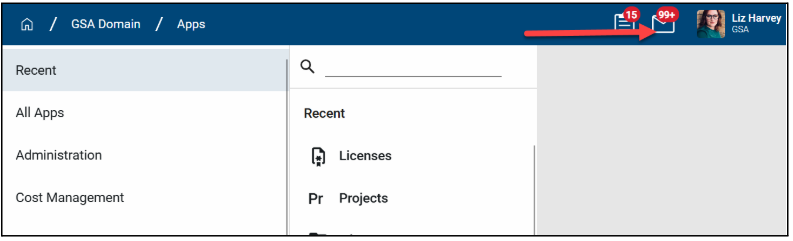 Note: You will also see a list of your unread messages in the Unread Messages section of the home page.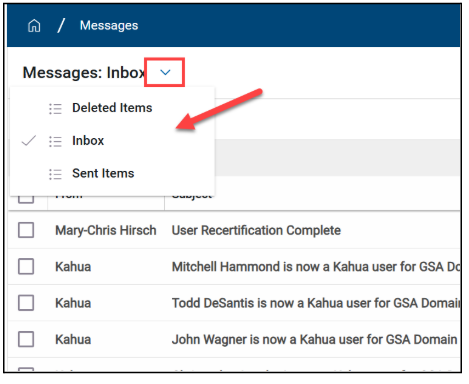
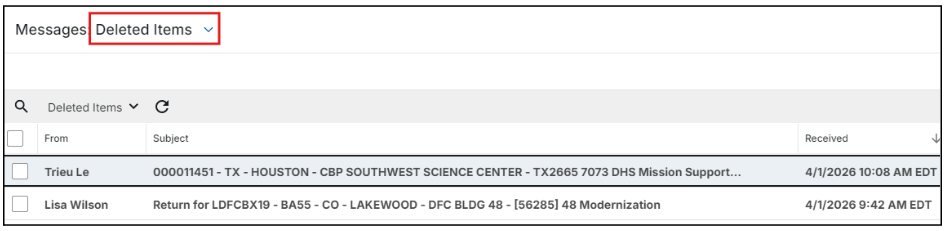
- The Messages Inbox will display all of your messages. You can also select the caret next to the Inbox to toggle through the other lists views such as Deleted Items, Inbox, and Sent Items.
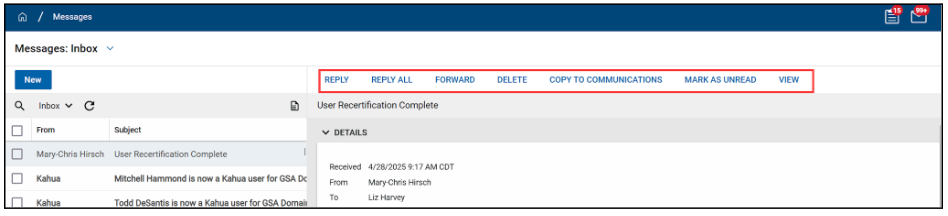
- Select a message to open on the right-hand side.
- From within the message you can Reply, Reply All, Forward, Delete, Copy to Communications, Mark as Unread, or View.
 Note: Depending on screen size, some of these options may be hidden and can be accessed by clicking the three vertical dots.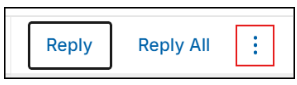
Send a message
- From your Messages Inbox, click the New button to open a blank message document.
- Enter the recipient(s) in the To, Cc, or Bcc fields. Use the drop-down list to select from your Kahua contacts. To send a message to a non-Kahua user, type their email address and press Enter.
- The Subject field is very important. The recommended subject is Project Name/Number — followed by details about the email’s content.
- Type the body of the message.
- Check Copy to Communications to save a copy of the message to the Communications app in the currently open project.
- You can upload an attachment, including any Kahua record, in the Attachments section of the message by clicking Upload or clicking Add Kahua Doc.
- At the bottom of the message, click Send to send it. Note: You can send messages directly from any Kahua app, such as RFI. There is a Send option on the detail actions bar in most apps that will bring up the same screen as in the Messages app.
Manage messages
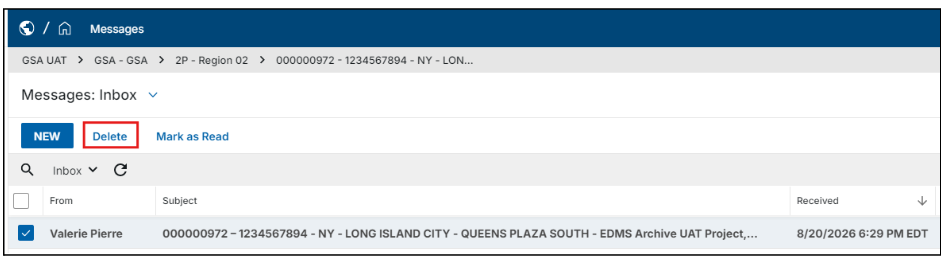
- To remove completed messages from your log, select the checkbox beside the desired message and click the Delete button. This moves the message to your Deleted Items folder.
- To restore a message, navigate to the Deleted Items view and open the message.
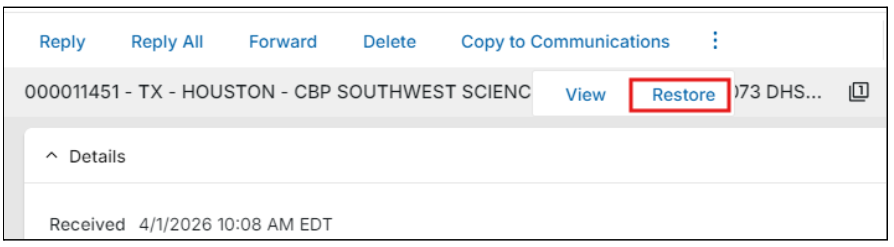
- Click the three bars in the top left corner of the action bar, and select Restore.
- You can then open the message in your inbox and select Mark as Unread if needed.

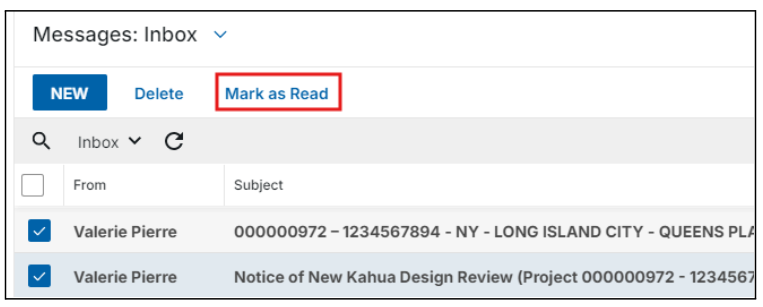
- To mark a message(s) as read, select the checkbox beside one or more messages and click Mark as Read in the action bar.
Resources
Tasks QRG


 U.S. General Services Administration