Kahua provides a Search app to allow you to search across your domain or within a specific project. The system will search both records and uploaded content.
Important things to know about the Search app include the following:
- You can select one or more projects to include in your search. You can leave the Projects selection field blank to search the whole domain.
- You can select one or more apps to include in your search. You can leave the Apps selection field blank to search all applications.
- You can search by keyword or partial keyword.
- You can filter your search results by when the records were created and by whom.
- The search follows your permissions. Results will only include records your user profile has access to.
- Your Messages and Tasks apps are not included in the search, as the content in these apps is personal to you and not available to other users. You can use a log view search to search those applications.
Using the Search app
To search for a word or phrase using the Search app, complete the following steps:
- Navigate to the Search app. If it is not already in your launch bar, navigate to Apps > All Apps > Search.
- The search page opens. The filters appear on the left panel, the results are on the right panel.
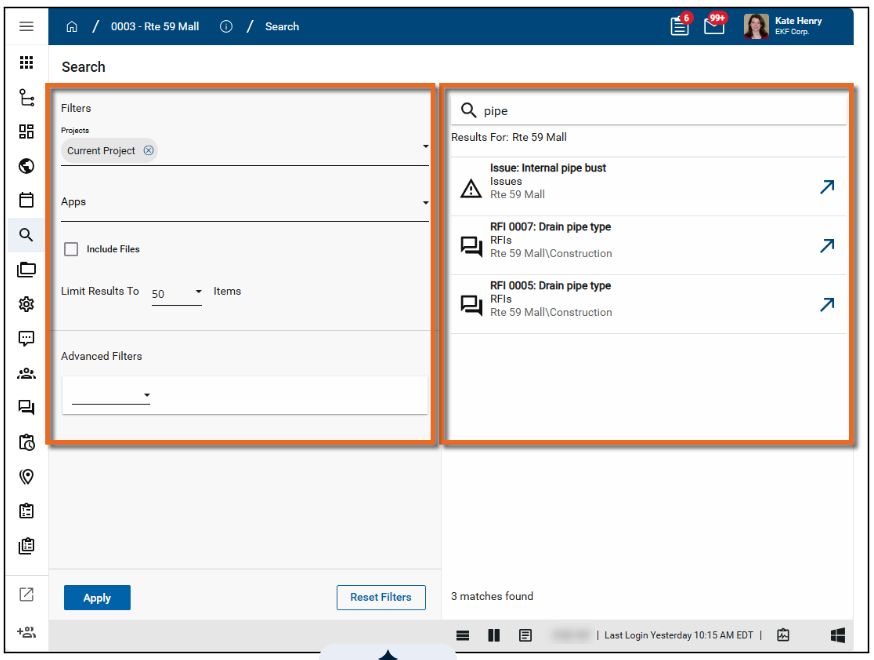
- Complete the Projects field. By default, the Projects field includes the current project. You can clear this selection to search the entire agency domain, or click the drop-down icon to add more projects to include in the search. You can search the Projects list by entering a keyword or partial keyword.
- In the Apps field, click the drop-down menu to select apps to include in the search. You can search the apps list by entering a keyword or partial keyword. Leave this field blank to search all apps.
- In the Include Files field, select this option to include file attachments in the search.
- In the Limit Results field, select the number of search results to return. The default value is 50. The remaining options are 250 and 500.
- Use the Advanced Filters section to apply additional filters to the search results.:
- From the drop-down menu, select Created By or Created On.
- Created By — Use this filter to find records created by a specific user. Select a condition from the next drop-down. The most appropriate conditions to use are “Contains” or “Equals”. If you select “Equals”, the value entered must exactly match the first and last name of the user searched for.
- Created On — Use this filter to find records by the created date. Select a condition from the next drop-down. The most appropriate conditions to use are “After”, “Before”, or a combination of the two. The “After” condition includes the specified date, while the “Before” condition does not. You can search for a specific date or an offset of today’s date by a specified number of days, weeks, months, or years.
- Specific Date — Enter the date manually or use the Calendar Selector icon.
- Current Date/Offset — Select Day, Week, Month, or Year and the offset value. In the example below, the filter would look for any records created after today’s date minus three days.
- To add a second filter, select and or or, as appropriate.
- Set up the second filter as described above.
- Repeat the process for as many filters as you want to create. To remove a filter, click the Remove icon.
- Enter the word or phrase to search for in the Search field.
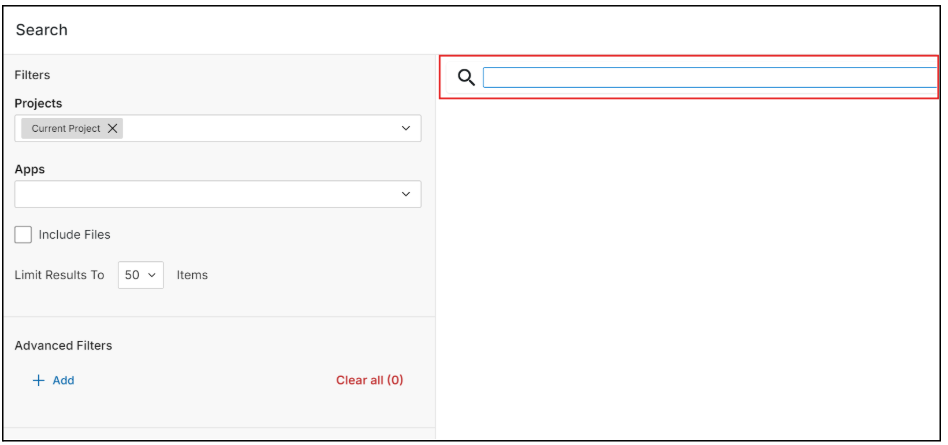
- When you have entered the appropriate filters and search term, click the Apply button to perform the search. The results appear underneath the search term.
- Each returned record appears on its own line. Each line contains the app icon to easily identify what app the record belongs to, the record number and title where applicable, the name of the app, and the name of the project containing the record.
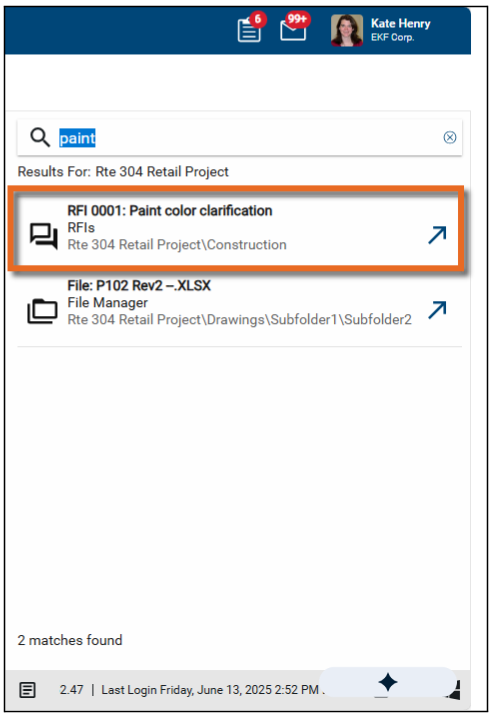
- To open the record in its native application, click on the Open arrow. To open a preview of the record, click on the line item. Several options to manage the preview appear at the top of the panel.
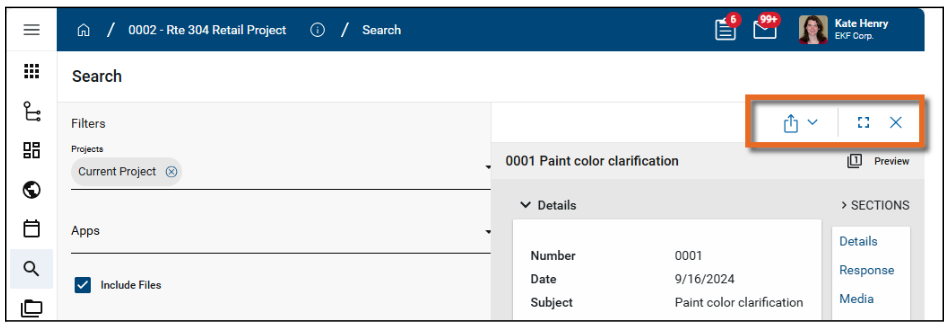
- Select the Copy Link option to copy a URL link for the record to your clipboard. This link can be sent outside of Kahua. Users with the appropriate permissions will be able to open Kahua directly to that record by using the link.
- Select Open in a new window to open the current record as read-only in a new window (desktop host) or browser tab (web host). You can keep the read-only window or tab open for reference while you navigate to other records in your original instance of Kahua. Click Open on the read-only window or tab to open the record in its native app.
- Select Maximize to open the record to a full screen view. From the full screen view, select Minimize to return to the original view.
- Select the Close icon to close the currently open item and return to the results list.


 U.S. General Services Administration