Tasks are your Kahua “to-do” list. You will receive a task when Kahua expects you to take action. You can receive tasks from a variety of applications in Kahua. A Task icon shows the number indicator of tasks requiring your attention. The Tasks application is specific to your account and shows all tasks across all projects.
Access tasks
- To access your tasks, click the Tasks icon in the header.
 Note: You may also access your tasks in the Recent Tasks or Open Tasks sections of the Getting Started page.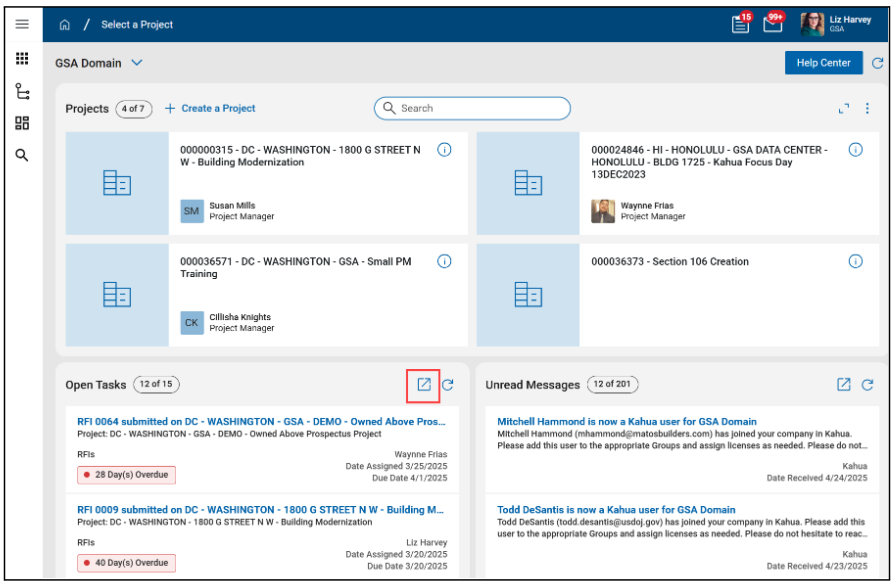
- Tasks will open displaying the Active Tasks. You may also select the drop-down list next to Active to display your Completed Tasks.
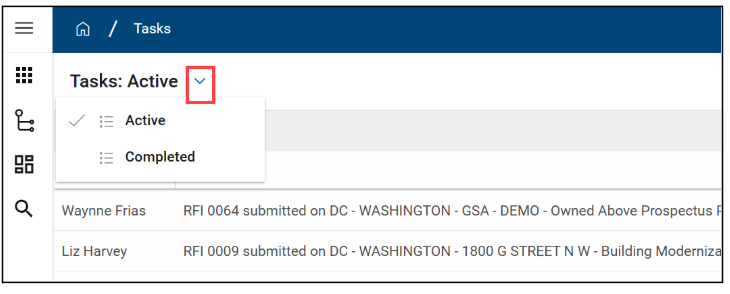
- Click a Task to open it on the right-hand side of the screen.
Take appropriate task action
- Task action buttons are located at the top of the form and may differ depending on the task in hand. Also, the list of action buttons may display differently depending on your view. You may need to click the icon with three vertical dots to see additional action buttons.
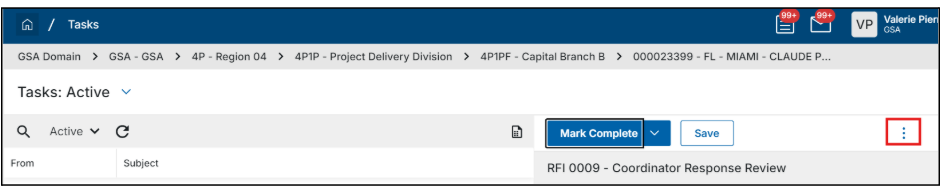 Example actions may include Save, Return for Clarification, Respond, Mark Complete, Review Complete, Approve, or Decline. Click the appropriate button.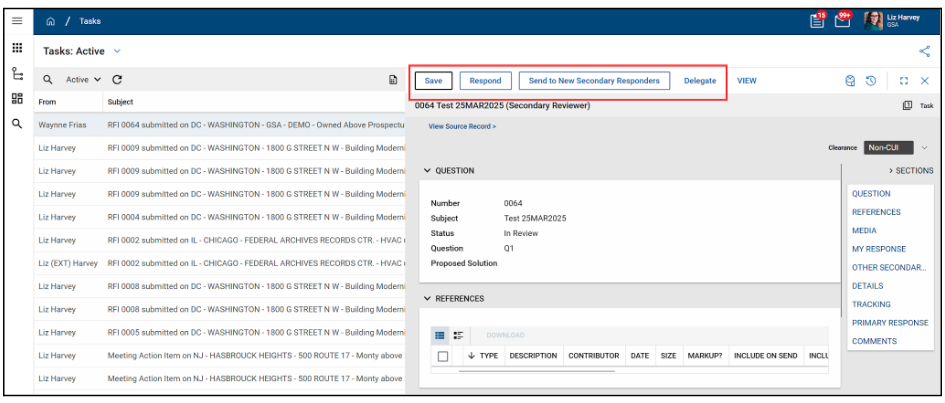
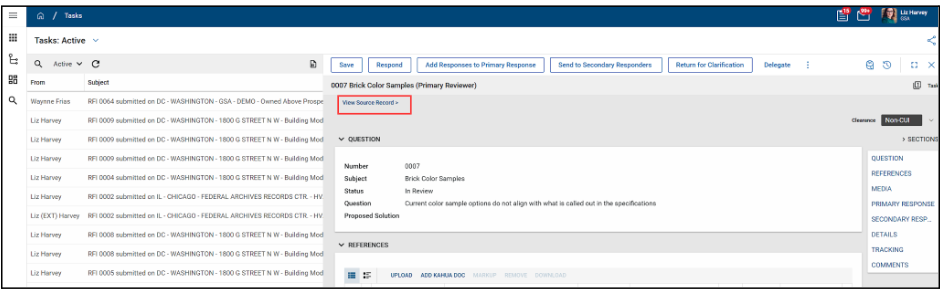
- If you need to view a task’s source record, click View Source Record at the top of the task. This opens the document within the specific project. Return to the task before taking the necessary action.
Delegate a task
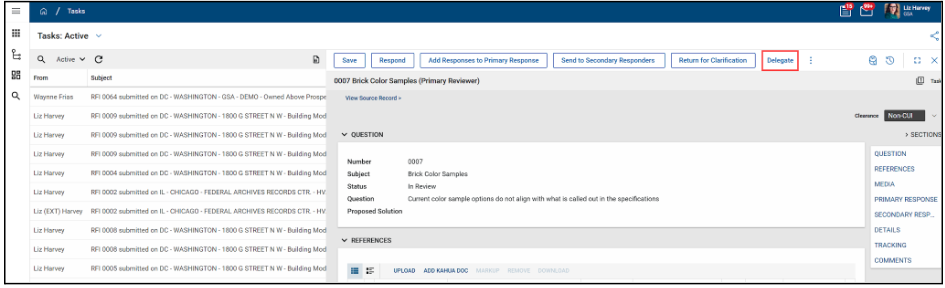
- Tasks can also be delegated to other Kahua users to complete on your behalf. To delegate a task, open a task and click the Delegate button.
- Enter the Kahua user’s name in the Delegate To field. You may also notify the originator that the task has been delegated by checking the Notify Originator checkbox. Include a Message if needed.
- Click the Submit button. Note: A task’s due date does not change if the task was delegated to another user.
Out of office
Your tasks can be automatically delegated to another user while you are out of the office. You can select a beginning and end date for task delegation to occur. All newly received tasks during this time frame will be delegated. Any existing tasks will not be delegated. All delegated tasks will remain delegated when the delegation period ends or the delegation is manually disabled.
To set up task delegation while you are out of the office, complete the following steps:
- Click the person icon in the upper right corner of your screen (or your image if you’ve set a picture for your user account), and select My Settings from the drop-down menu.
- Select the Out of Office tab.
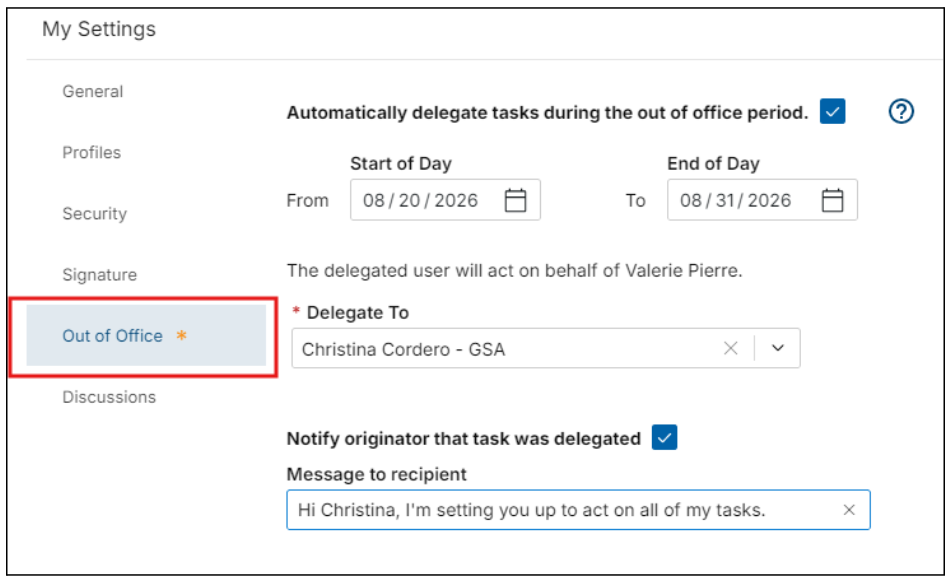
- Select the Automatically delegate tasks during the out of office period check box.
- Enter the From and To dates for the out of office period.
- Select the user who will act on your behalf in the Delegate To field.
- Select Notify originator that task was delegated to have a message sent to the originator of the task letting them know that the task was delegated and enter text to be included in that message.
- Click the Save button.


 U.S. General Services Administration