Follow this job aid to learn how to create and approve a timesheet for an employee in HR Links.
Select the Manage Timesheet tile on the Manager Self Service homepage.
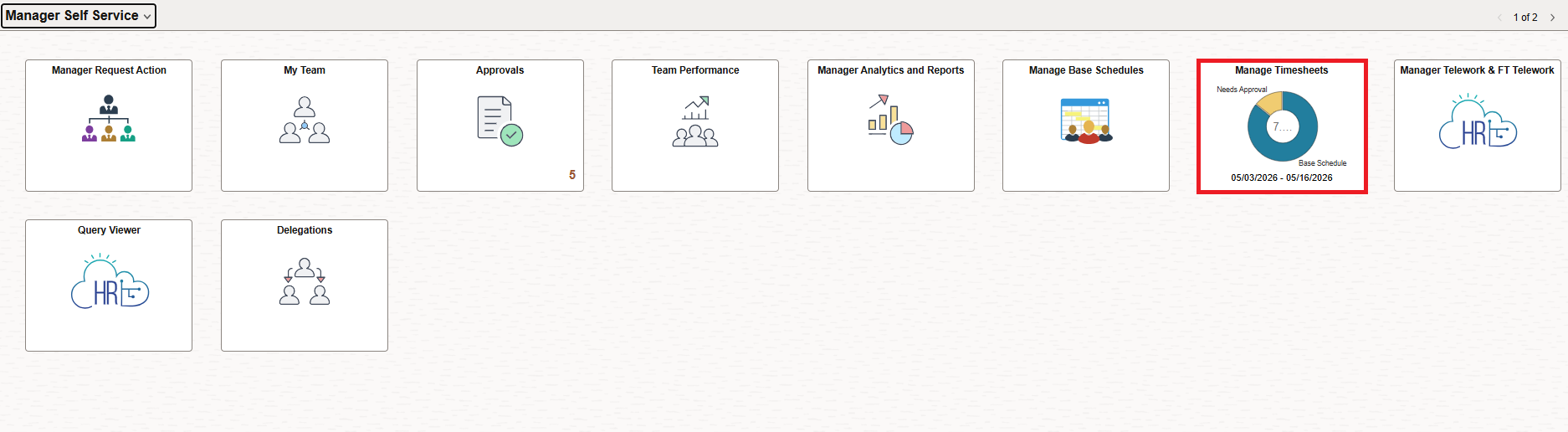
Note: The status information on the tile may take a few seconds to appear.
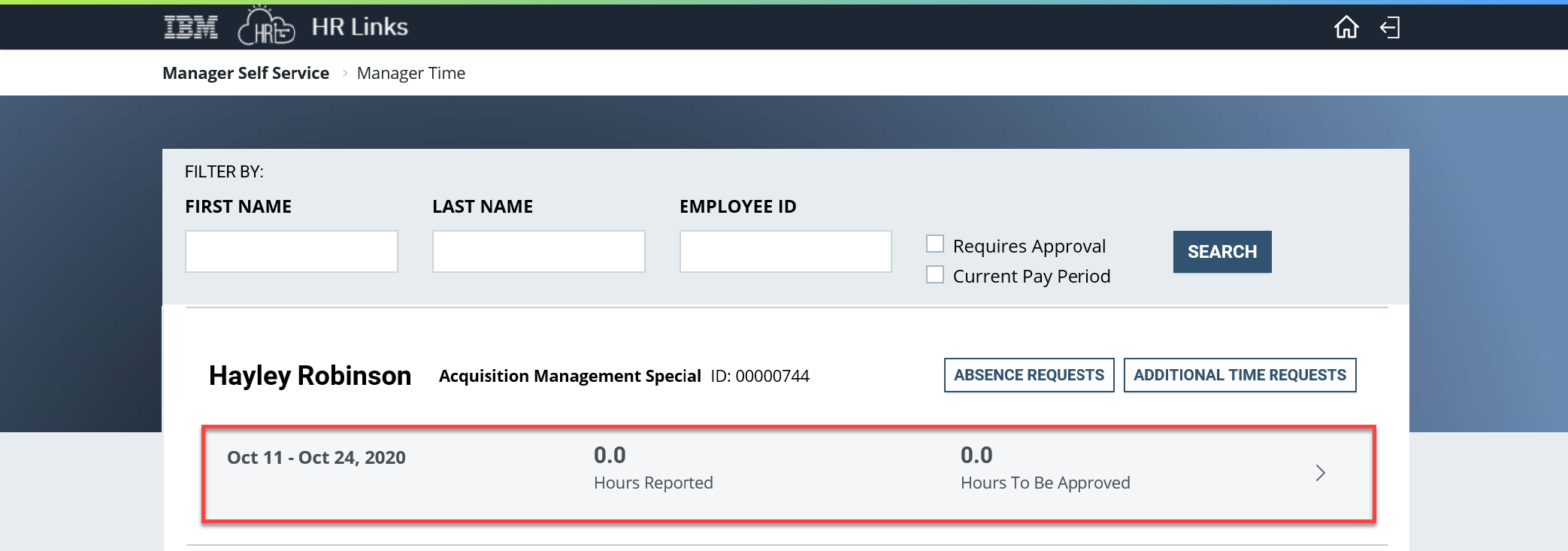
Select the Employee from the list (click in the pay period, hours reported, hours to be approved area).
If you receive a pop-up message asking you to apply your base schedule, select Yes.
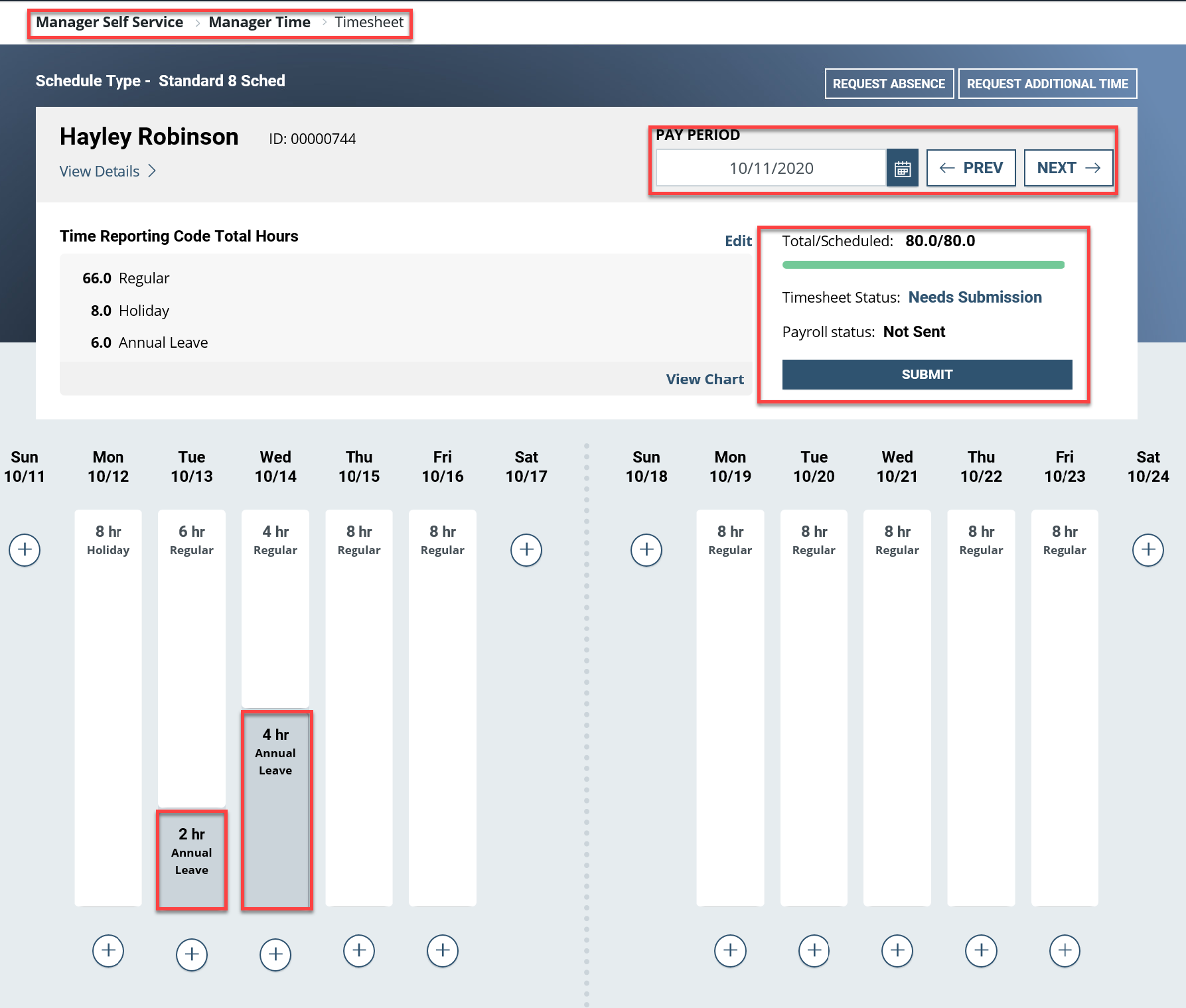
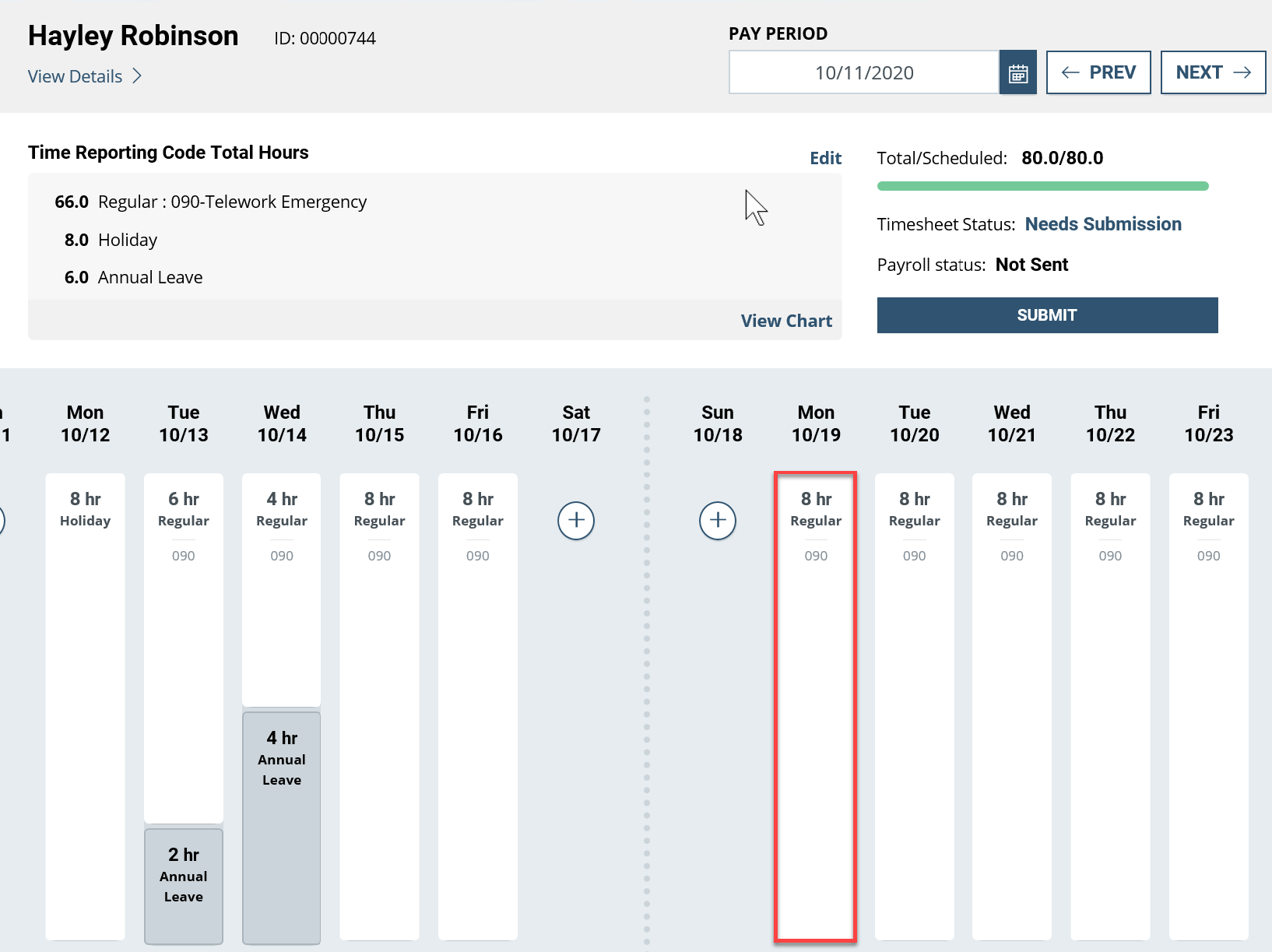
The Time screen will appear, displaying the current pay period with the employee’s base schedule applied. Use the breadcrumbs in the upper left corner of the screen to navigate back to the Employee Self Service or home screen.
You will now see an information panel at the top of the Timesheet screen:
- the Pay Period field will show the first day of the current pay period
- the Timesheet Status will initially read “No Timesheet”
- and the Payroll Status will be “Not Sent”
Any absence or overtime requests that have already been submitted and approved will also be reflected. The status will change to “Needs Submission” once you have begun making changes to the timesheet.
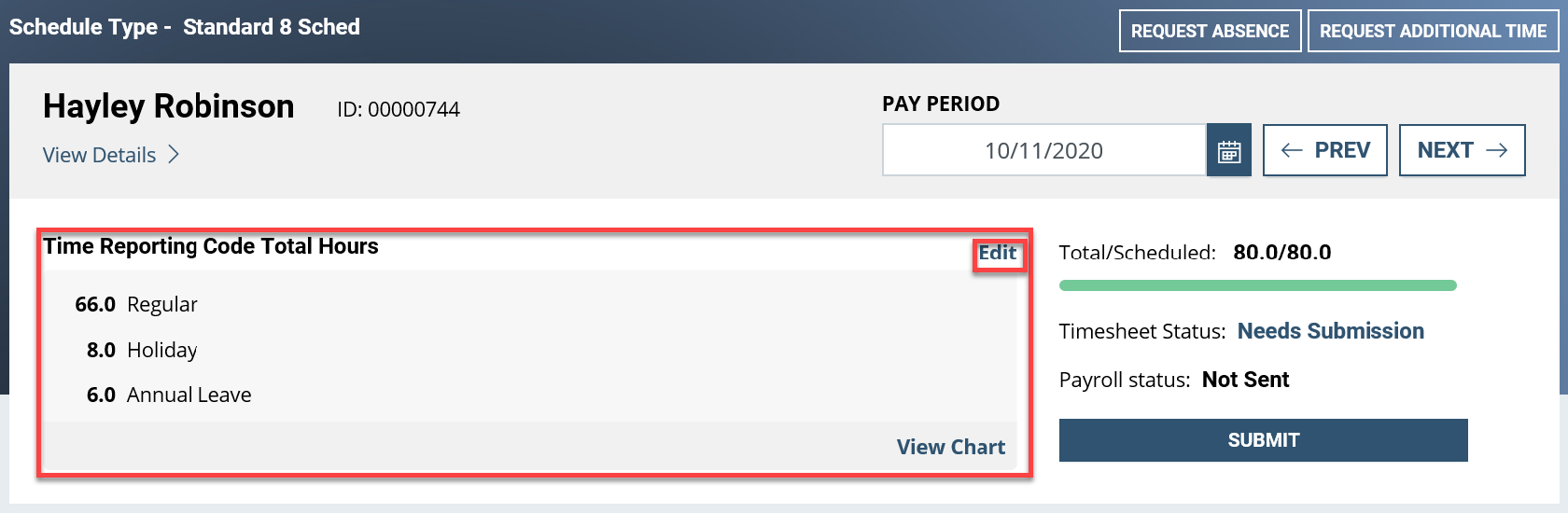
Next, review the hours displayed on the timesheet and make any necessary changes or updates. The Time Reporting Code Total Hours table provides a breakdown of your timesheet hours by Time Reporting Code.
There are two ways to make changes to the Time Reporting Code hours on your timesheet.
The first approach, bulk edit, is to edit one or more of the Time Reporting Codes reflected in the Time Reporting Code Total Hours table without changing the overall hourly breakdown. To do this, click the Edit hyperlink in the upper right corner of the section.
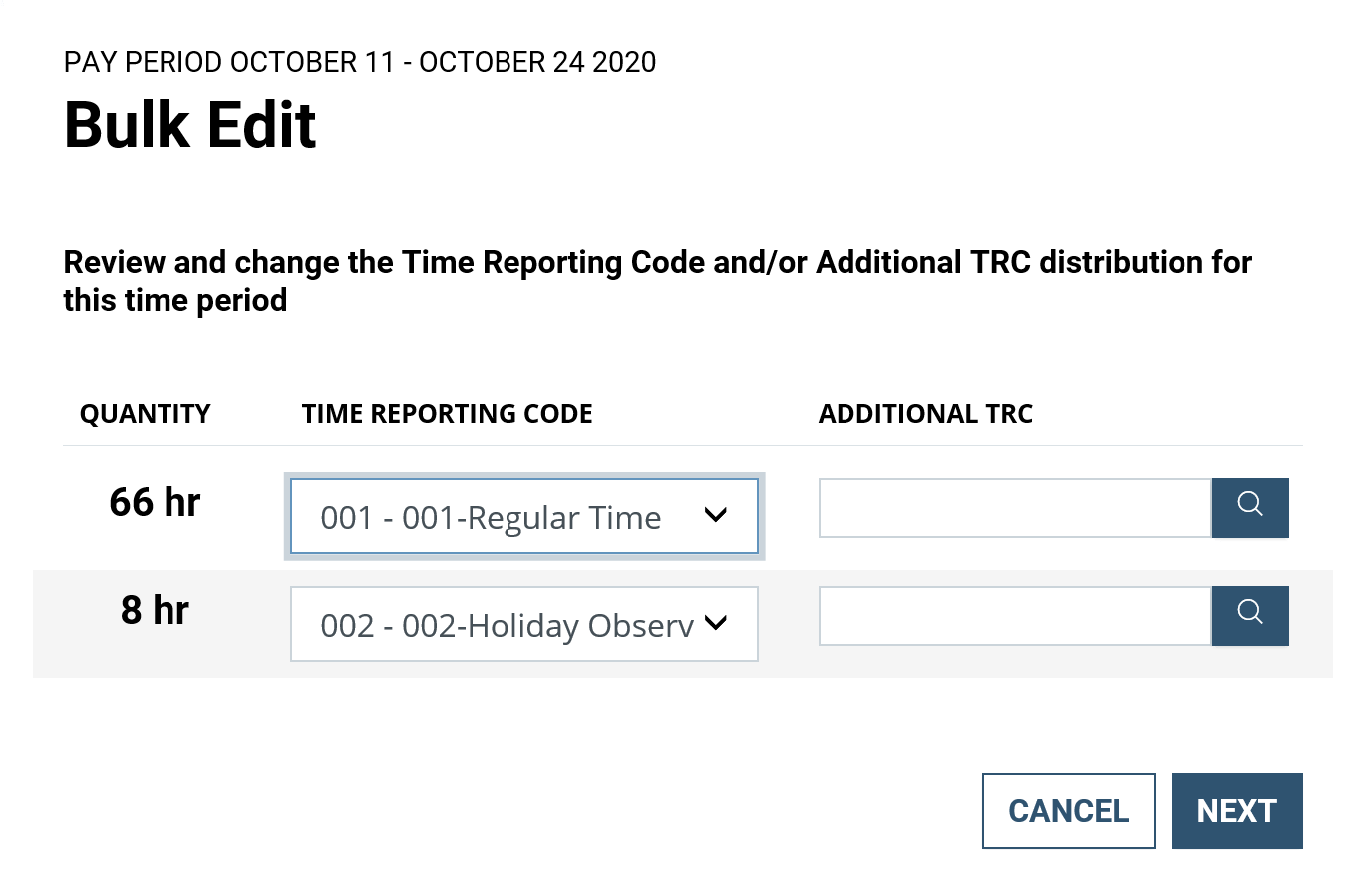
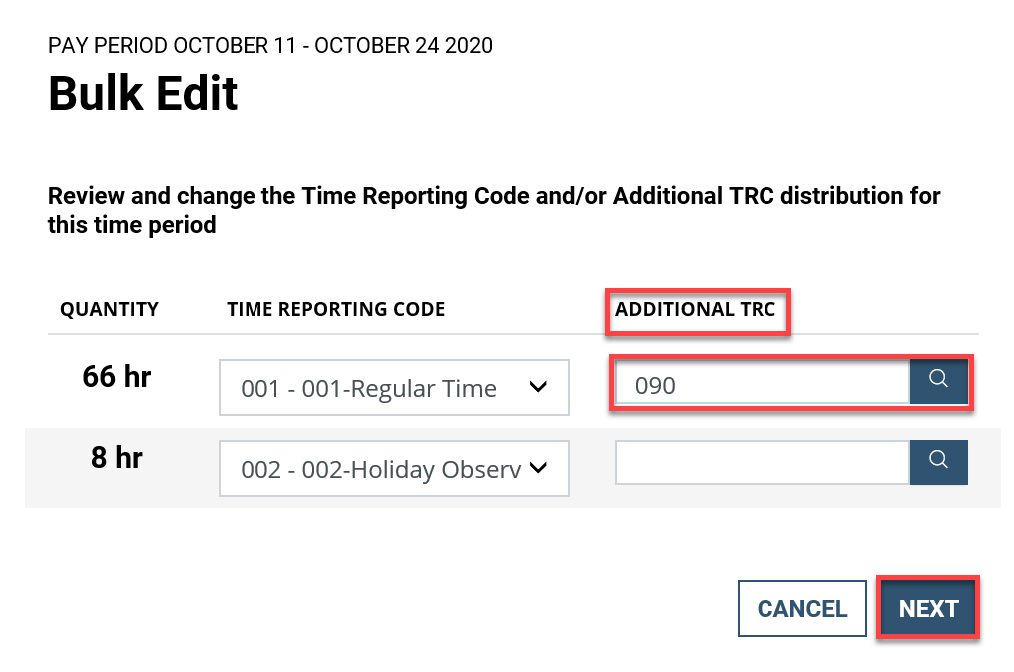
In the Bulk Edit dialog box that appears, you can update any of the Time Reporting Codes on your timesheet by clicking the down arrow next to the code(s) you want to change and selecting a replacement from the dropdown menu. The most common use of Bulk Edit is to change Regular Time to a different telework code using the Additional TRC field.
In this example, an Additional Time Reporting Code, 090-Telework - Emergency, will be added all Regular Time. (Note that you cannot change the Quantity of hours using this approach, only the TRC and Additional TRC codes.)
Enter the numeric code or code description into the search field and select Next.
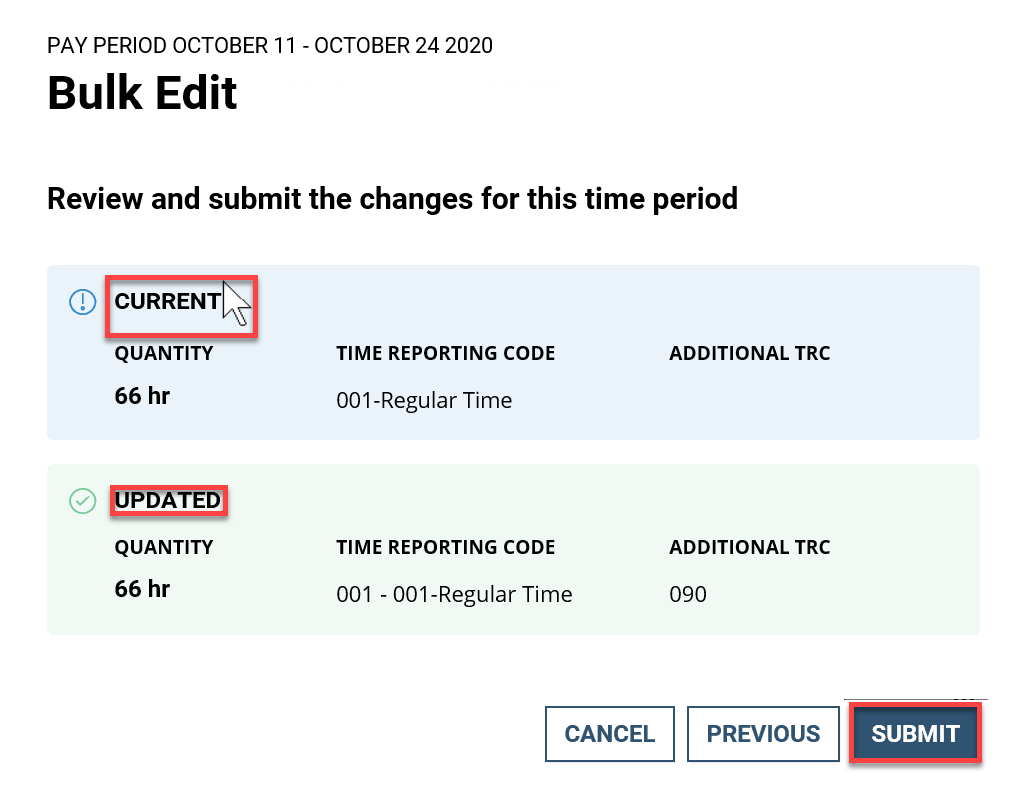
A new dialog box will appear summarizing the change you are about to make; select Submit to complete the process.
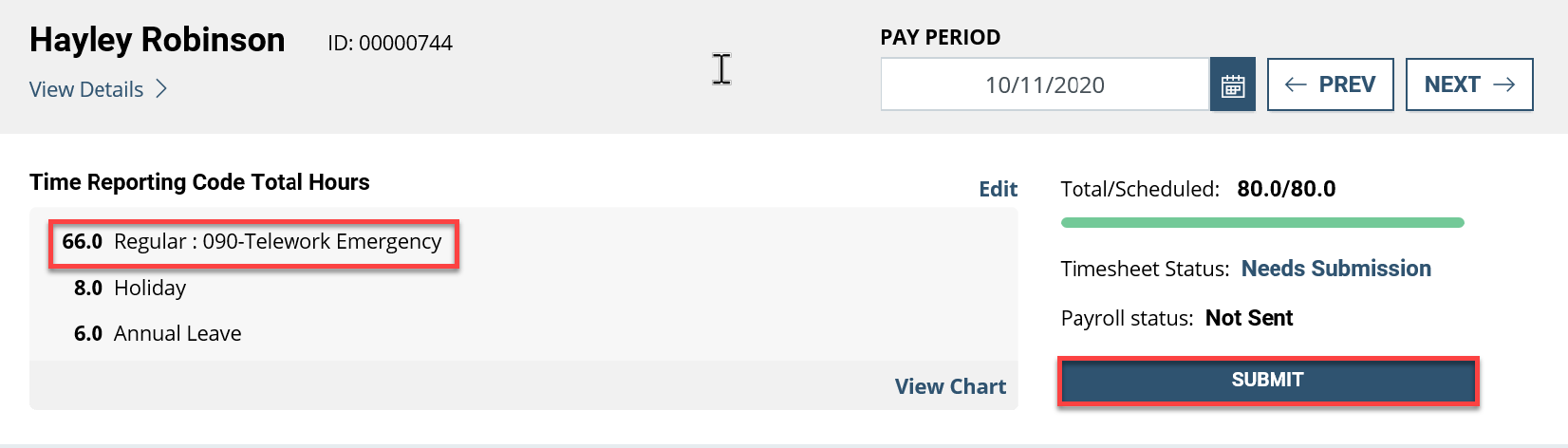
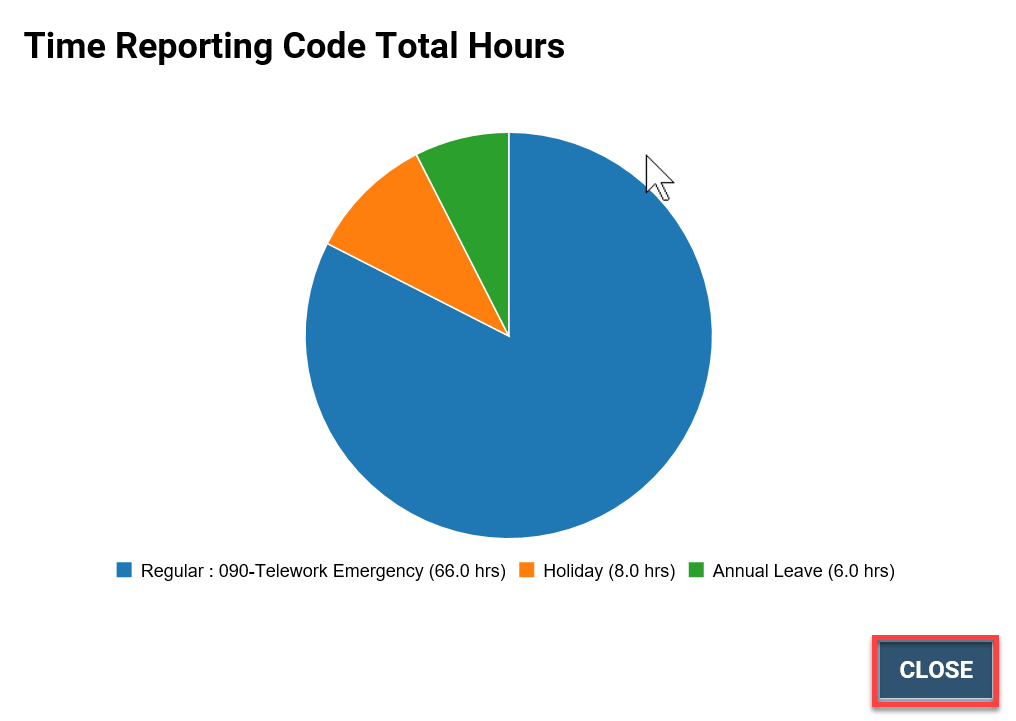
The code you added now appears in the Time Reporting Code Total Hours section of your timesheet. If desired, select the View Chart button in the lower right-hand corner to access a pie chart showing the Time Reporting Code breakdown for the current pay period.
Select the Close button to return to the timesheet screen.
To change the Time Reporting Code/s for a specific day, select the time block for the day you would like to update in the reported hours section of the timesheet. This will enable you to edit both the TRC codes and corresponding hours for the selected day.
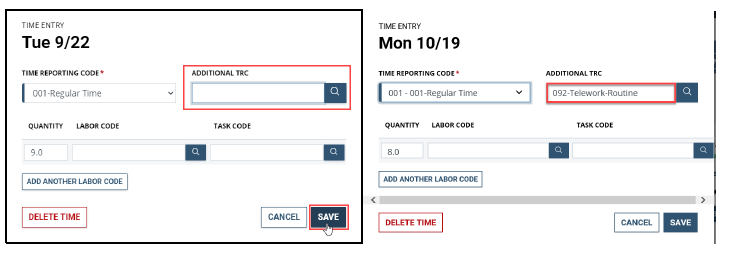
In the Time Entry dialog box that appears, use the down arrow to access available Time Reporting Codes.
In this example, code 092 - Telework Routine will be added from the Additional TRC (Additional Time Reporting Code). Select Save to complete the change.
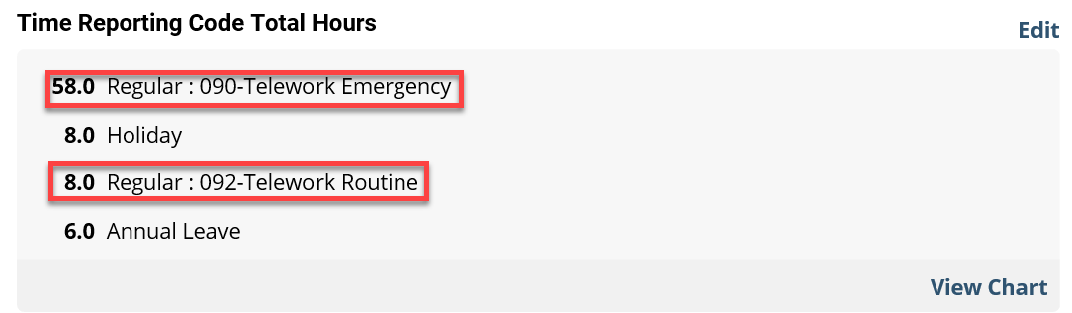
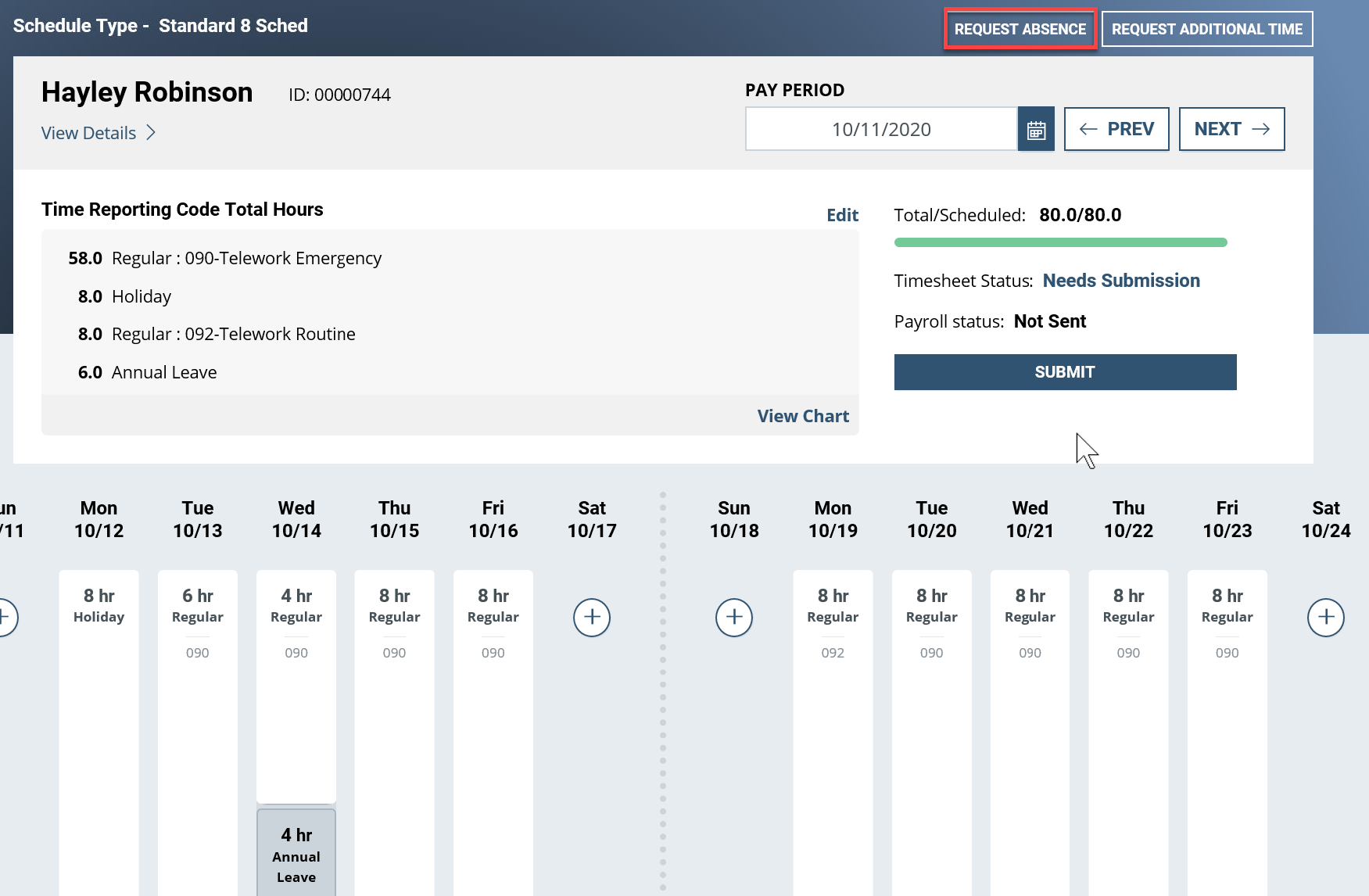
The Additional Time Reporting Code 092-Telework Routine has been added to the time block. The Time Reporting Code Total Hours breakdown now reflects the change.
If you will not be submitting any additional absence requests for this pay period and the total number of hours you reported equals the total number of hours in your base schedule (as indicated by the green bar under Total/Scheduled hours below), you can skip to step 23.
If you will be submitting an Absence request from the timesheet, select the Request Absence button in the upper right-hand corner of the screen.
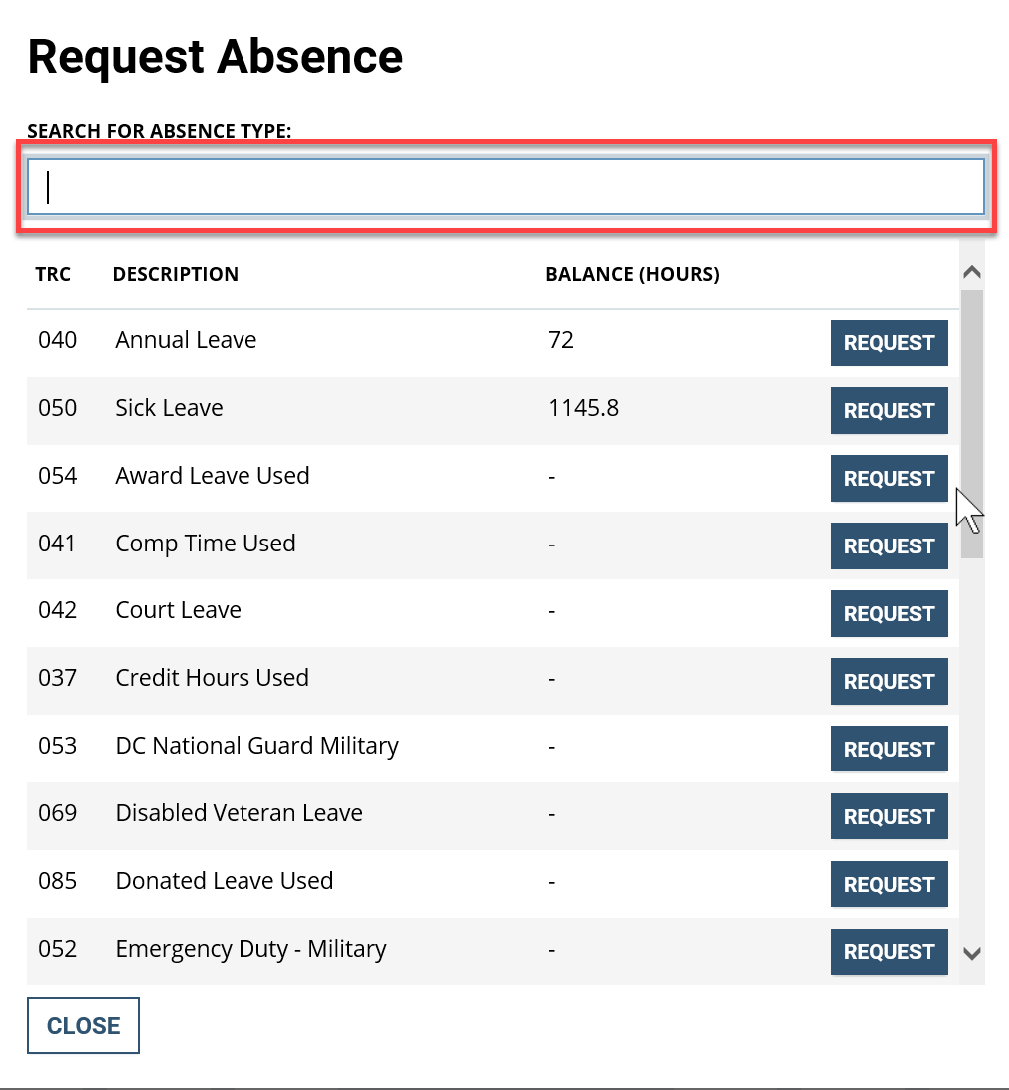
In the dialog box that appears, find the Absence Type you want to request by typing all or part of the description into the Search for Absence Type field or by using the scroll bar on the right to find and select it. Then select the Request button next to your choice.
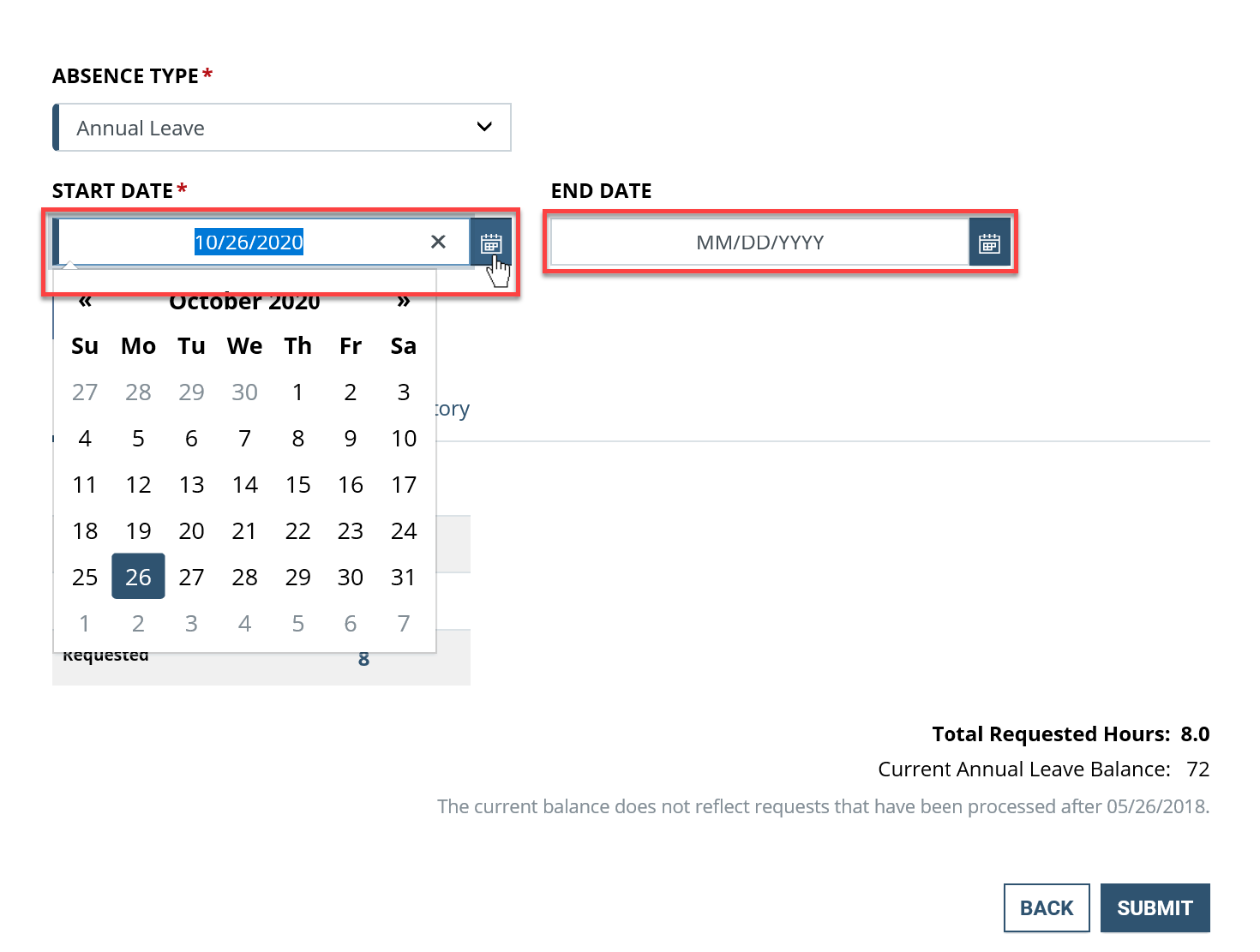
A new dialog box will appear displaying the Absence Type you selected. Use the calendar icons to enter the Start and End Dates for the absence you are requesting.
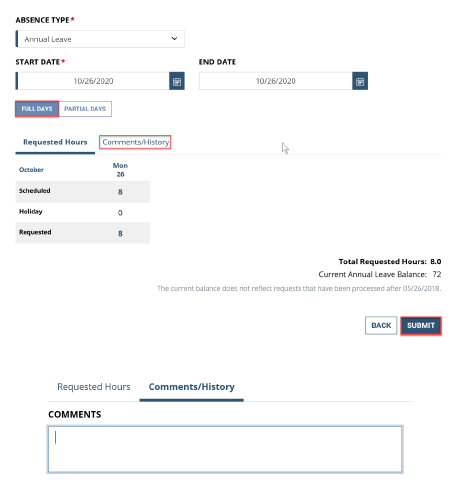
After choosing the Start and End dates, the absence page defaults to Full Days.
If you are requesting Full Days of absence, the page will automatically calculate the Total Requested Hours. You can select the Comments/History hyperlink and type comments into the text box that appears, as shown in the second box below. Once completed, select Submit.
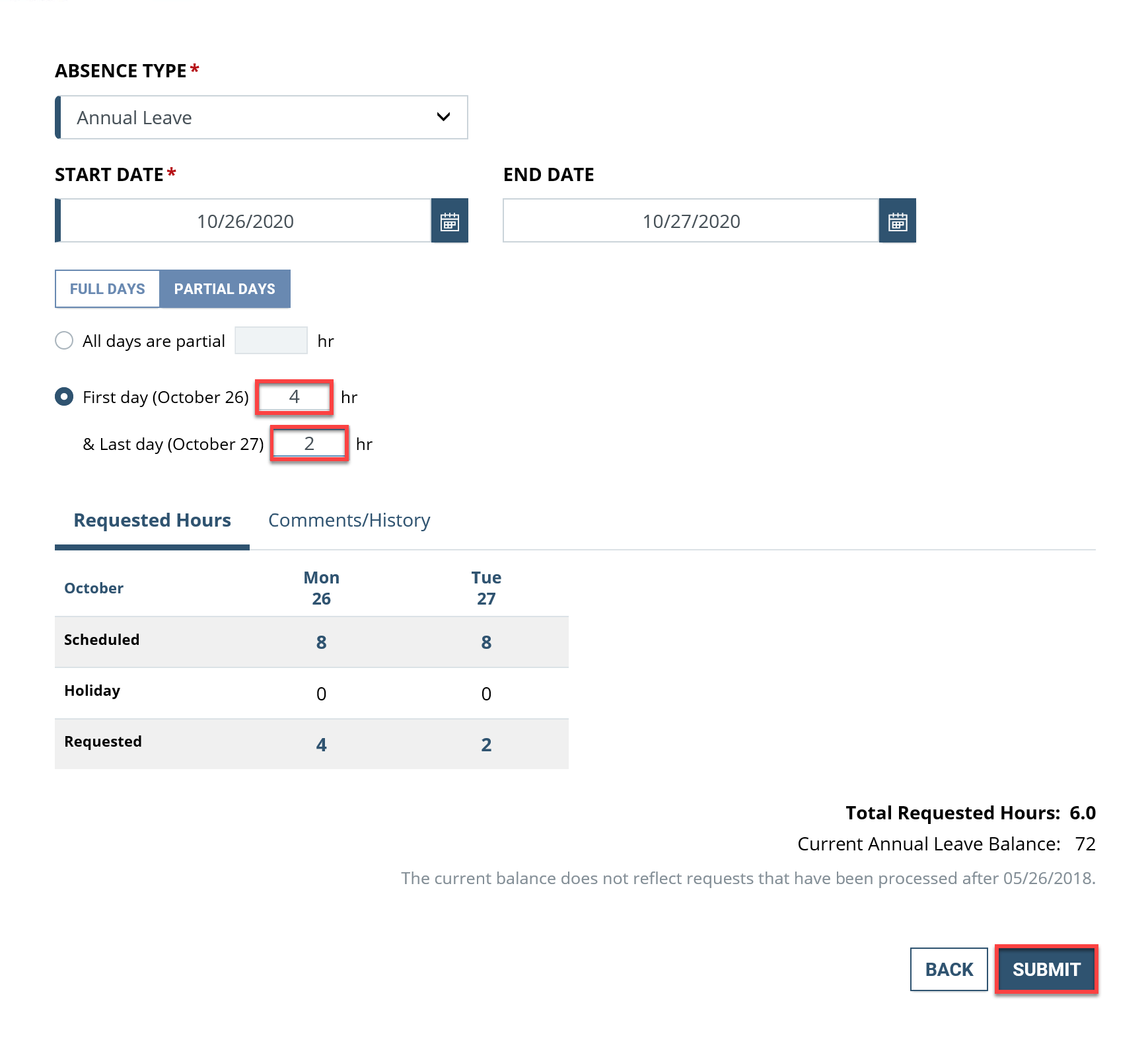
If you are requesting less than full days of absence, select Partial Days. You will have two options:
- you can select the first radio button: “All days are partial,” and request the same number of hours for all days in the period, or
- select the second radio button: “First day & Last day”, as shown in the example below, and enter the number of hours of absence you are requesting for the first and last days of the period. The number of hours does not have to be the same for both days, and all other days in the period will be counted as full days of absence. Please note: the value 0 is not allowed for these days.
As before, select the Comments/History hyperlink to add comments if desired, then select Submit.
Once you have completed one or more absence requests, you will need to adjust your timesheet so that the total hours you are reporting do not exceed the total scheduled hours for the pay period.
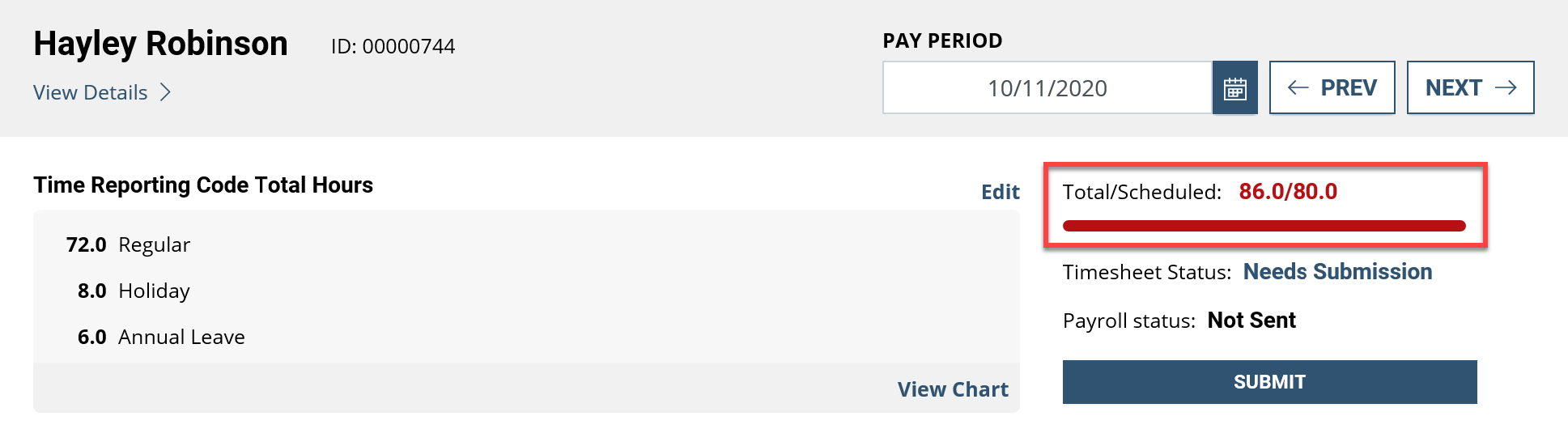
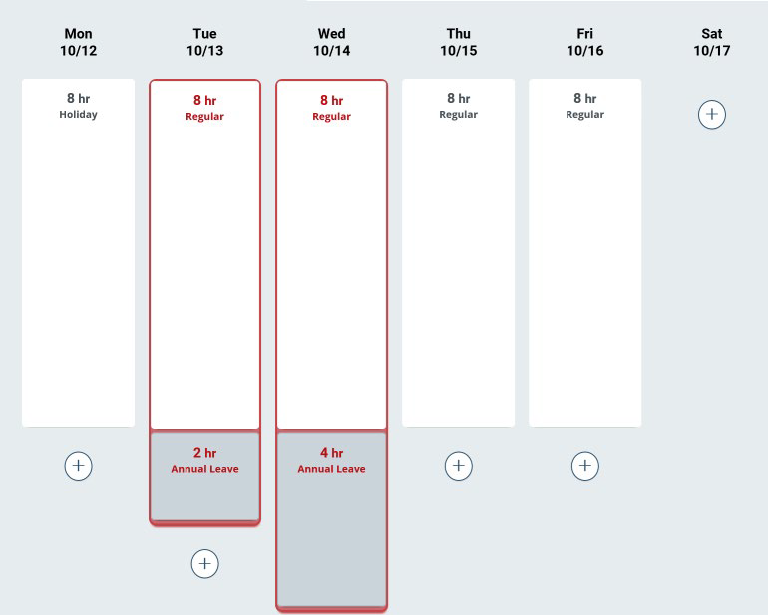
In this example, adding the leave request has increased total reported hours to 86.0, which exceeds the allowable total of 80.0 scheduled hours. This has triggered a High exception as indicated by the red bar. This exception must be resolved before the timesheet can be submitted and approved.
To adjust the hours on your timesheet, select the time block for each day you want to change.
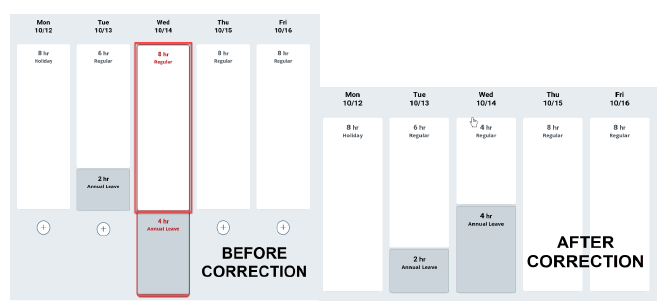
In this example, the Regular hours for Tuesday, 10/13, must be reduced to offset the 2.0 hours of Annual Leave that were just submitted for that day.
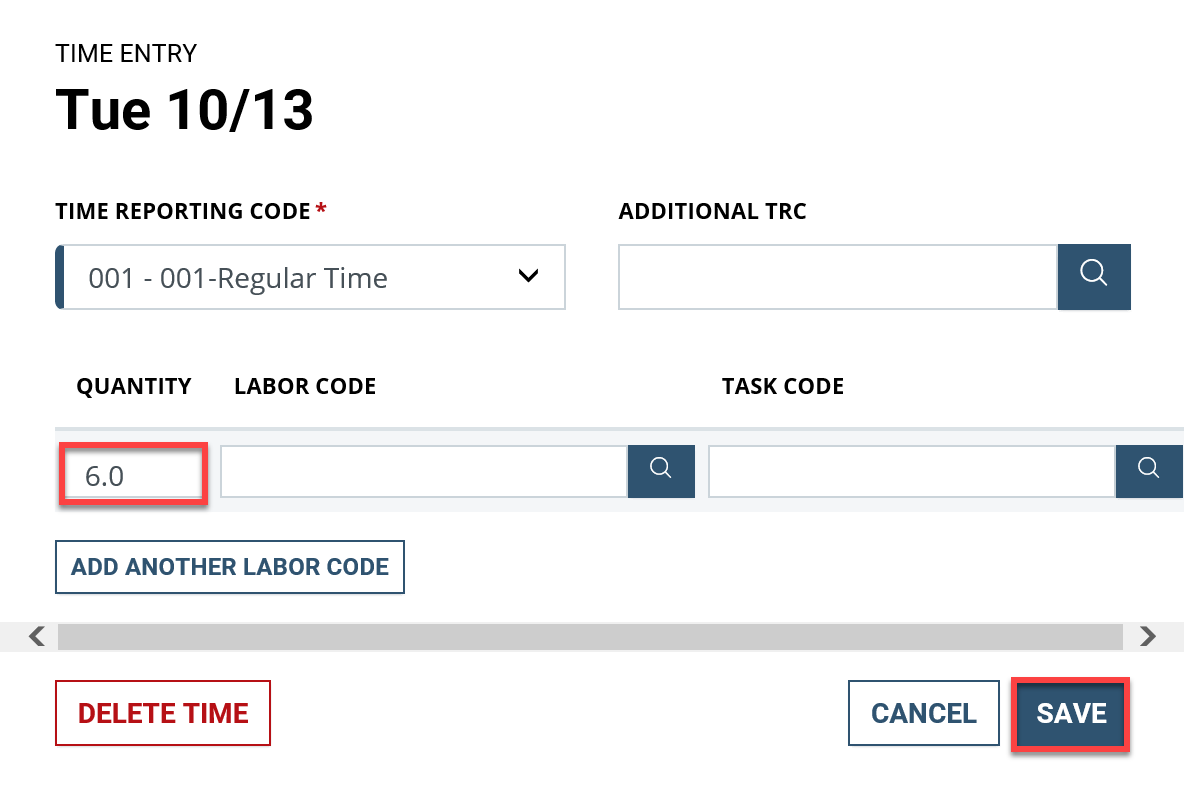
A dialog box will appear; you can make the adjustment by changing the Quantity field to 5.0, then select Save.
Note: The Delete Time button deletes the entire time block — not just the hours in the Quantity field.
Repeat steps 20 and 21 above to adjust the hours for the other day (10/14) for which Annual Leave was requested.
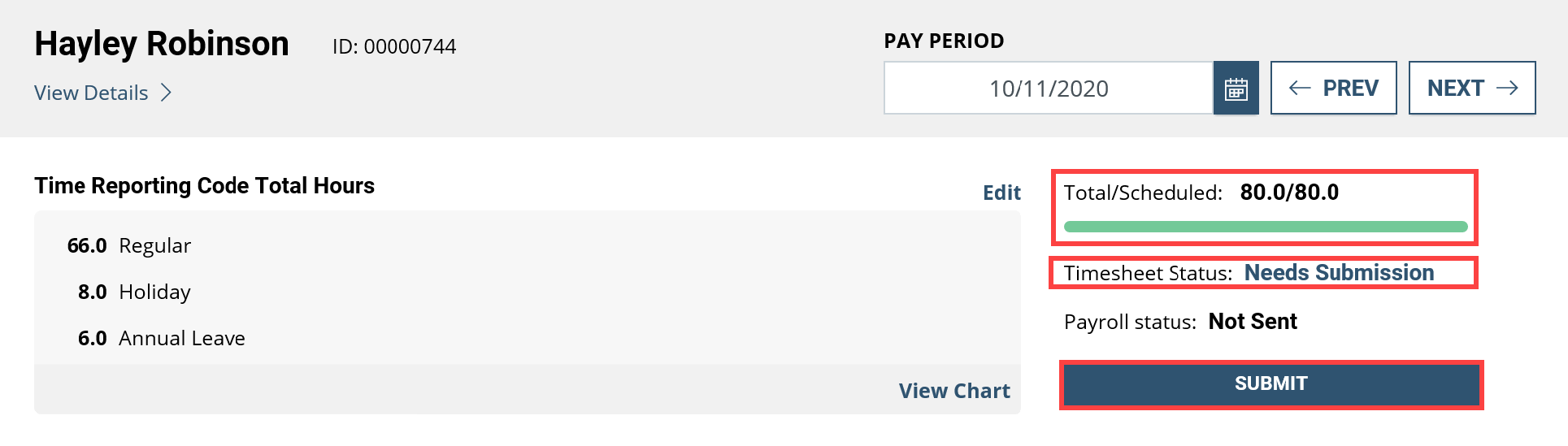
The High exception has been resolved because Total Reported hours now equal Total Scheduled hours, as indicated by the green bar.
The Timesheet Status is Needs Submission; this will change to Needs Approval once it is submitted. To do this, select Submit.
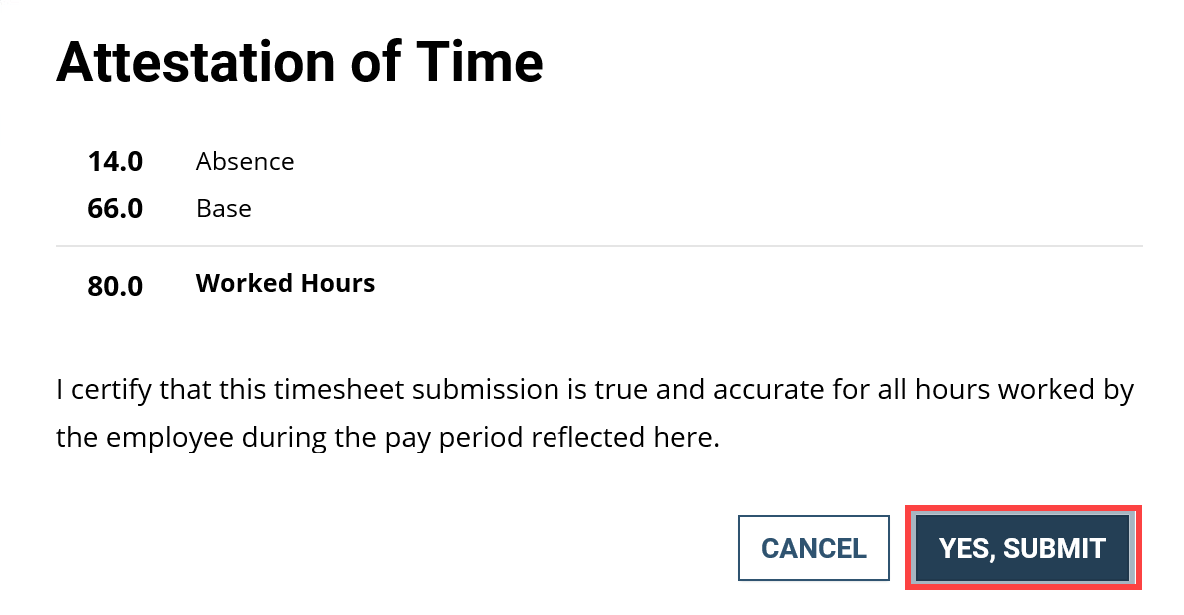
You will be asked to attest to the accuracy of the timesheet you are submitting; after reviewing the summary of reported hours, select Yes, Submit to complete the process (or select Cancel if you believe further changes are needed).
You will receive a confirmation message letting you know your timesheet has been submitted successfully.
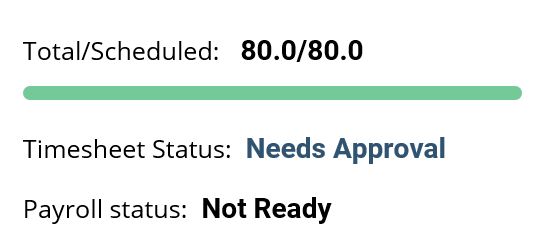
The Timesheet Status is now Needs Approval and is awaiting review and approval by your manager. Once approved, the status will change to Approved and the Payroll Status will also change once the timesheet has been submitted for processing.
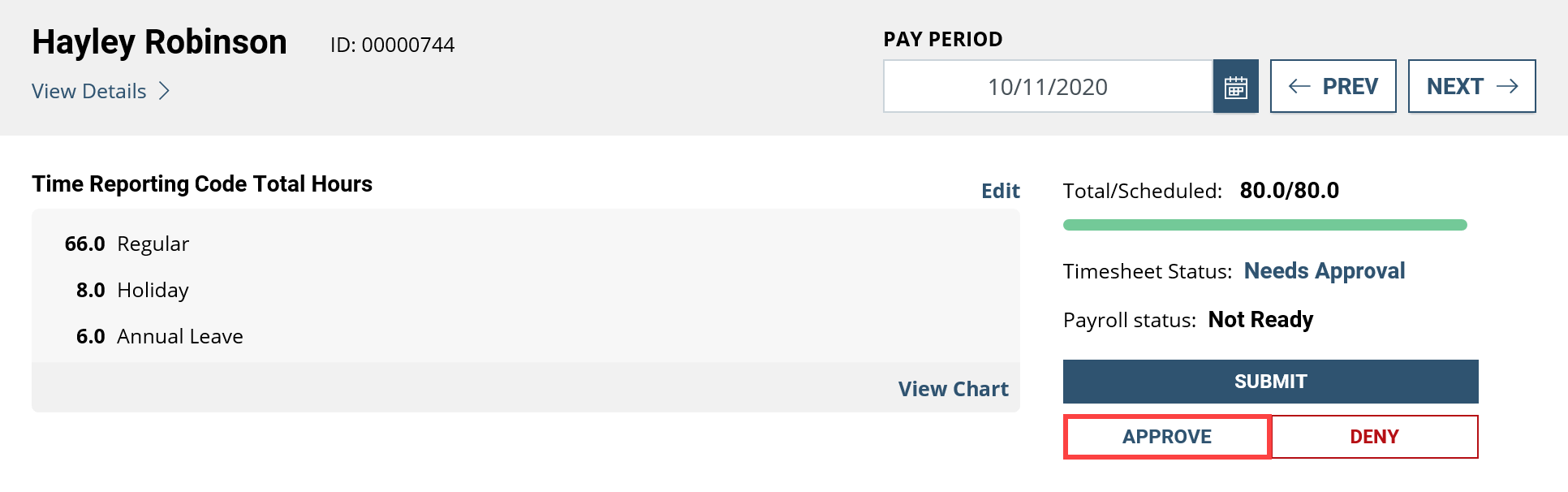
Use the Approve and Deny buttons.
To Approve the Timesheet, click the Approve button. The Approve Submission dialog appears. Enter comments if desired.
Click the Yes, I Approve button.
The Timesheet status will change to Approved.
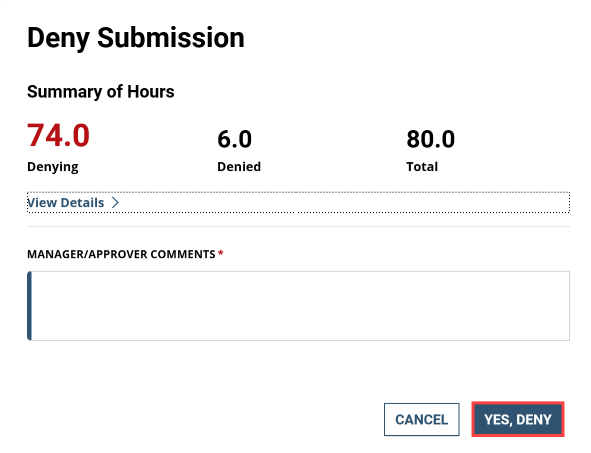
To Deny the Timesheet, click the Deny button. The Deny Submission dialog will appear. Enter Comments, if desired, and Click the Yes, Deny button.


 U.S. General Services Administration