Federal employees are eligible for paid holidays under the holiday law, 5 U.S.C. 6103. These are calendar holidays, with many on Mondays but some on other days (such as Thanksgiving on Thursdays). Christmas and New Year’s can occur on any day of the week, depending on that year’s particular calendar. Under that law, when a calendar holiday falls on a non-workday, the employee is eligible for a substitute holiday, called an “in lieu of” holiday.
When a holiday falls on a calendar Monday through Saturday, the in lieu of holiday is observed for pay and leave purposes on the preceding workday (meaning, the last regular workday before the calendar holiday). There is a special rule for calendar holidays that occur on a Sunday. Under Executive Order 11582 (1971), when a holiday occurs on a calendar Sunday the following workday (typically Monday) is observed for pay and leave purposes.
In lieu of holidays only apply to full-time employees. Part-time and intermittent employees are not entitled to an in lieu of holiday. For more information you can read OPM’s Fact Sheet on in lieu of holidays.
HR Links is designed to normally place calendar holidays onto the employee’s timesheet, when that calendar holiday is a workday. When the calendar holiday is not a regular workday (according to the Base Schedule), HR Links will not apply the holiday to the timesheet. It is up to the employee (user) to designate the correct in lieu of holiday. This Job Aid shows you how to manually record an in lieu of holiday.
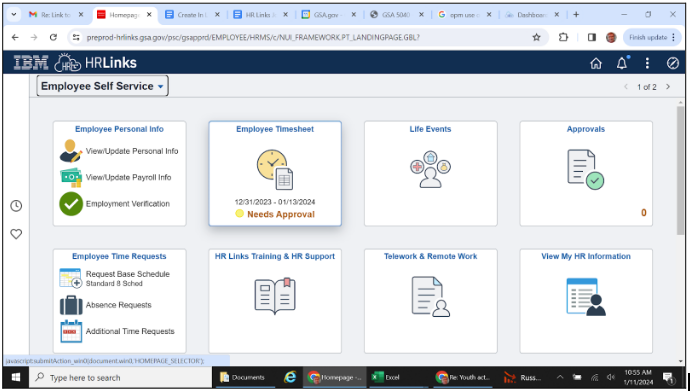
From the Employee Self Service home page, select Employee Timesheet on the Employee Time Requests tile.
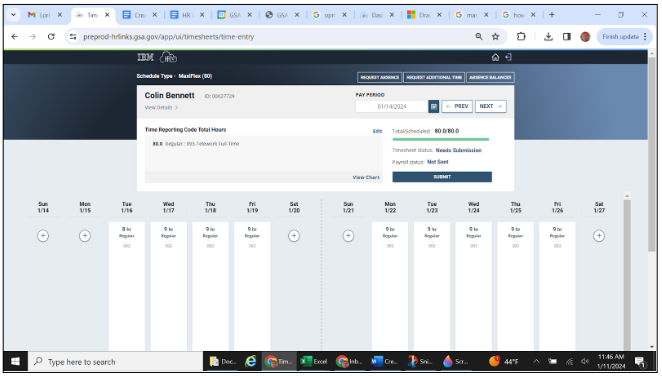
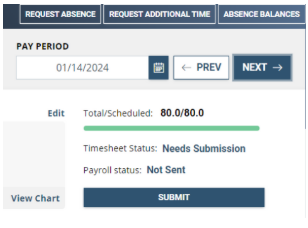
For this example, we will illustrate how to record the 2024 Martin Luther King Birthday which falls on a calendar Monday (January 15, 2024). Select Next Pay Period to see how the calendar holiday relates to the base schedule.
In this case, for illustration, we have the employee on a flexible work schedule, under the “maxiflex” Base Schedule pattern. Under this pattern, the employee has fewer than 10 workdays each pay period and completes the total of 80 hours each pay period by typically working longer than 8 hours each workday. In this illustration, when the Base Schedule is applied, you might see something like this:
- As you can see from the above, Monday January 15, which is a calendar holiday, is actually a non-workday. When calendar holidays fall on non-workdays, HR Links requires the user to manually designate the “in lieu of” holiday.
- By applying the in lieu of holiday rules, the user realizes that the in lieu of holiday is observed on the preceding workday, which would be (according to the Base Schedule), the prior Friday, January 12, 2024. We can see that in this example, for this pay year, the calendar holiday and the in lieu of holiday fall in different pay periods. Under the civil service rules, this is acceptable and does not affect either the rules or the timekeeping procedure. In addition, the HR Links system is configured with sufficient flexibility to allow the next steps.
Because the in lieu of holiday is in the prior pay period, in the upper right-hand side of the page, select the previous pay period:
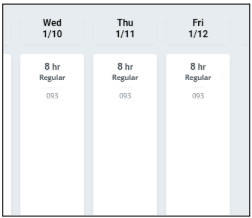
On that prior pay period, the user will need to change the prior workday (i.e., Friday January 12, 2024) from Regular work hours (TRC 001) to instead Holiday hours (TRC 002):
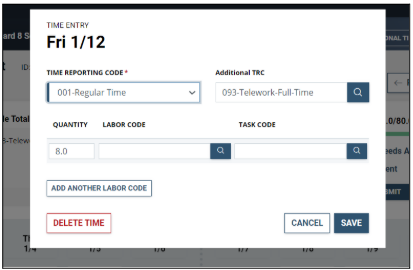
With your cursor, click the vertical bar of time for Friday, January 12, and a menu will then be displayed:
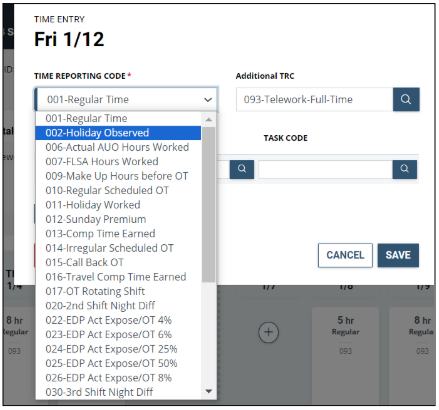
Click on the drop-down box arrow for Time Reporting Code and the following menu will be displayed. Use your cursor and select “002 Holiday Observed.”
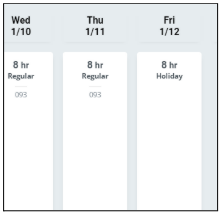
Click on the Save button. Your time for that day will be updated, from Regular work hours to paid holiday hours instead:
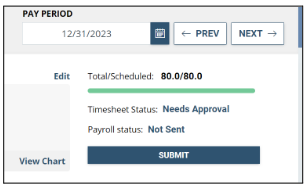
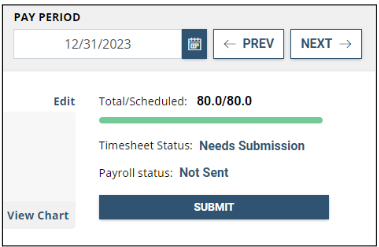
You are now able to Submit the timesheet:
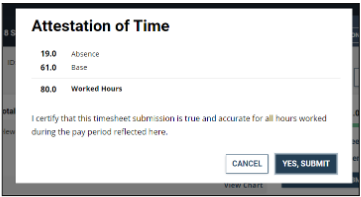
When you select the Submit button, you will see this message. Select Yes, Submit:
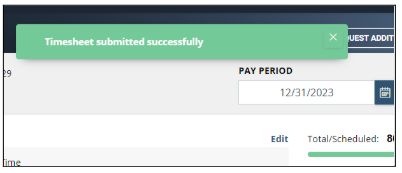
When you submit the timesheet you will receive a confirmation on the screen. You have successfully submitted your timesheet with an “in lieu of” holiday.


 U.S. General Services Administration