Once approved by OHRM for paid parental leave, a time administrator can enter a paid parental leave absence request in the system on behalf of an employee.
Enter paid parental absence request on behalf of the employee
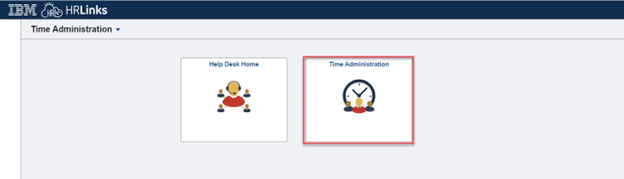
From the Time Administration homepage, click on the Time Administration tile.
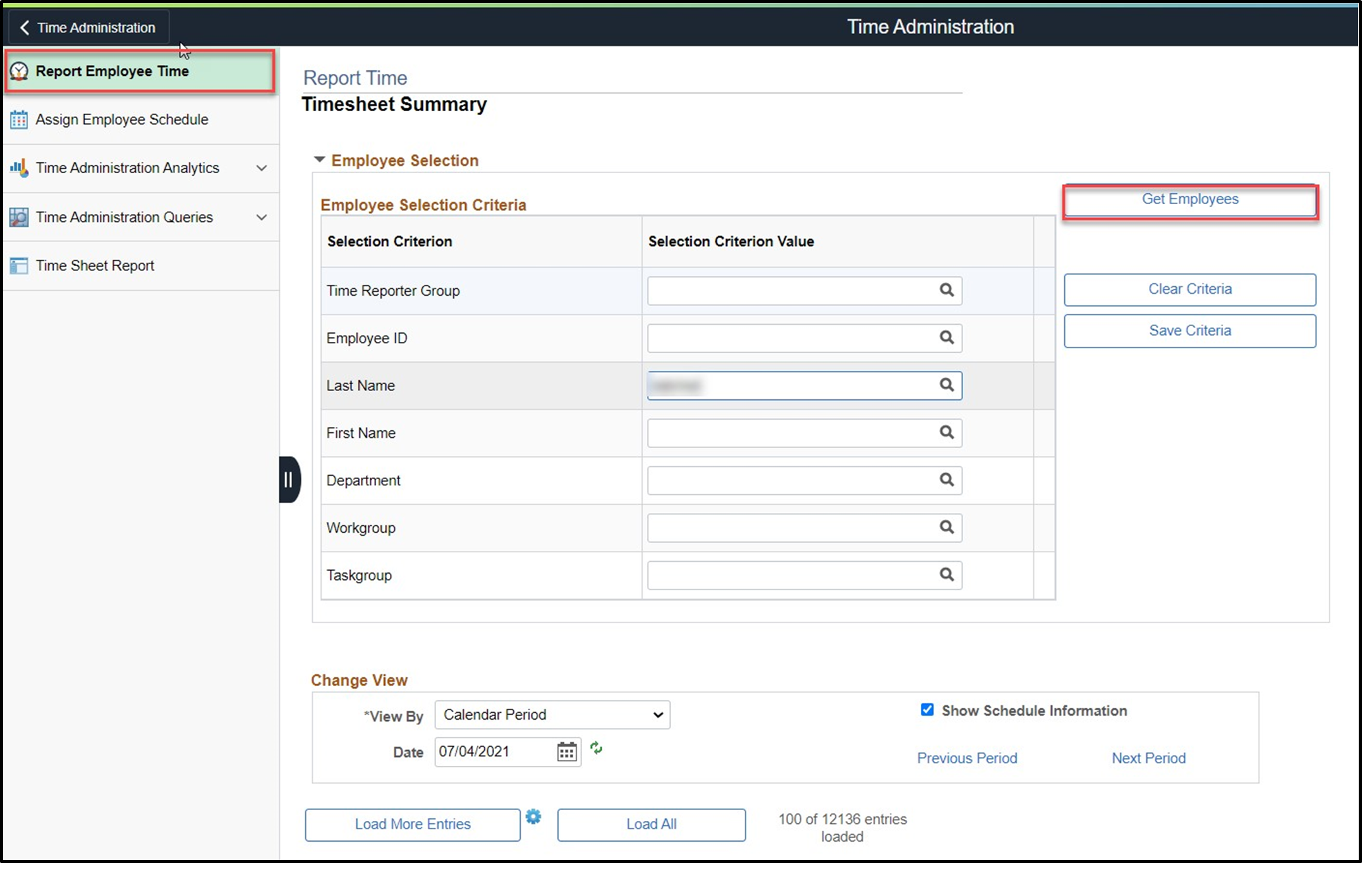
Click on Report Employee Time, enter the employee’s information into the Employee Selection section. Click Get Employees.
SeleSelect Submit on the timesheet and select Ok to the pop up warning message. ct Employee and Click on Employee ID to be brought to their timesheet.
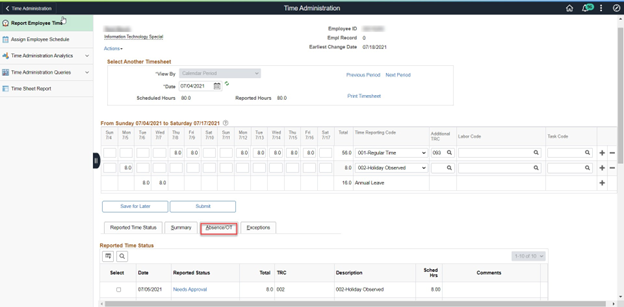
Select the Absence/OT tab to add an Absence Event.
Select Add Absence Event.
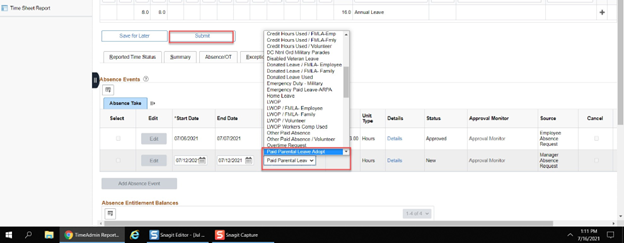
Enter the Start Date and End Date of the Absence Event and Select Paid Parental Leave from the drop down menu. Select Submit.
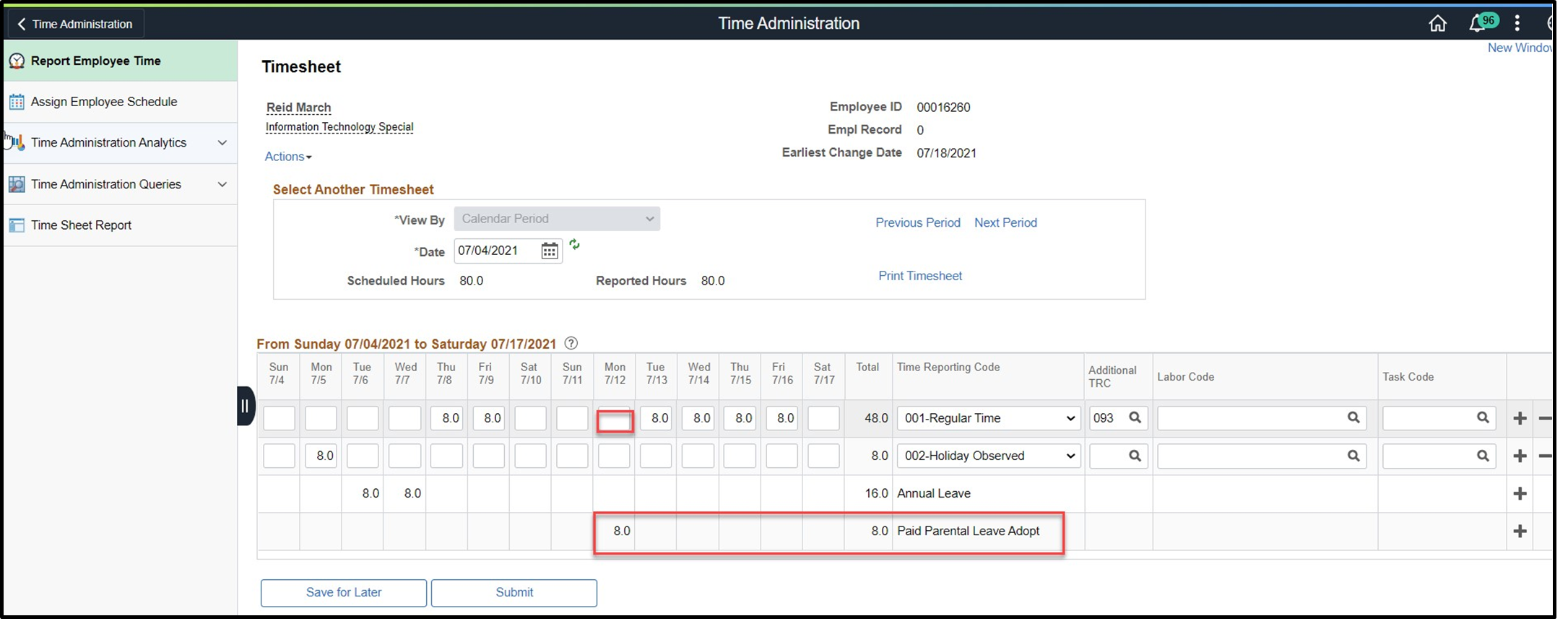
You can now view the Paid Parental Leave absence request on the employee’s timesheet and adjust the hours of the regular schedule.
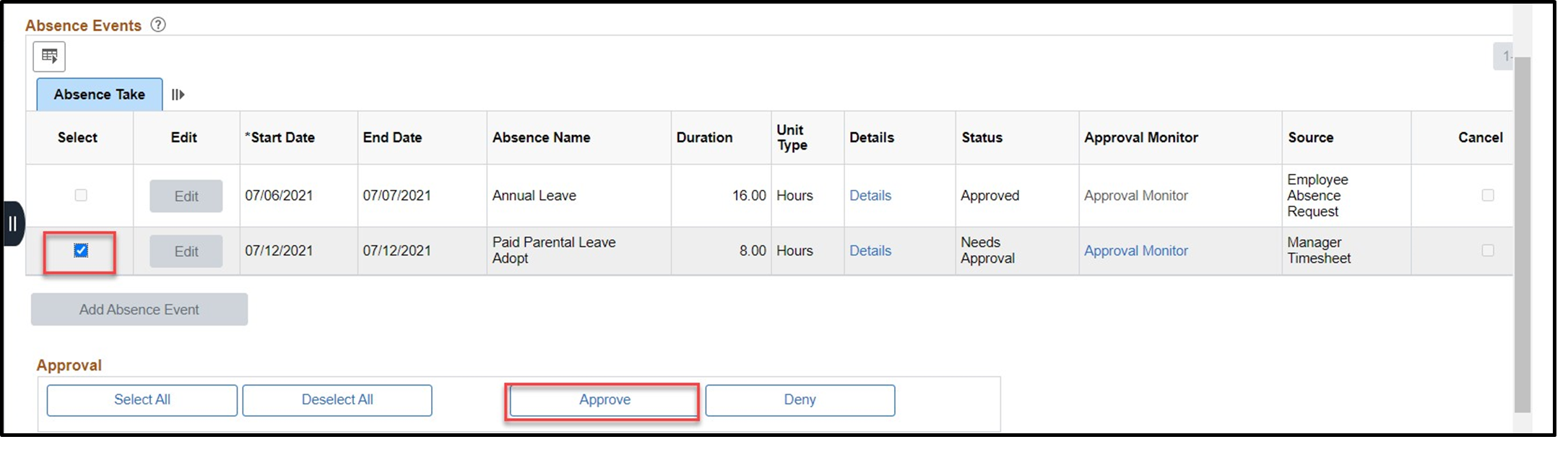
Go back to the Absence/OT tab and select the PPL request and Select Approve.
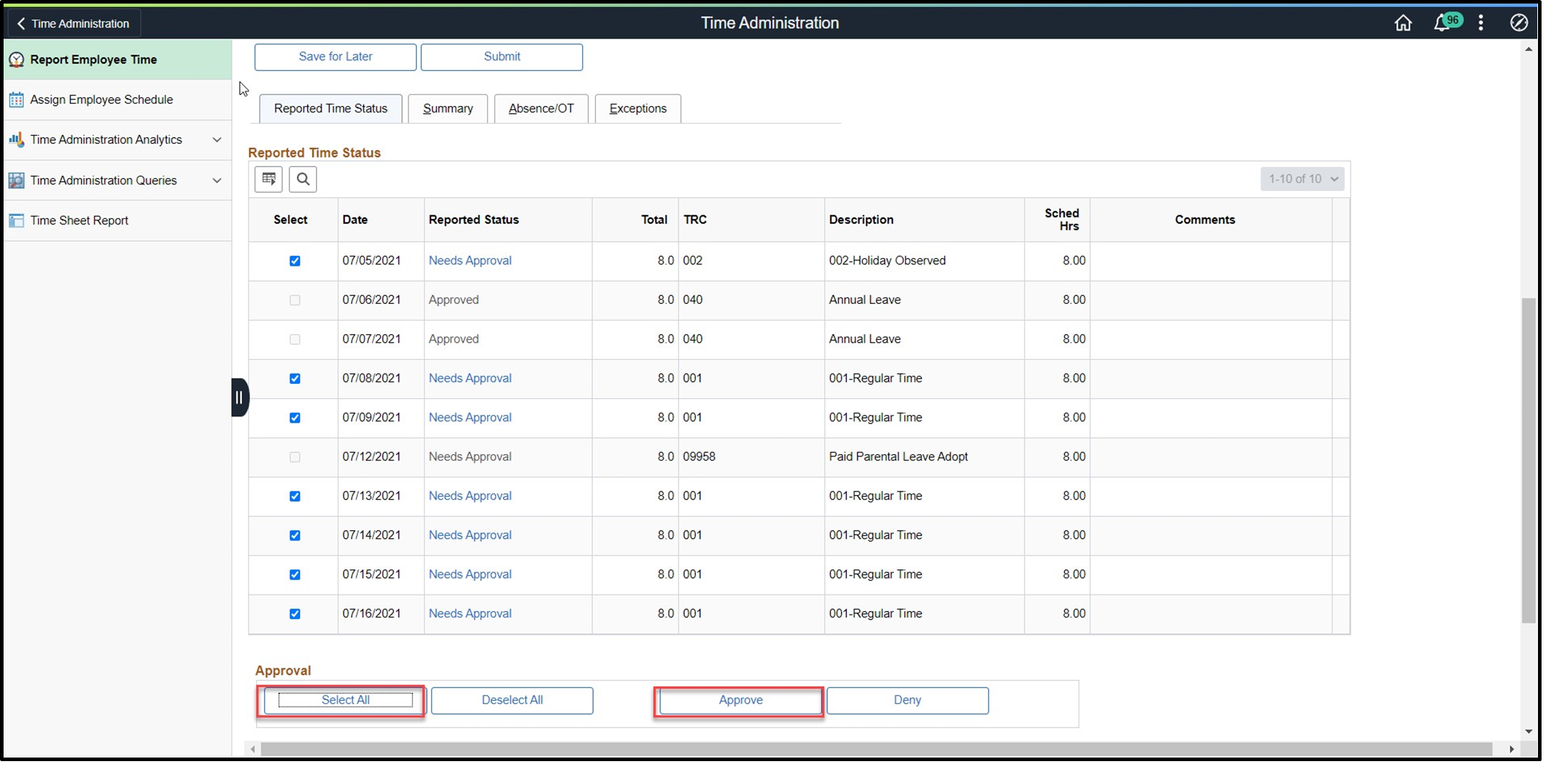
Go to the Reported Time Status tab and select all items needing approval by selecting Select All. Select Approve.
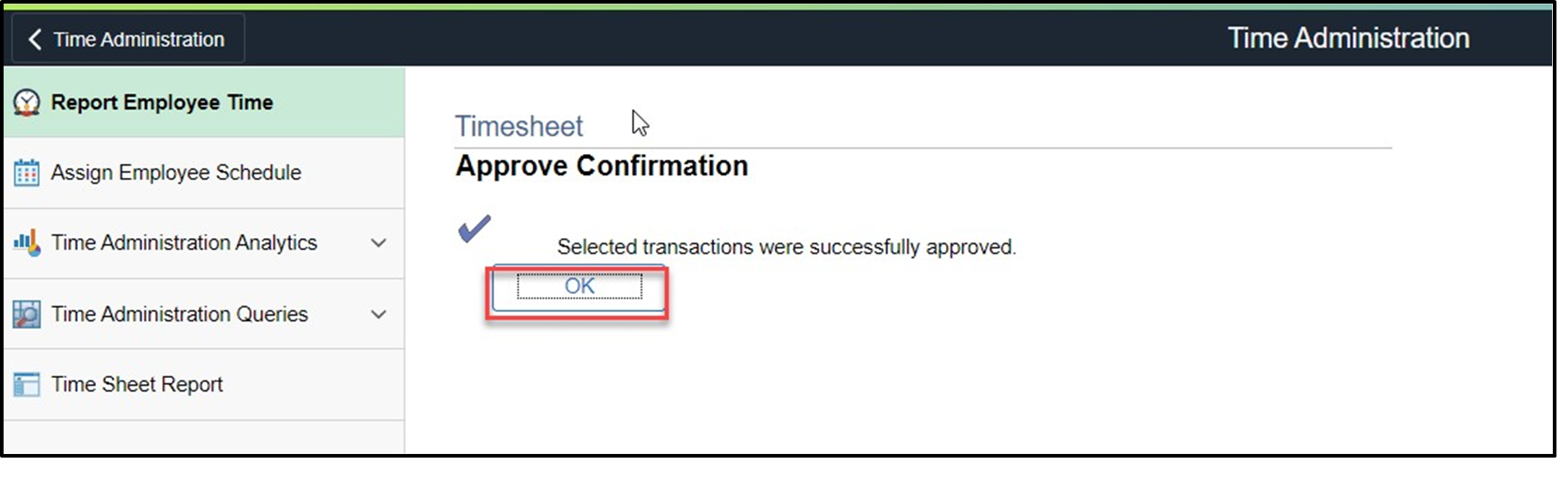
On the Approval Confirmation page, select OK.
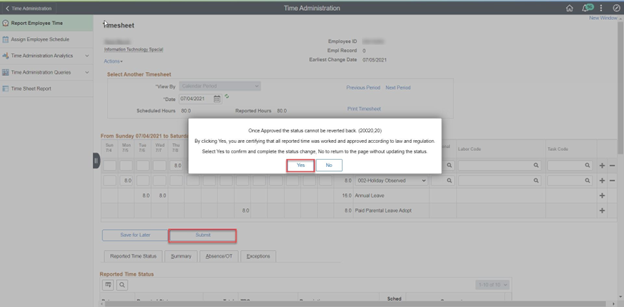
Select Submit on the timesheet and select OK to the pop up warning message.
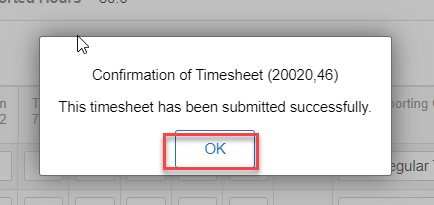
Select OK to the Confirmation of timesheet pop up message.


 U.S. General Services Administration