From the Employee Self Service homepage, select the Life Events tile.
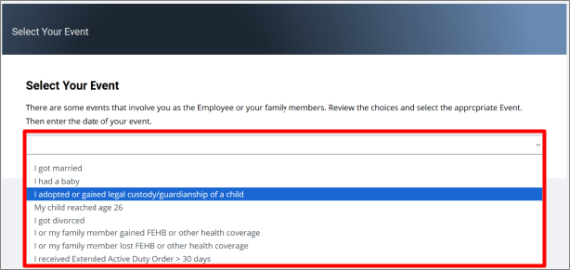
The Select Your Event screen will appear. Review the choices, and select the appropriate life event. In this example, the adoption of a child will be displayed.
Enter the date of the event in the Date Change Will Take Effect field, and choose the OK button.
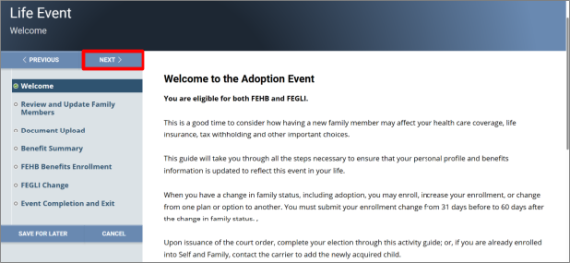
A welcome screen will appear with steps on the left side on how to make changes to your benefits based on the qualifying life event. Select the Next button at the top right of the menu.
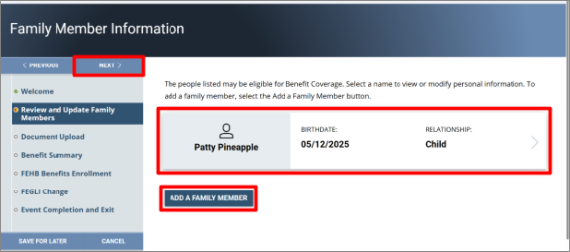
Update your family members by selecting the ADD A FAMILY MEMBER button to add new family members or select a family member to update their information if applicable. For example, update your FEHB plan to include a spouse or child. Select the NEXT button.
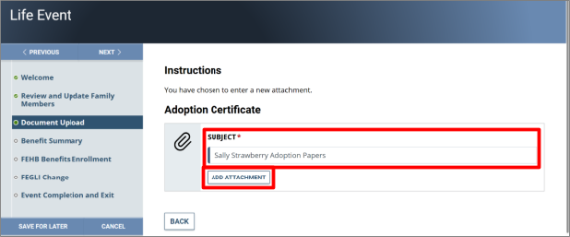
Select the ADD ATTACHMENT button to upload an applicable document. This may be a marriage or birth certificate, for example.
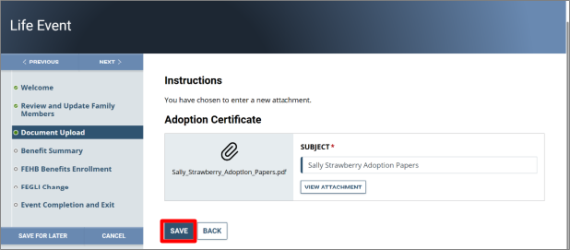
Enter a subject line and select the ADD ATTACHMENT button.
Select the CLICK HERE TO UPLOAD FILE button to import your documents and select the UPLOAD button.
Select the SAVE button.
You will receive a warning message. Your documents will be reviewed and approved by an administrator. Once approved you will be able to complete your enrollment. Select the OK button.
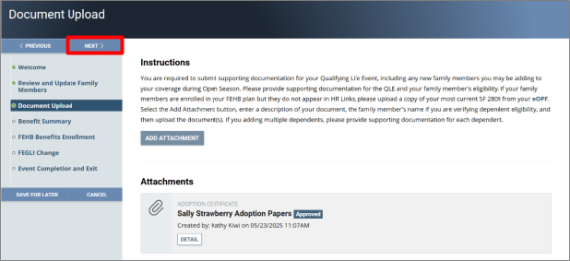
After your supporting documentation is approved (you will receive an email when it is approved and an in system notification on the notification bell), you may return to your event and complete your enrollment. Select the Next button.
Note: Select the Detail button to make any updates to your uploaded QLE document.
You may review your current or past Benefits Summary by entering the applicable date and select the GO button. Select the NEXT button to continue.
Select the Start My Enrollment button.
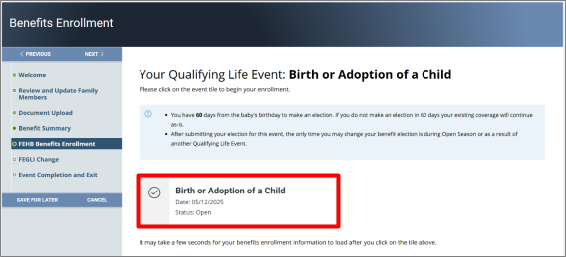
Select the Event tile to begin your enrollment.
Select the Enrollment Summary tile.
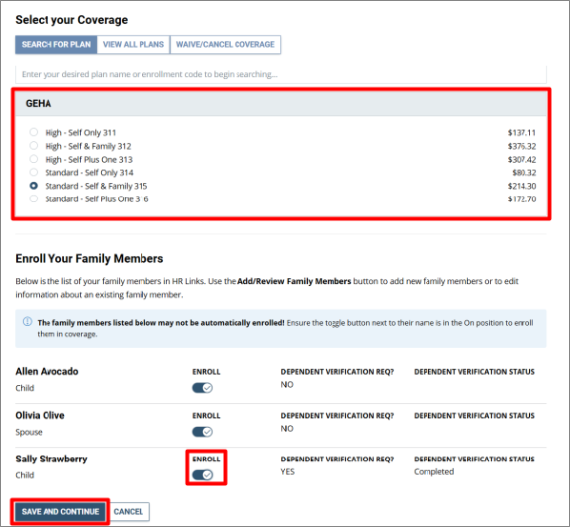
Select your Coverage and the Enroll button to enroll family members, if applicable. Select the Save and Continue button.
Select your actual marital status dropdown to select your correct marital status. Review your FEHB selection and select Submit.
Select the View Attachment button to view your attachment. Save a copy for your own records in the event the form is needed for proof of coverage.
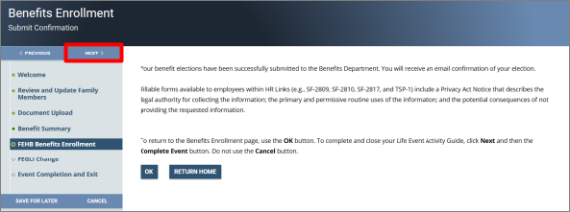
Select the Next button to continue.
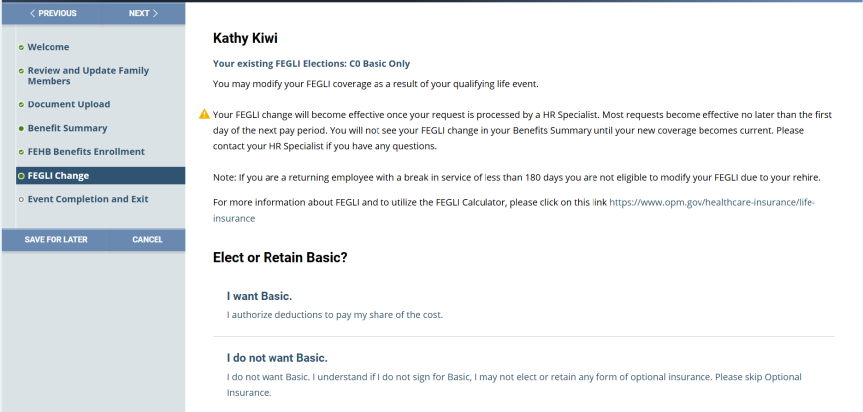
Elect your FEGLI coverage by selecting I want Basic or I do not want Basic if applicable.
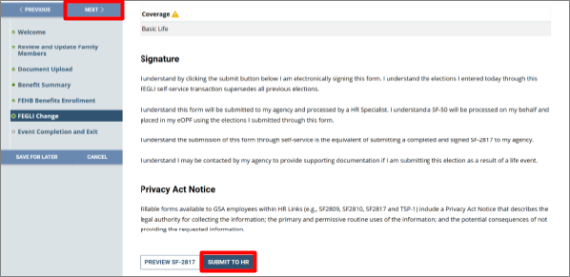
Select the Submit to HR button. Select the Next button. Make sure to preview your form to ensure all elections are correct and save a copy for your records.
Once you have completed your enrollment select the Complete Event button.
- You have successfully completed adding your benefit elections due to your qualifying life event.


 U.S. General Services Administration