About RFIs
The RFI application allows an RFI author to initiate an RFI and route it through the primary responder and optional secondary responders for review. The app maintains a log of all RFIs in the project and has a built-in workflow to manage a response. The RFI application may be used by external parties to collaborate, review, and respond accordingly. In addition to the workflow below, with the proper configuration, the owner or owner representative may also be included in the workflow. For more details on owner workflow, reach out to Kahua support.
Navigate to RFIs
- Open the desired project using project finder in the launch bar.
- Select RFIs from the apps launcher.
Create a new RFI
RFIs are typically created by the following roles: GSA-PM/COR, GSA Staff/SMEs, EXT-CMa, or GC/Design Builder.
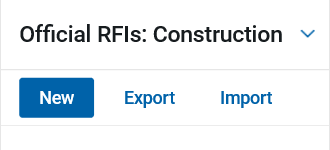
- Select the Type drop-down and select the appropriate RFI type. This list defaults to construction.
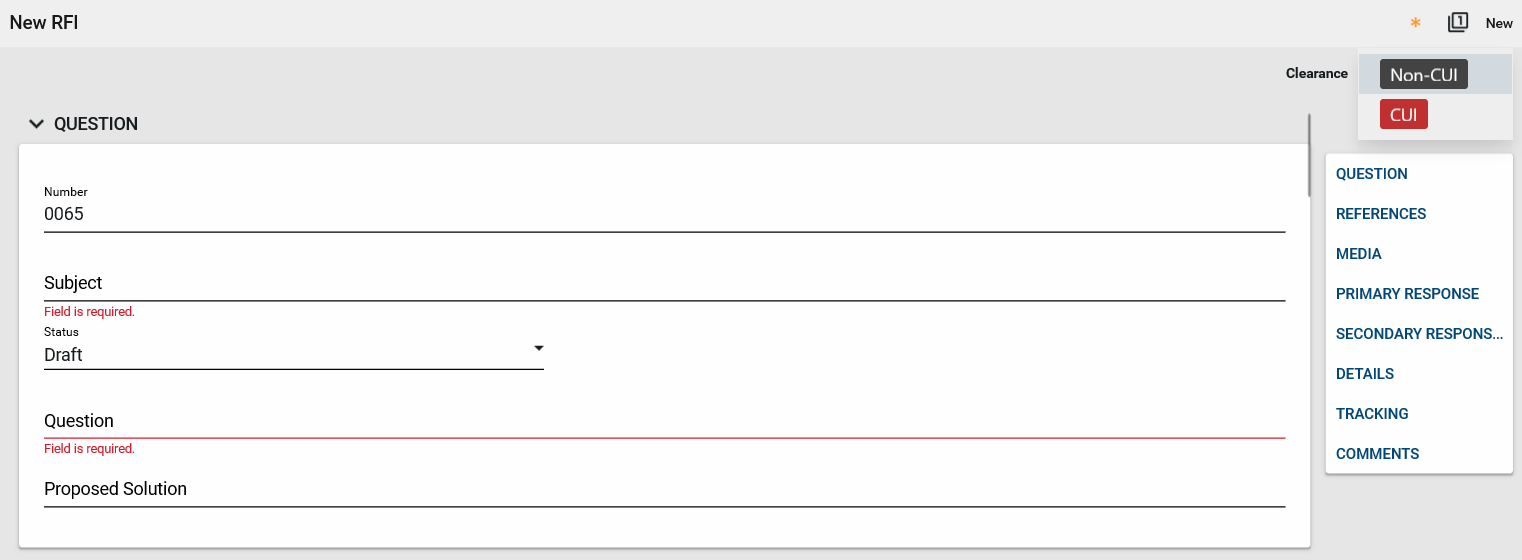
- Select New to open the RFI form. All required fields are marked in red.
Question
- Enter the Subject. This is a required field, and data must be entered to save the record.
- Enter the Question. This is a required field, and data must be entered to save the record.
- Enter a Proposed Solution, if applicable.
References section
- To attach a document that does not exist within the project, select the Upload button. Note: If you are using the Kahua desktop app, multiple documents can be uploaded at one time.
- To attach a document that exists within the project, select the Add Kahua Doc button.
Media section
- If applicable, select Add to attach a thumbnail view of any supporting photos.
- To include the photo(s) in the printable portable view, select Include for Print.
- To add additional details to the photo, select the thumbnail view of the photo. When complete, select Done.
Primary response section
- Enter the name of the Primary Responder. Note: This field may be set up to automatically populate with a designated primary responder for the project. Please reach out to your regional KPM for setup assistance.
- Check the box to Auto Send to Primary Responder if you would like the RFI to be sent to the primary responder at the same time it is sent to the owner’s representative.
- Enter any applicable information in the Instructions to Primary Responder field.
- Enter the Due Date the response is required from the primary responder.
- If applicable, enter the name of the Owner’s Representative. Note: If the name is filled in and the box in step 12 is not checked, the RFI will go to this person before being sent to the primary responder. This field may be set to automatically populate with the name of a specific team member for all project RFIs. Please reach out to your regional KPM for setup assistance.
Secondary response section
- Enter the Instructions to Responders.
- If applicable, check the box to Auto Send to Responders.
- By default, responders can Add Responders or See all Responses.
- If applicable, check the box to Notify all Responders.
- If applicable, select Insert to enter the name of the Secondary Responders.
Details section
- Select the drop-down arrow to select the Reason for the RFI. Note: To quickly locate the reason, you may begin typing in the field and select from the filtered list.
- Select the drop-down arrow and select the Root Cause.
- Select the drop-down arrow and select the Priority.
- The Author field auto-populates to whoever is creating the RFI.
- Enter the name of the Coordinator.
- Add any additional information important for project reporting.
- Enter the name(s) of anyone who should be notified the RFI has been created.
- Enter a Response Distribution Group List (if applicable).
Tracking
- Enter the Due Date the response is required from the primary responder.
- The date fields in this section will auto-populate as the RFI is workflowed and receives responses.
Comments section
- If applicable, enter information in the Comments field.
Controlled Unclassified Information or Non-Controlled Unclassified Information
- In the top right-hand corner of the form, select CUI or Non-CUI. Note: External users will not have access to view CUI forms.
Action buttons
- If you wish to save the RFI and continue to make edits before sharing with others, use one of the following options on the save menu. Once saved, the RFI record will be included in the log view:
- Save saves the RFI and allows the author to continue to edit.
- Save/New saves and closes the RFI and opens a new RFI form.
- Save/Close saves the RFI and closes the RFI edit window.
- Select the Assign to Coordinator button, if the coordinator needs to review the information before the RFI is submitted. The coordinator will receive an email message and a task will be created in Kahua.
- Select the Submit button if the RFI is ready to be assigned to the primary responder (if an owner’s representative is designated, the RFI will route the owner’s representative first). The status of the RFI will change to “In Review.”
Edit an RFI
- To edit an RFI, return to the RFI app.
- Select the RFI title in the log to open the record.
- Select the Edit button.
- Make any applicable changes.
- Select Save to return later for additional edits or select Submit to send to the appropriate parties.
Recall an RFI
- To recall an RFI, select the Recall button at the bottom of the form. This will stop the workflow process and close any open tasks. Those with open tasks for the RFI will receive a notification the RFI has been recalled. The RFI will need to be resubmitted to restart the process.
Coordinator review
This activity is typically managed by the following roles: GSA-PM or EXT-CMa.
- The coordinator can access the RFI using one of several different methods:
- Task notification contained in the email.
- Sign into Kahua, select the task icon, and select the RFI task.
- Open the project, open the RFI app, and select the RFI title.
- If applicable, update any of the information in the Question, Response, Media, References, or Details sections.
- The date fields in this section will auto-populate.
- Action buttons:
- Select the Submit button if the RFI is ready to be assigned to the primary responder (if an owner’s representative is designated, the RFI will route the owner’s representative first). The status of the RFI will change to “In Review.”
- Select Save to save your work and finish later.
- Select Return to Author if the author needs to make any changes or updates.
- Select Create Revision to create a revision RFI
- Select Mark Complete to save and lock the RFI.
Owner’s representative response
This activity is typically managed by the following roles: GSA-PM or EXT-CMa.
- The owner’s representative can access the RFI using one of several different methods:
- Task notification contained in the email.
- Sign into Kahua, select the task icon, and select the RFI task.
- Open the project, open the RFI app, and select the RFI title.
- Scroll to the primary response section and add any applicable Owner Remarks.
- The date fields in the tracking section will auto-populate.
- Select the Send to Primary Responder button to workflow to the primary responder and save any added remarks.
Primary responder review and adding secondary responders
This activity is typically managed by the following role: EXT-AE.
- The primary responder can access the RFI by selecting the task link contained in the notification email, via the tasks in Kahua, or by opening the RFI app and selecting the RFI title.
- Review the RFI. If the question is unclear, select the Return for Clarification button. Enter a reason for the return and select Continue.
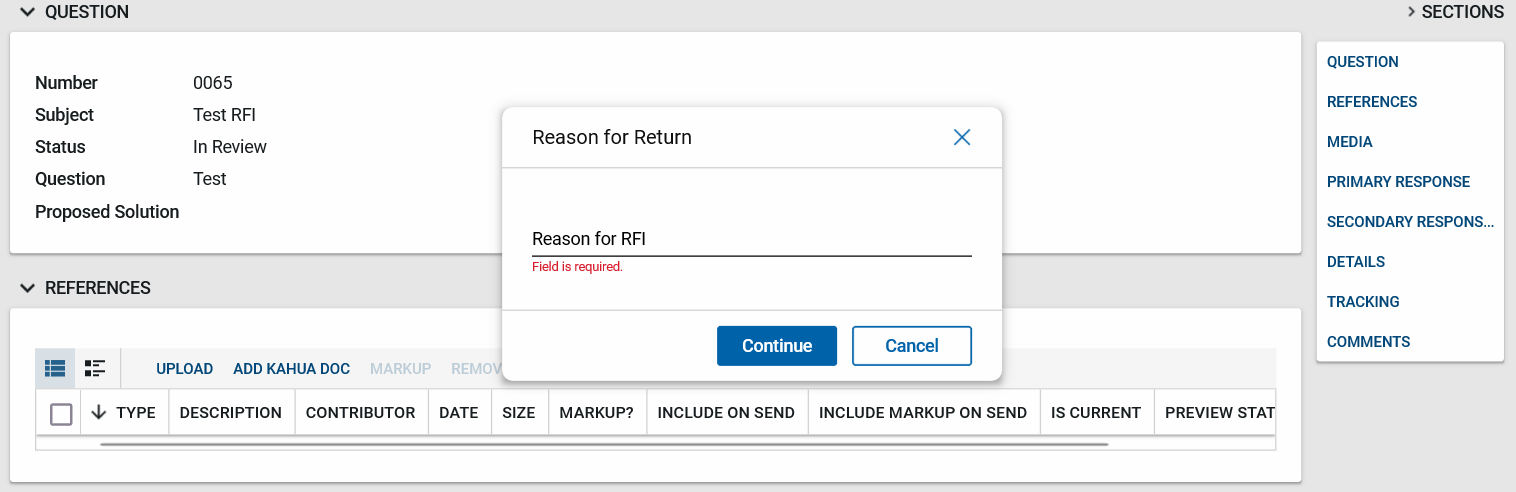
- If the RFI question is clear and ready for a response and if responses from additional responders are unnecessary, the primary responder will enter the answer to the RFI in the Primary Response field.
- Select the Respond button to return the response to the author. (If the project has designated an owner’s representative, the response will be returned to this person first). The RFI status will change to “Responded.”
- If additional information is required from other sources, do not respond to the RFI. Instead:
- Scroll or use the section navigator links to open the secondary responders section.
- Add any applicable comments in the Instructions to Responders field.
- There are four options in the secondary responders section:
- Auto Send to Responders: automatically sends the question to responders once the Submit button is selected.
- Responders can add responders: allows the secondary responders to add new responders to the grid.
- Responders can see all responses: allows responders to see all secondary responses.
- Notify all responders: notifies all responders when submitting to the secondary responders.
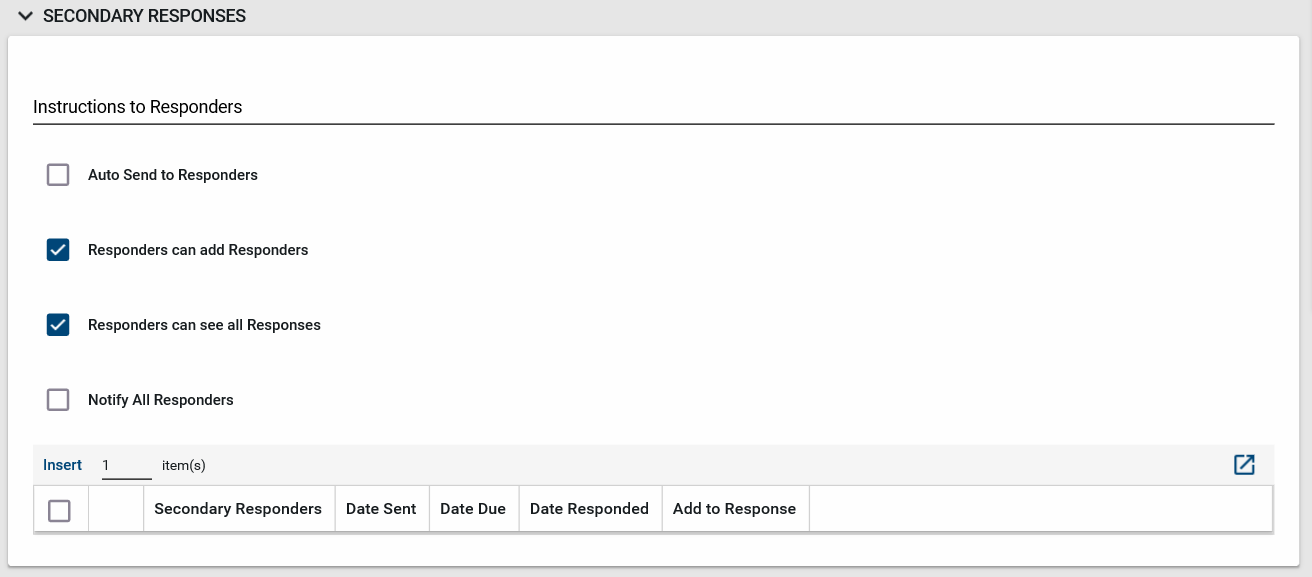
- To add additional responders, select Insert. Note: If adding multiple responders, enter the number of responders in the field next to Insert and select Insert.
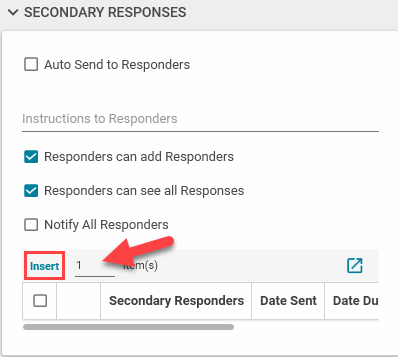
- For each line added, enter the name in the Secondary Responders field.
- Enter a Due Date for each secondary responder.
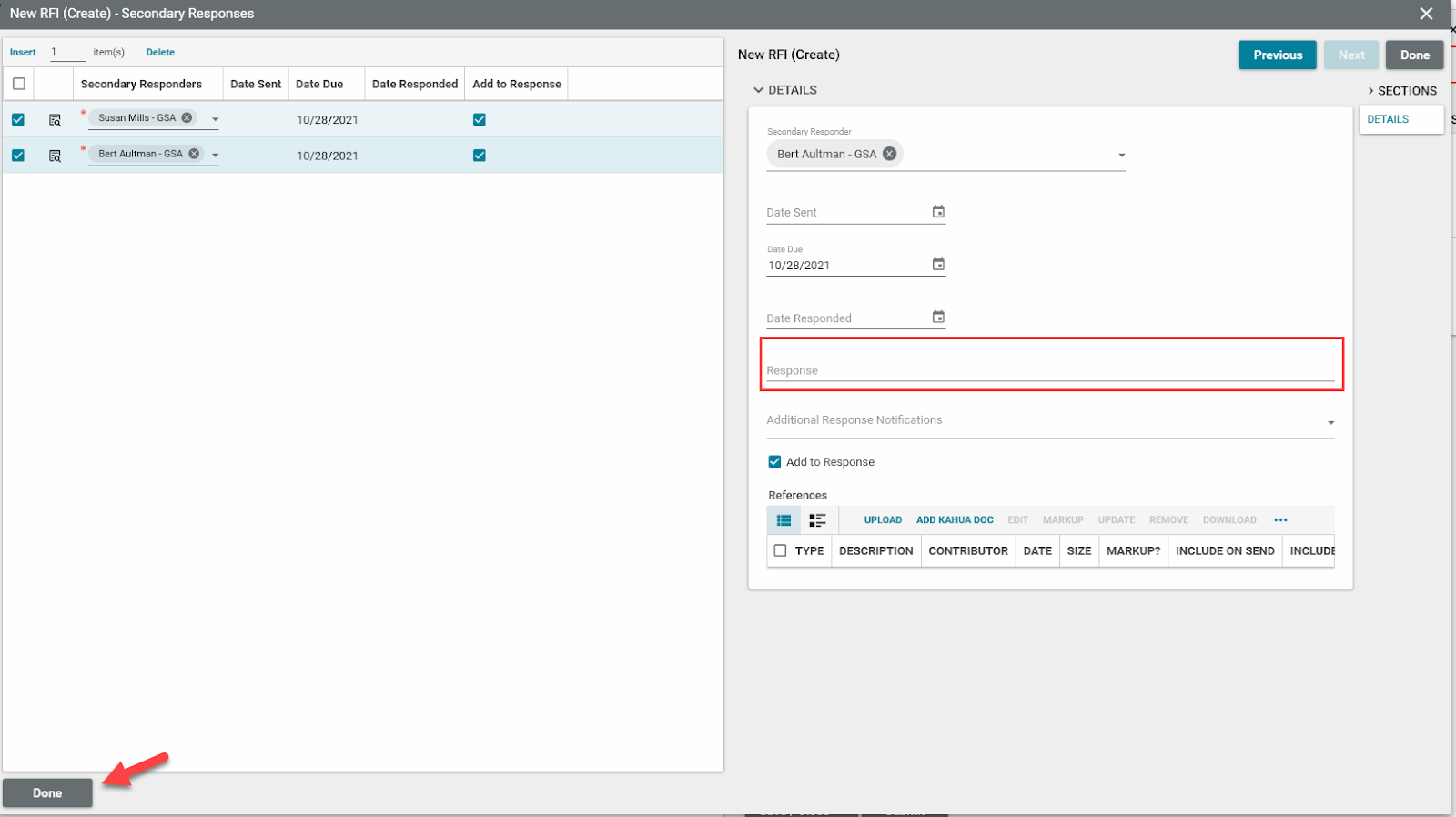
- Once all names are added, select the More Detail button beside the name of the first person in the list. This opens a full window to add additional information.
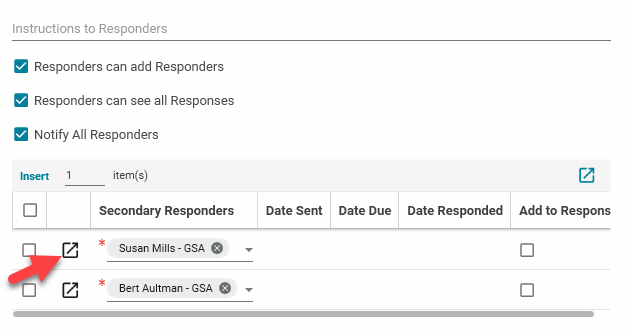
- Add a Due Date.
- Select the Next button to add information to the next secondary responder on the list.
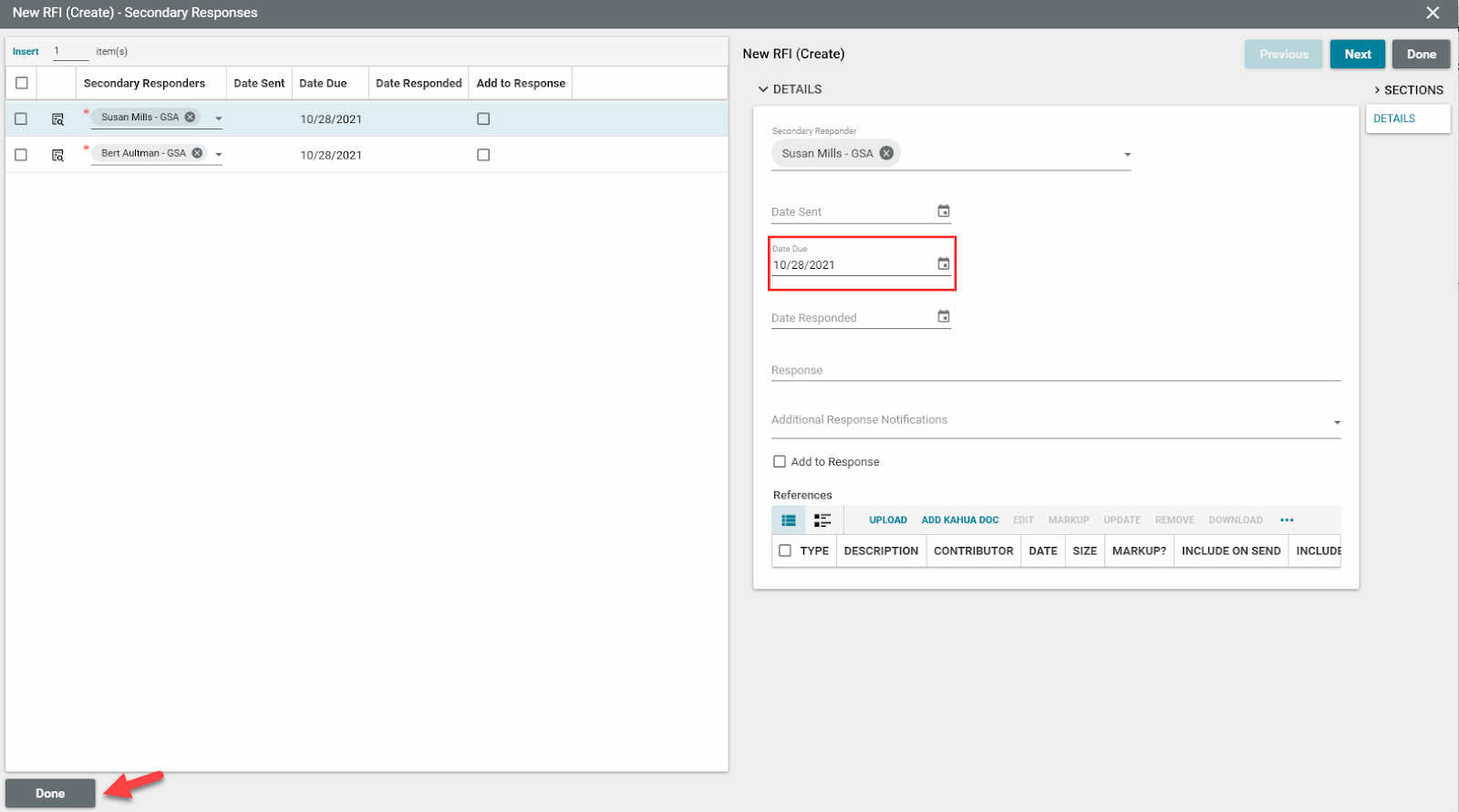
- Select the Done button located in the bottom left corner of the window to return to the RFI.
- Select the Send to Secondary Responders button. Each secondary responder will receive an email and a task will be created.
Secondary responder responses
This activity is typically managed by the following roles: EXT-AE, EXT-CMa, EXT-Customer User, EXT-Contractors, and EXT-PM.
- The secondary responder can access the RFI by selecting the task notification link contained in the email, via the tasks in Kahua, or opening the RFI app and selecting the RFI title.
- Select the Edit button to open the document to add information.
- Scroll to the secondary responders section.
- Select the More Detail button beside your name to expand the section.
Enter the answer in the Response field.
- Select the Done button in the bottom left corner to return to the RFI.
- Select the Submit button to send your response to the primary responder.
Primary responder response
This task is typically managed by the following roles: EXT-AE, EXT-CMa, and GSA PM.
- Open the RFI using one of the three methods outlined in the steps above.
- In the secondary responder’s grid, select the More Detail button to the left of the secondary responder’s name.
- Review the secondary responder’s answer.
- To add the response to the primary responder’s answer, select the Add to Response checkbox.
- Select the Done button in the bottom left corner of the window to return to the RFI.
- In the primary responder section, if the secondary responses were added in the previous step, edit the final Primary Response if necessary.
- Select the Respond button. A task will be sent to the owner’s representative first (if an owner’s representative was designated) or coordinator for their review. Note: The responses from the secondary responders will not show up in the RFI log.
Owner’s representative response review
- The owner’s representative can review all of the responses received.
- Select Respond if responses are ready to be sent to the coordinator or author for their review and to mark the RFI as complete.
Close the RFI or request clarification
This activity is typically managed by the following roles: EXT-AE, EXT-CMa, EXT- PM, and GSA PM.
- The RFI author or coordinator can open the RFI using one of the three methods shared earlier.
- The RFI’s status will reflect Responded and the assigned to column will indicate the RFI is outstanding with the author or coordinator.
- If the RFI answer is sufficient, select one of the options listed below to close and lock the RFI.
- Mark Complete: saves and locks the RFI.
- Distribute and Mark Complete: saves and locks the RFI and sends a notification to all contacts in the response distribution list.
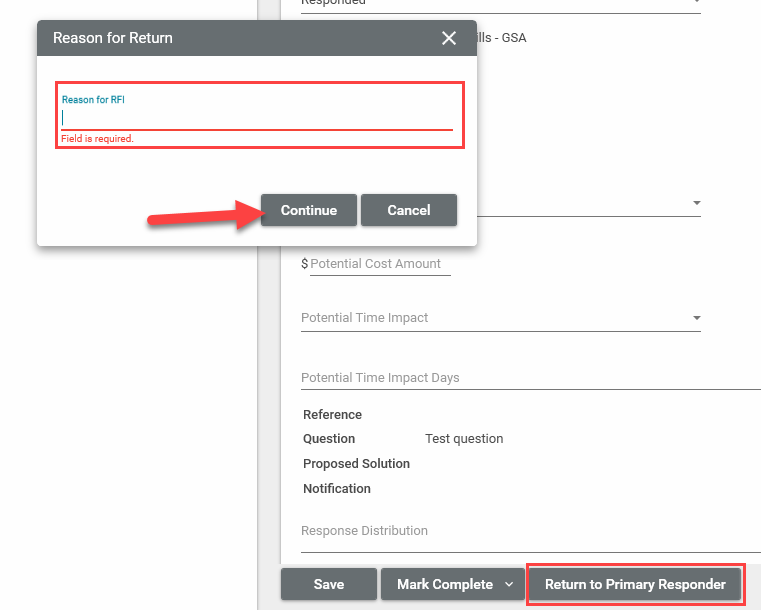
- If the response is insufficient, select the return to owner’s rep (if there is one designated) or Return to Primary Responder button to request a clarification.
- Enter a Reason for the Return, and select the Continue button.


 U.S. General Services Administration