This job aid covers how employees can submit leave donation requests and view a history of their leave donation requests
Section 1: Donate Leave
This section provides an overview of how employees can submit requests to donate leave to eligible employees. All self service donation requests are automatically approved upon submission.
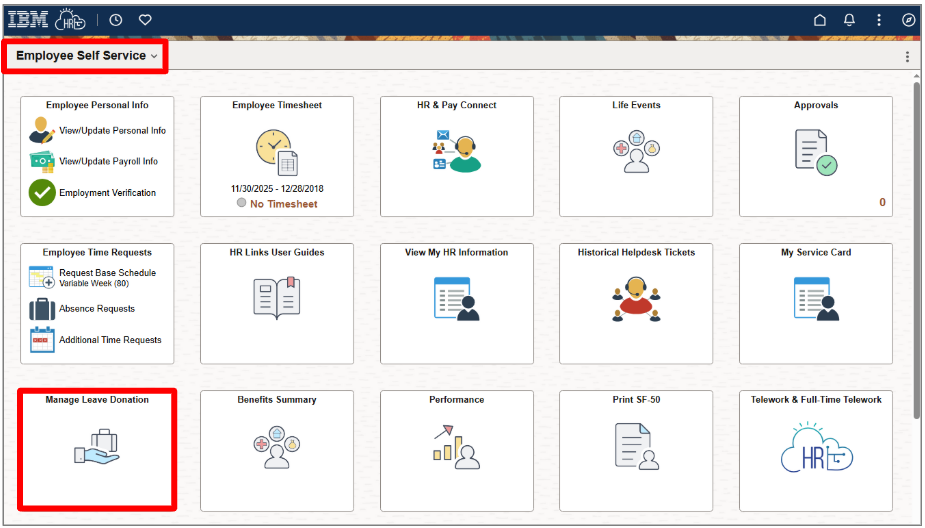
Select the Manage Leave Donation tile on the Employee Self Service homepage.
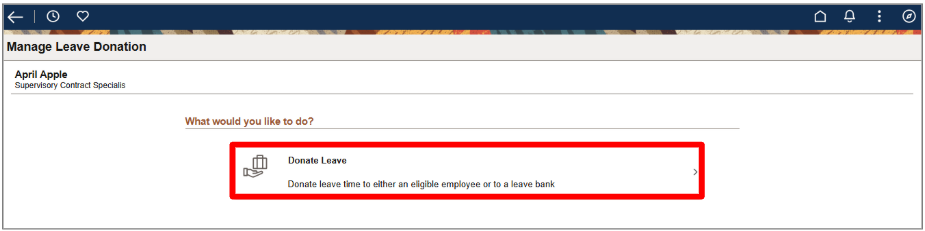
Select the Donate Leave button to donate leave time to an eligible employee or to a leave bank.
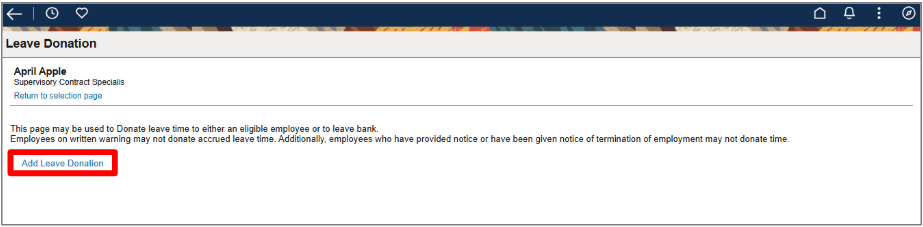
Select the Add Leave Donation button.
Note: This page will display a list of your donation requests if you have already submitted one.
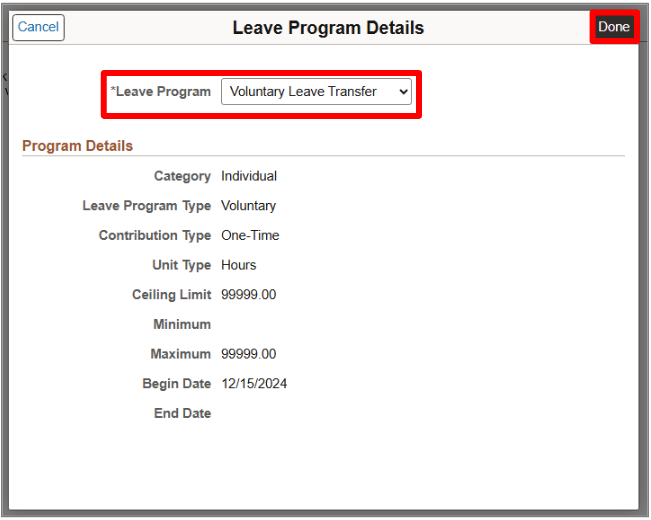
- Select a Leave Program type from the dropdown menu.
Select the Done button.
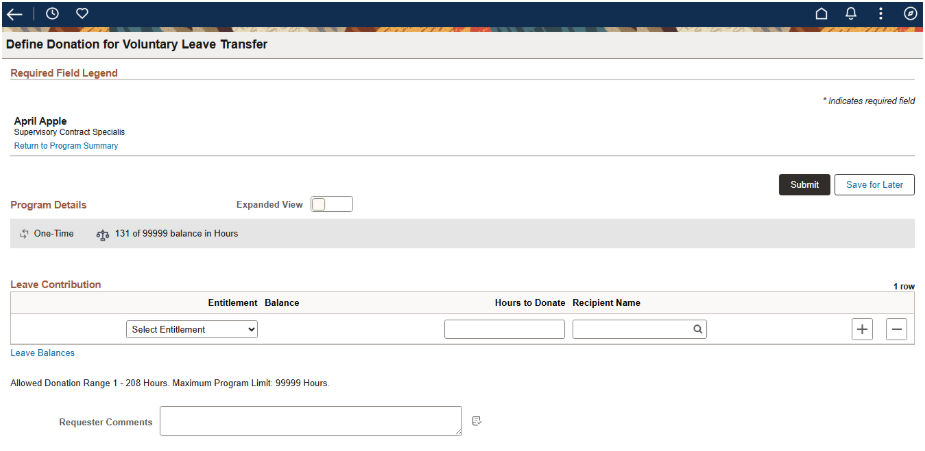
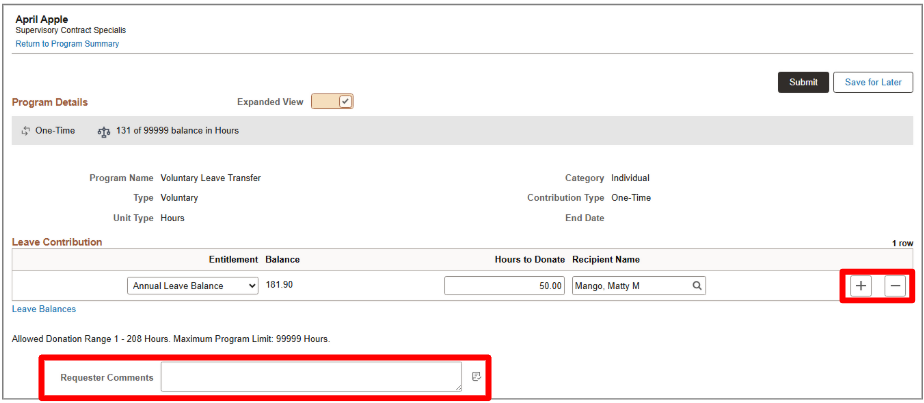
The Leave Donation page will appear.
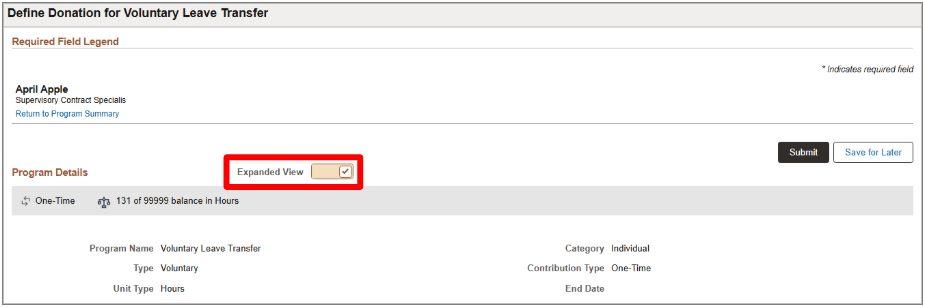
Select the Expanded View toggle to view additional Program Details.
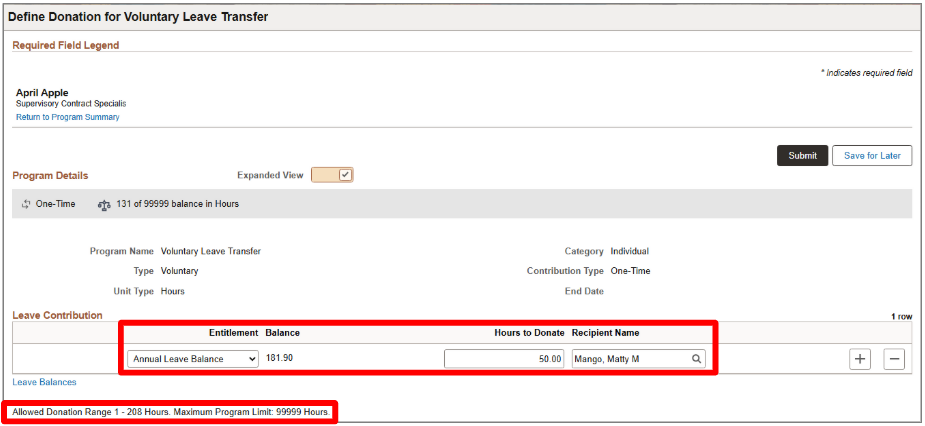
- Select the source of hours from the Entitlement dropdown menu.
Enter the Hours to Donate.
Note: The allowed donation range is defined at the bottom.
Select the lookup icon to search and select the Recipient Name to receive the donated hours.
Note: Only approved recipients will display in the list.
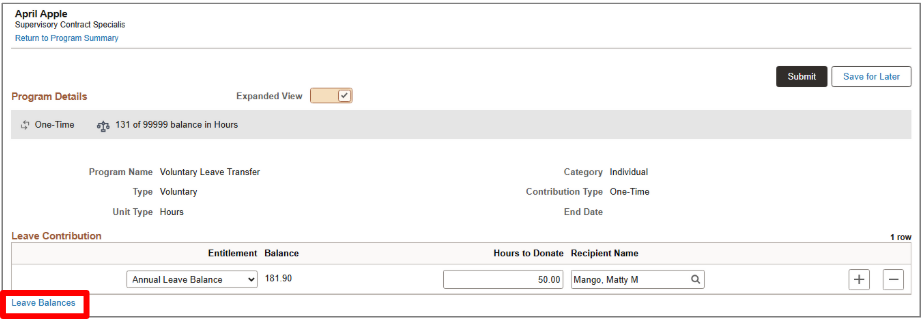
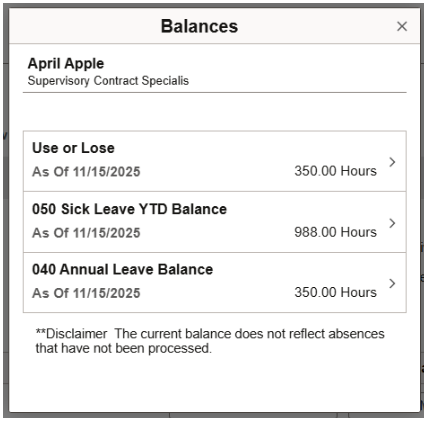
Select the Leave Balances hyperlink to view the amount of leave you have.
- You can add more than one contribution at a time using the plus or minus buttons.
Enter comments in the Requestor Comments text box, as necessary.
- Select the Submit button.
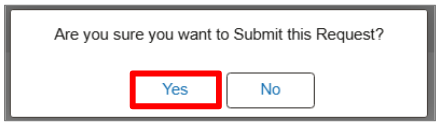
Select the Yes button to proceed with submitting the request.
- You will be taken back to your Leave Donation page where you can view a list of your donation requests and their details.
Section 2: View Leave Transfer History
This section provides an overview of how employees can view their leave transfer request history.
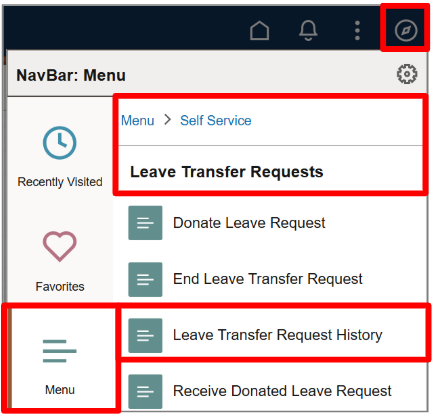
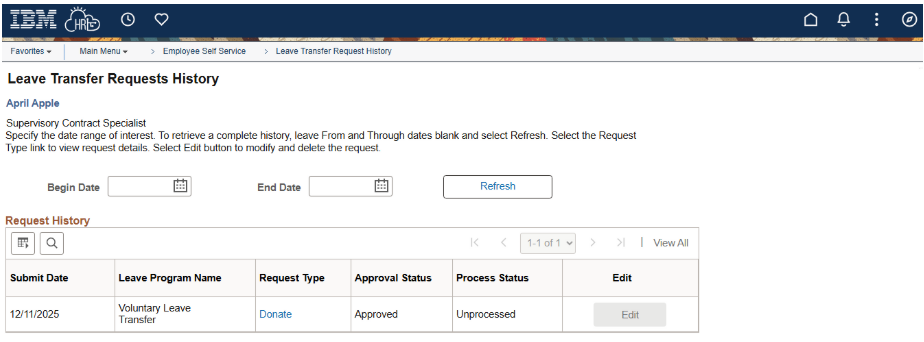
Navigate to the Leave Transfer History Request page (NavBar > Menu > Self Service > Leave Transfer Request > Leave Transfer History Request).
The Leave Transfer Requests History page will appear with a table of your leave requests.
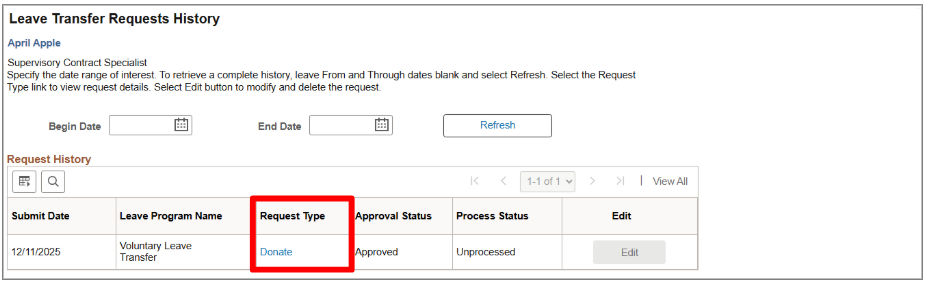
Select the Donate hyperlink for a request to view the leave donation request details.
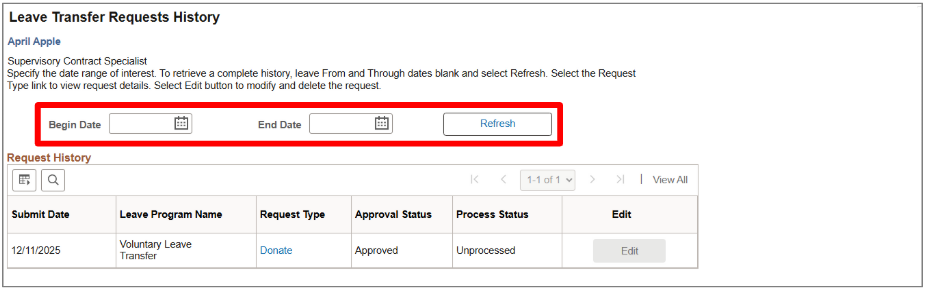
- Enter the Begin Date and End Date of the leave request history to narrow view to a specific timeframe.
Select the Refresh button.


 U.S. General Services Administration