The current Google email size limit, including attachments, is 25 megabytes. We anticipate this will increase to 50 megabytes later this year. If using Gmail any email over that size is sent using a Google Drive link.
How to compose or forward an email
- From within your email client (such as Outlook, Gmail, or other desktop or web-based email platform) compose a new email, or open the email message you wish to forward to your ECF.
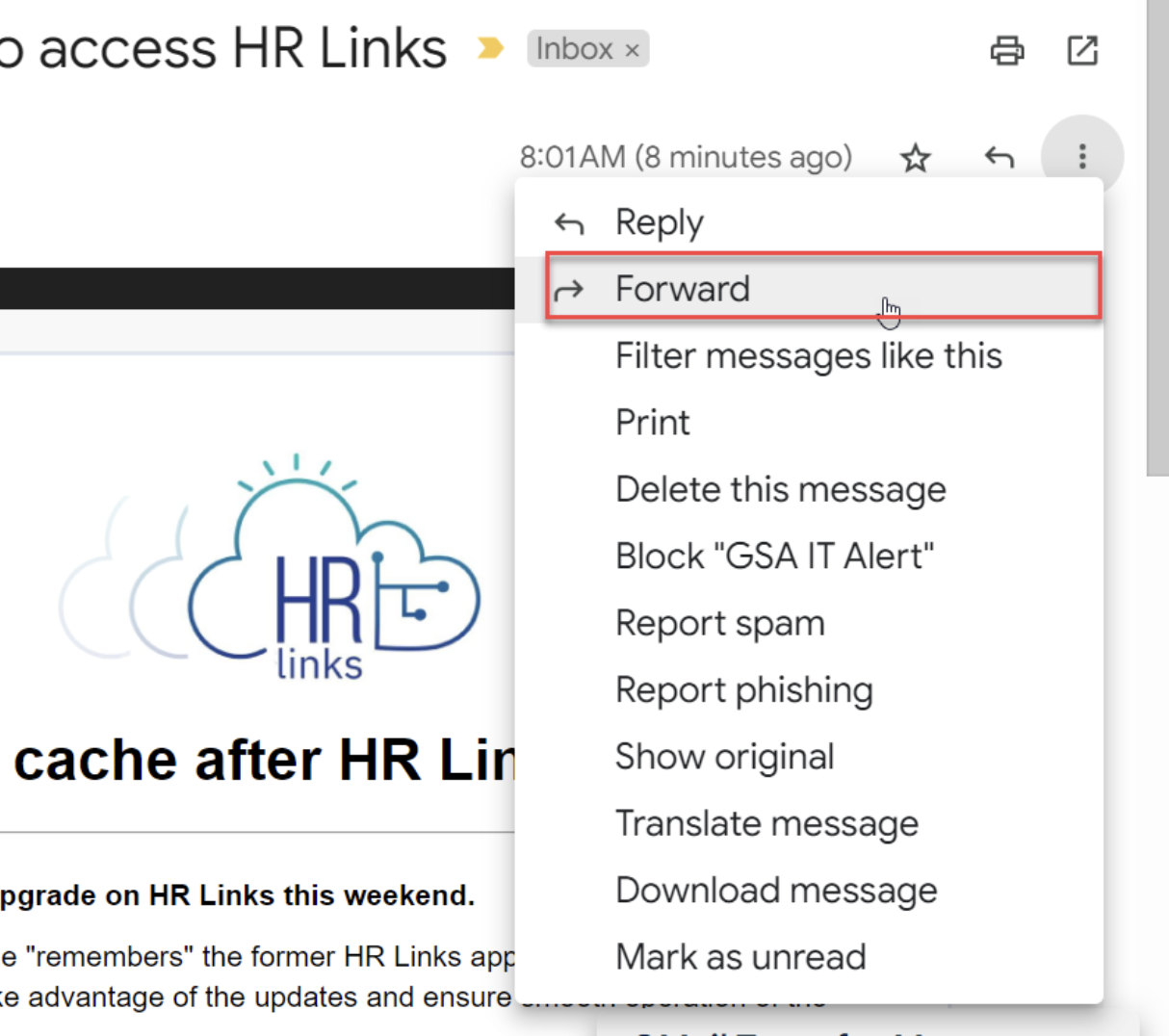
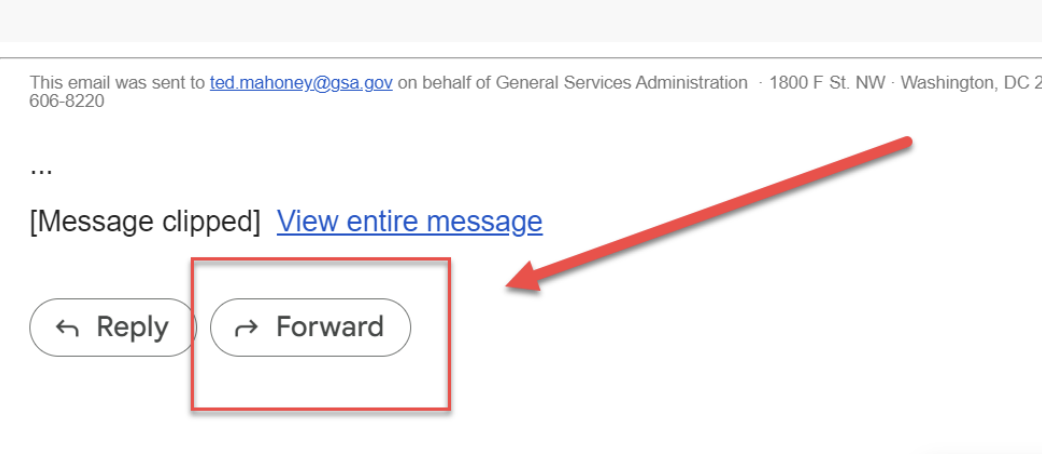
To forward the selected email with GMail, select the left flow arrow for Mail Actions and select Forward, or you can select the Forward link at the bottom of the email, or last email in the email thread.
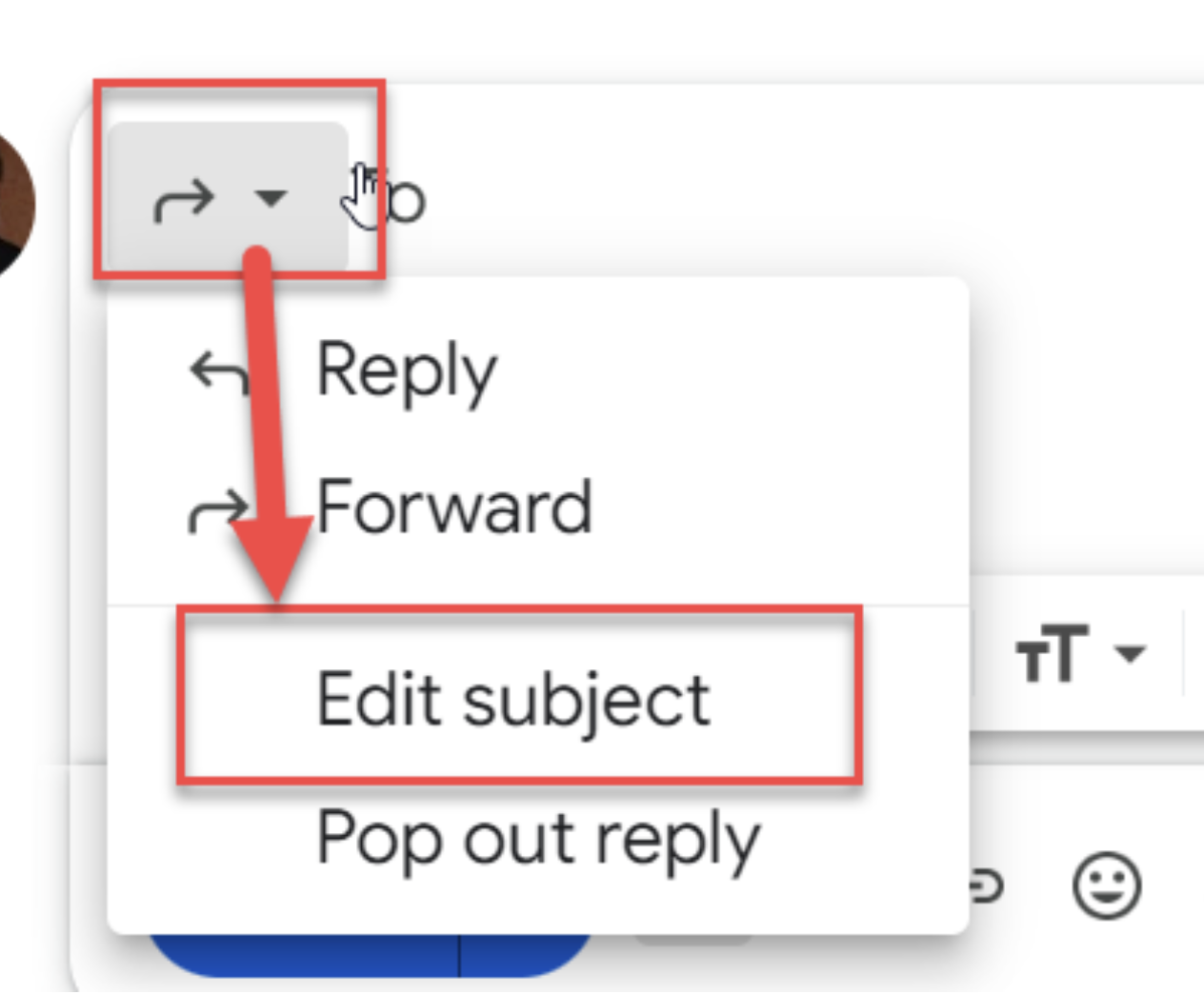
In accordance with standard naming procedures (see PBS Procurement Information Bulletin, or PIB, 18-2 Attachment 6), enter the subject or change the subject of the forward email to reflect the email message contents by opening the Reply menu next to the recipient’s name and choose Edit subject.
- To compose or forward, in the To field enter ecf@gsa.gov. You will see the displayed address showing the Electronic Contract File.
Start composing the email by inserting the Solicitation or Contract Award Procurement Instrument Identification Number, or PIID, on the first line. The format of the assigned PIID must exactly match exactly the solicitation or award PIID. Newer AAC PIID have no dashes. You can add additional solicitation or Contract Award PIIDs separated by a comma. For example the first line would look like this:
GS-P-01-16-BW-XXXX;47PA0017A0006;47PA0021C0011;47PA0021C0012;
To send the email to one of your authorized ECF tabs add a semicolon after the PIID, and enter the two-digit tab number. For example, to send to your Tab 43 — COR Correspondence/Email Correspondence, enter the first line like this, and remember to enter the semicolon at the end.
47PA0021C0012;43;
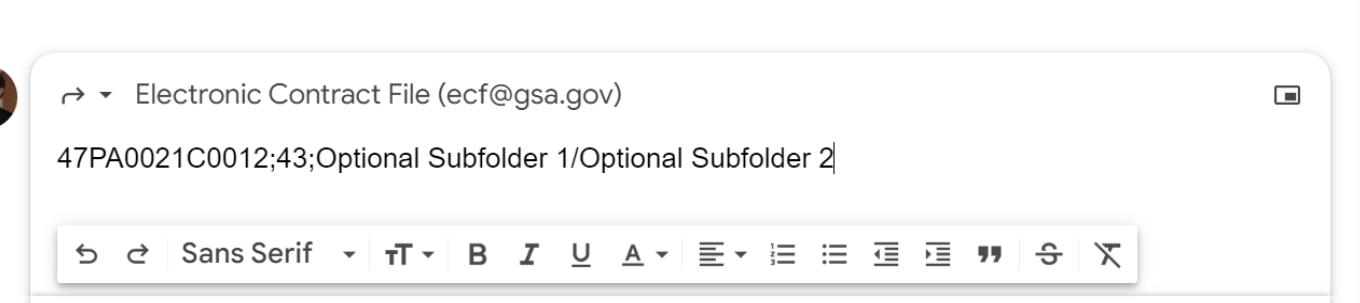
If you would like to create or if you have existing subfolders under the tab you can also send the email there. Add the subfolder information after the tab. You have the option to send to two subfolder levels. Separate the subfolder levels with the “/”. For example, to send to the second subfolder level your first line of the email body would look like this:
47PA0021C0012;43; Optional Subfolder 1;/Optional Subfolder 2;
Do not enter any other information on this line, as the tool uses this to send the email to the proper solicitation or contract files. You may enter additional information below the first line of the PIID(s), tab, and subfolders with any attachments you wish. Note that current total email file size with attachments cannot exceed 25 MB. Your attachments can include a mix of any non-excluded file formats, for instance: .doc, .xls, .pdf, or a single .zip file.
- Once finished, select the Send button.
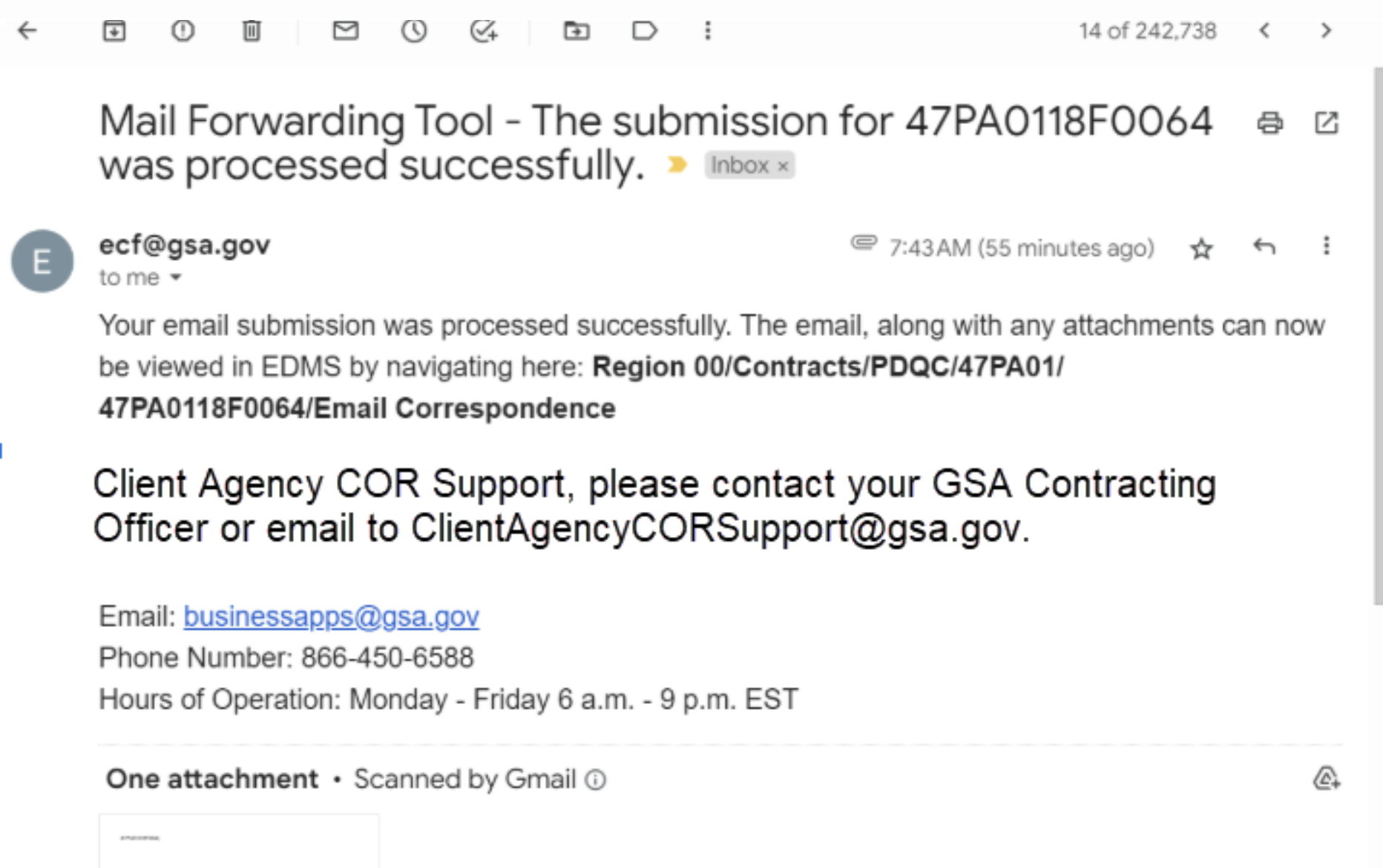
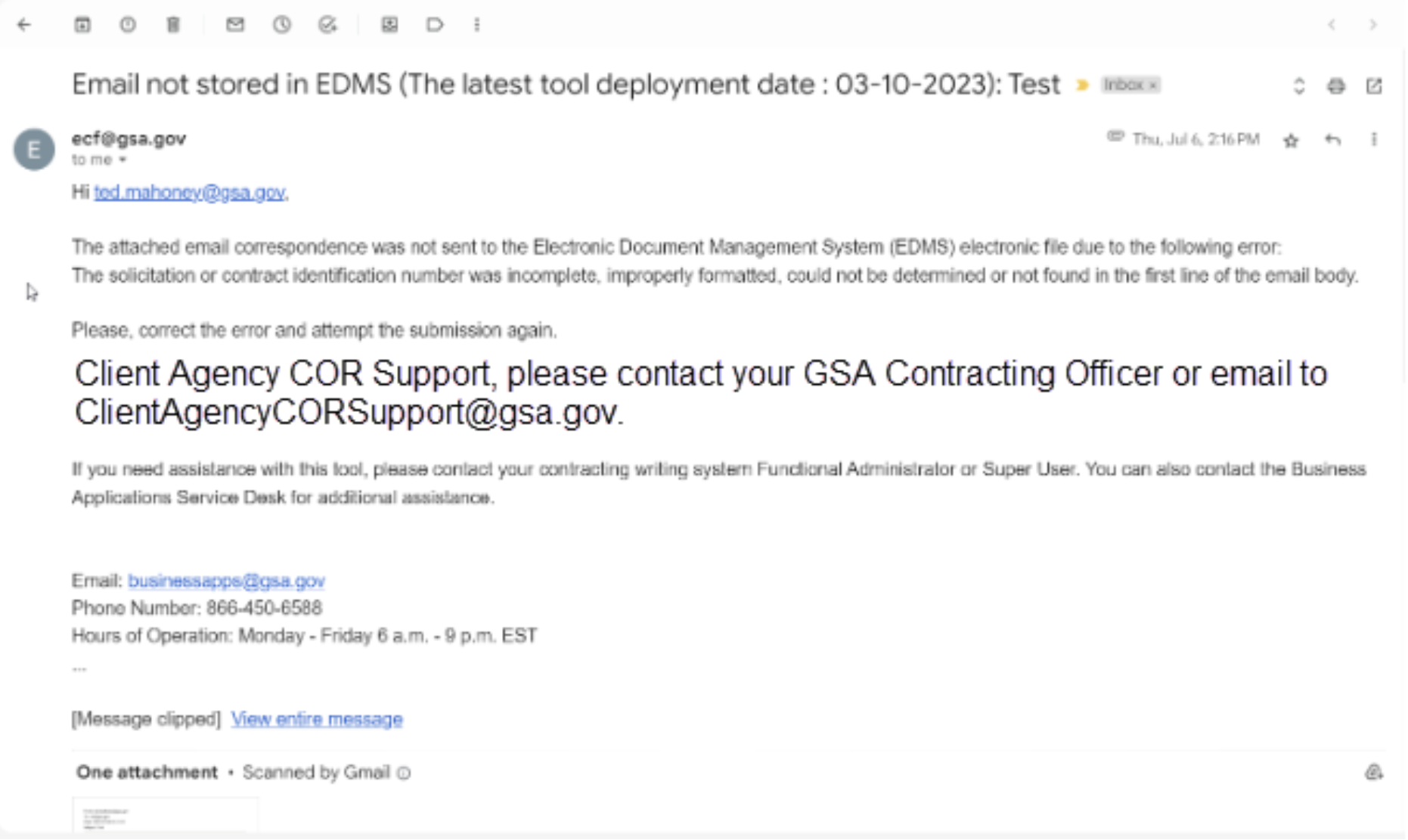
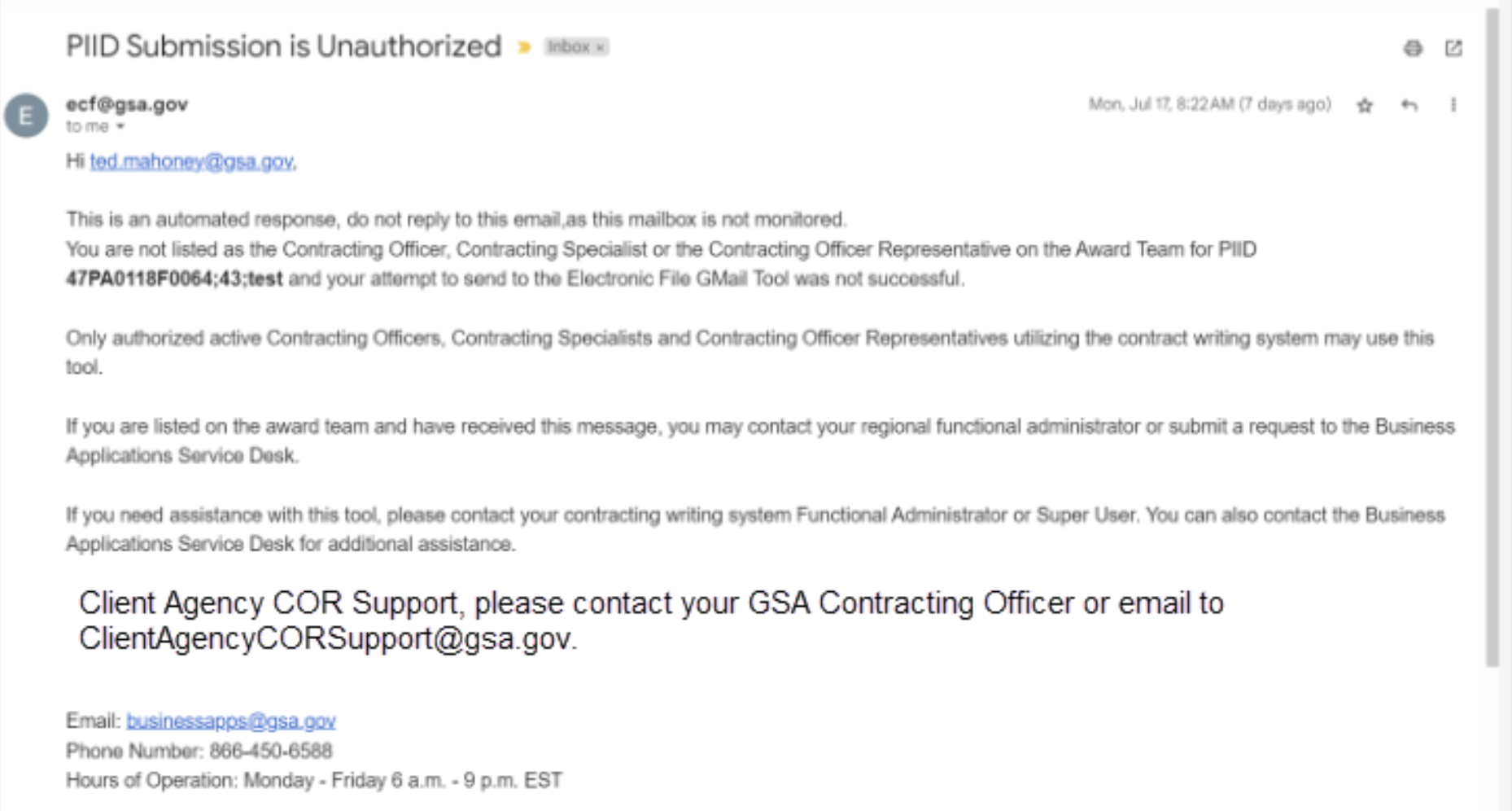
- The tool will queue your email and within three minutes the sender will receive a confirmation of the email posting into ECF or a failure for each of the PIIDs submitted. The emails and any attachments will be available for viewing within the ECF Browser on the entered Solicitation or Award Record. In the event of a failure you will be provided additional information on how to correct the error. Find examples of success and failure below.
File-naming guidance from PIB 18-02, Attachment 6
- Documents posted in the official electronic contract file system are part of the contract file and accessible by multiple parties within PBS.
- Access to contents of the file will be determined by the assigned roles in the contract writing system.
- Do not upload duplicate, draft or working contract files stored in EASi/EDMS.
- All documents uploaded to the electronic contract file system must follow these file naming requirements.
File-naming instructions
- Begin the document file name with a brief description that provides a narrative of the content, purpose or subject.
- Do not include the award or modification procurement instrument identifier, referred to as PIID, in the file name, as each electronic contract file folder will contain it. If you opt to include the PIID then it must be the complete PIID without any dashes.
- Include a date, where appropriate, in the file name using the YYYY MM DD format.
- Use the approval or signed date when the document contains such.
- If the document does not contain an approval signature, use another date identifier, for example: prepared date, or issued date.
- For best accessibility, spacing is used in dates (2018 04 01), instead of periods (2018.04.01) or other punctuation.
- Include the form number in the file name, if applicable.
- You may upload emails manually, or by using the automated application programming interface, or API, which allows users to send emails directly from Google Mail to EASi/EDMS. When using the API, the award PIID must be listed on the first line of the email and the subject line must contain the brief description, as this will become the file name. Additional information on using this email tool can be found in the EASi Hub.
- Avoid using abbreviations, codes and acronyms that are not common. You may use common GSA-wide abbreviations, for example: PBS, FAS, COR, and RWA.
- Use capital letters or a space to differentiate each word.
- Do not include special characters or symbols such as @,#,$,/,\ _,-, in folder/file name
- Do not include the word “final” in the file name unless it is denoting a final submission of a file.
- If a revision is required to a fully executed document you’ve already uploaded, include a revision identifier and revision date in the file name.
COR Electronic Contract File tab and contents, from PIB 18-02, Attachment 1
All applicable Electronic Contract File tab numbers and items are listed in the COR modification file checklist starting in the 42. COR submittals section.
Examples
Successful
Not successful
Invalid PIID or PIID not recognized
Unauthorized or user not recognized
Please send any requests for assistance via email to clientagencyCORSupport@gsa.gov, or contact your GSA contracting officer with any questions.


 U.S. General Services Administration