Tiles allow you to quickly navigate to the pages you use most frequently. Use this guide to add, move, or delete a tile.
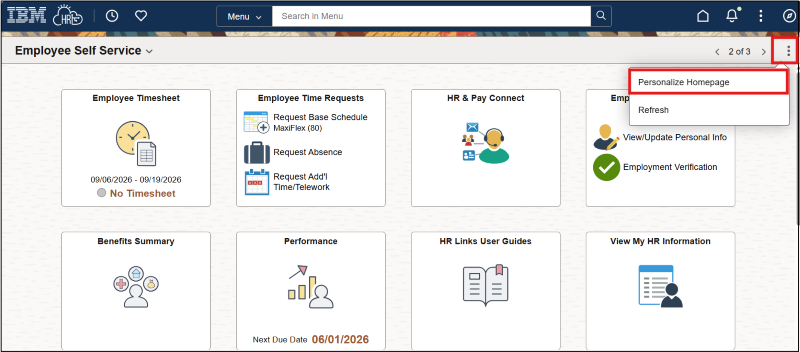
Select the Action menu (three vertical dots), then Personalize Homepage.
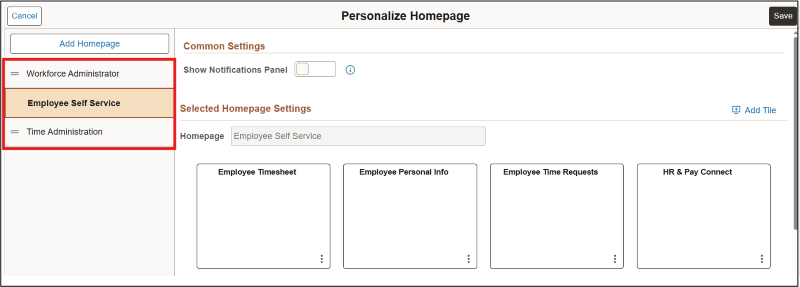
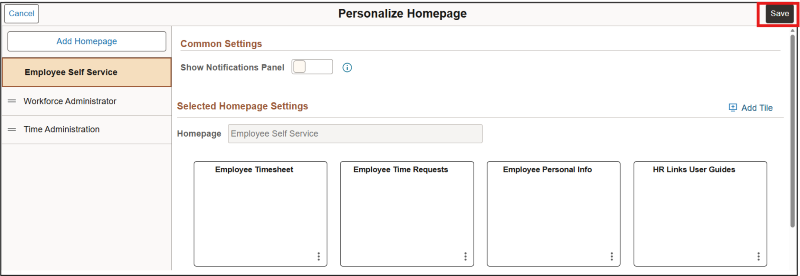
Select the homepage you want to modify. The available homepages depend on your assigned roles in HR Links.
- Make your desired modifications:
- To move a tile, drag and drop it to a new location.
- To delete a tile, select the trash icon in the upper right corner of the tile. Note that required tiles cannot be removed and will not display a trash icon.
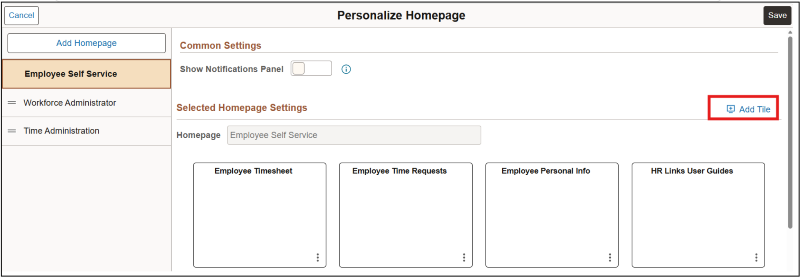
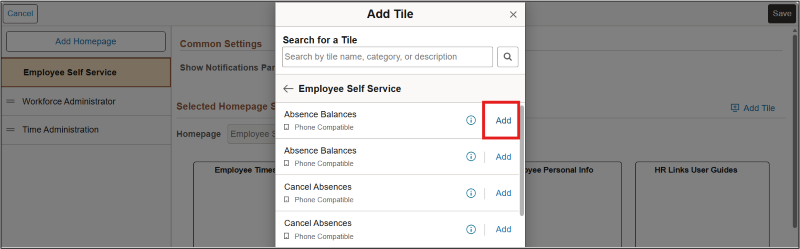
To add a tile, select Add Tile.
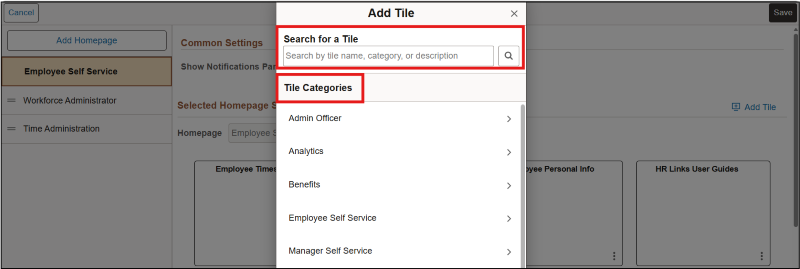
Search for the tile name or select it from the Tile Categories list. The search results will display only the tiles you have access to based on your HR Links roles.
Once you’ve located the tile you want to add, select Add to place it on your homepage.
Once you have finished making changes, select Save.


 U.S. General Services Administration