Enter and manage certain payroll-related data via Employee Self Service, or ESS. Most of the payroll-related data is housed under a View/Update My Payroll tile on a Payroll Dashboard.
- Navigate to the Employee Self Service home page.
- Select the View/Update My Payroll tile.
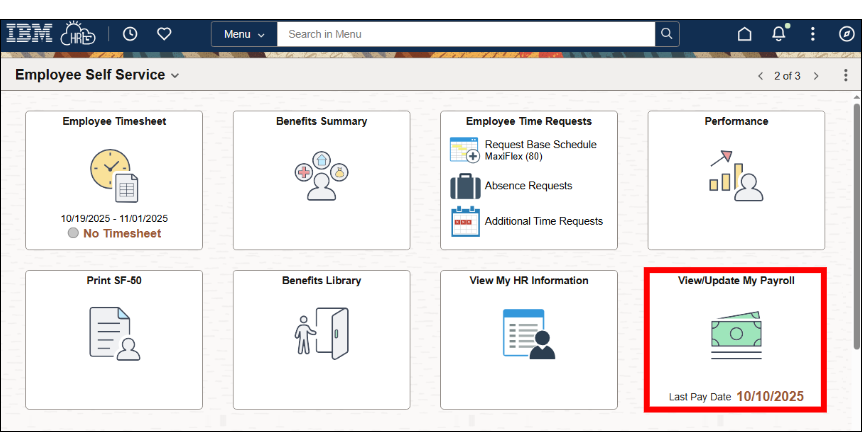
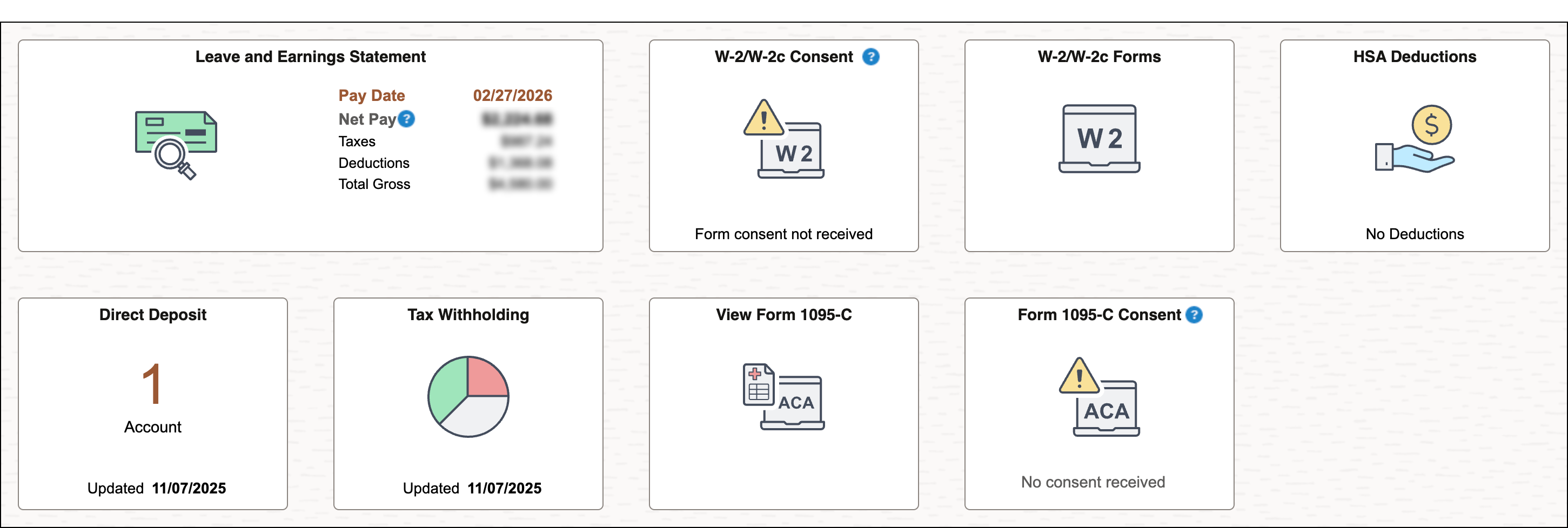
- Select a tile for more payroll-related information and actions. Find more information about each tile below.
Individual tile descriptions
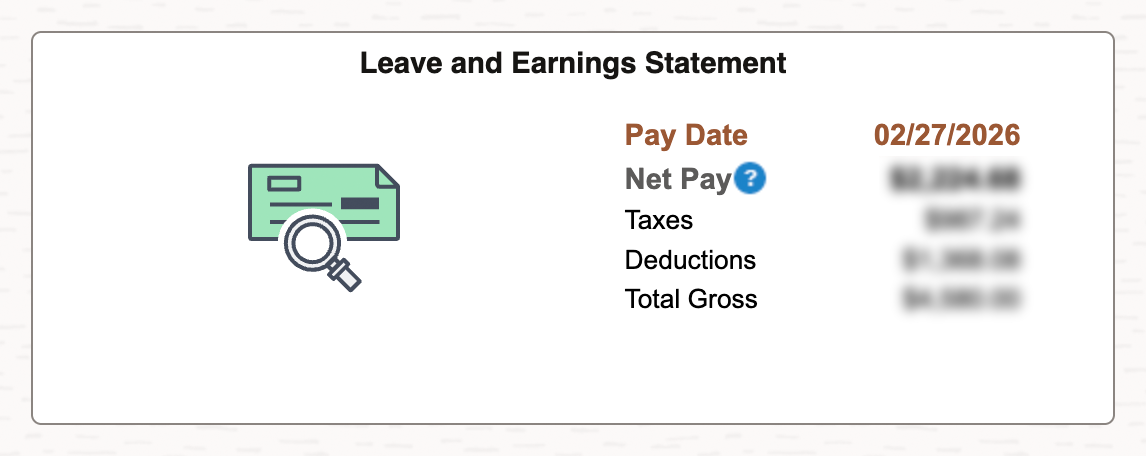
The Leave and Earnings Statement tile displays data from the latest LES. You can select the tile to view and print a history of your statements.
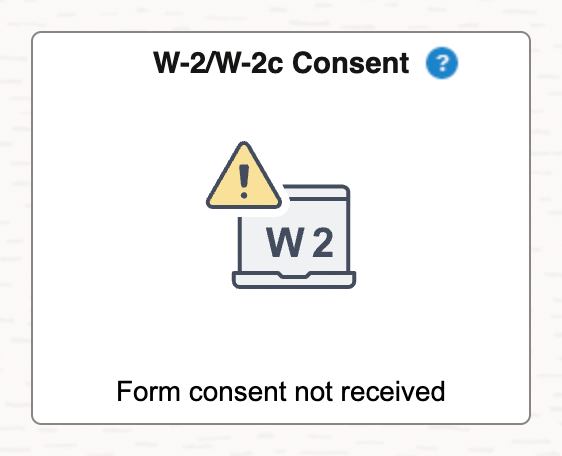
The W-2/W-2c Consent tile displays the status of consent. You can provide or withdraw consent to receive Forms W-2/W-2c electronically by selecting this tile and checking a box and submitting. You can change your preference at any time.
Your electronic consent status is reflected on the tile as:
- Form consent received = Electronic forms
- Form consent not received = Mailed forms
If you prefer to receive electronic forms, select the tile and check the I consent box, then select Submit.
On the W-2/W-2c Forms tile, view and print W-2/W-2c forms, starting with tax year 2026.
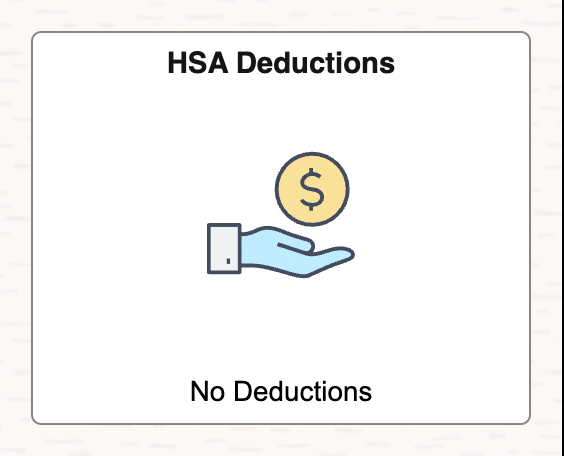
If you select the HSA Deductions tile you may view and submit HSA elections. Review, add, and update HSA deduction information there.
- Click Add Deduction to add a new HSA Deduction.
- Enter requested information and click Submit.
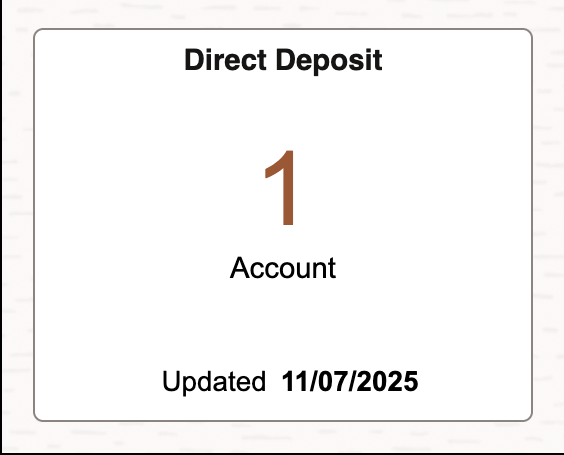
The Direct Deposit tile displays the number of direct deposit accounts. You can view, add, edit, remove, and reorder accounts.
- Click the + icon to add additional direct deposit accounts, up to the limit of 10.
- If you have more than one account, you can change the order (priority) that your money is distributed to accounts. To do this, drag and drop them into your preferred order.
The Tax Withholding tile allows you to view and update tax withholding forms (W4).
On the Tax Withholding page, to update your tax withholding information, click the arrow on any row (Federal or State) to the right of the Withholding Details column.
Then click the arrow to the right of Federal Withholding Allowance Certificate.
- Download and save the form to your computer, for example, to your desktop, downloads folder, or somewhere you can locate it.
- Open the saved Tax Withholding form in Adobe Reader and select Enable All Features if asked.
- Complete the form in Adobe Reader and Save to your computer.
- After saving, select Submit. Please note that you will receive an error if you do not have HR Links open in your default web browser when you click the Submit button.
- Follow the instructions to upload the PDF form to HR Links. Once the form is successfully uploaded, you will receive a confirmation on the page. Please note that residents from Ohio, Kentucky, Alabama, or Pennsylvania cannot update their Local tax withholding via Self Service in HR Links.
Click on View Form 1095-C to view and print Form 1095-C, starting with tax year 2026.
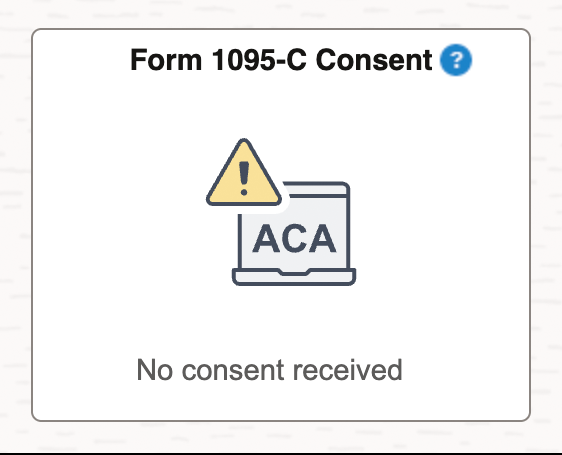
The Form 1095-C Consent displays the status of consent for this form. You can provide or withdraw consent to receive Form 1095-C electronically. You can change your preference at any time.
Your electronic consent status is reflected on the tile as:
- Form consent received = Electronic forms
- Form consent not received = Mailed forms
If you prefer to receive mailed forms, check the I withdraw my consent box and select Submit.


 U.S. General Services Administration